From the Master bus mode drop-down list, choose 5.1 Surround.
Select the Enable low-pass filter on LFE check box if you want to apply a low-pass filter
to each track that is assigned
to the LFE channel. Choose a setting from the Cutoff frequency for low-pass filter drop-down
list or type a value in the box to set the frequency above which audio
will be ignored by the LFE channel.
Applying
a low-pass filter approximates the bass-management system in a 5.1 decoder
and ensures that you're sending only low-frequency audio to the LFE channel.
Click OK.
The track headers and mixer switch to
5.1 surround mode.
When you're working in 5.1 surround mode, you'll need to
indicate where to send the output from your 5.1-channel mix.
Setting your default routing
Use the Audio
Device tab of the Preferences dialog to set default routing for 5.1
surround projects.
From the Options menu,
choose Preferences.
The Preferences dialog is displayed.
Select the Audio Device tab.
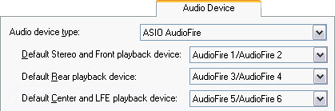
Choose a device from the
Audio device type
drop-down list. Choosing a device type other than Microsoft Sound Mapper or Direct Sound Surround Mapper will allow you to choose specific devices
for playback of each of the three stereo pairs.
NOTE
Please refer to your sound card's documentation
to determine the type of driver you need to use for surround output.
From the Default Stereo and Front playback device drop-down list, choose the device where your front
speakers are connected.
From the Default Rear playback device drop-down list, choose the device where your
rear speakers are connected.
From the Default Center and LFE playback device drop-down list, choose the device
where your center speaker and subwoofer are connected.
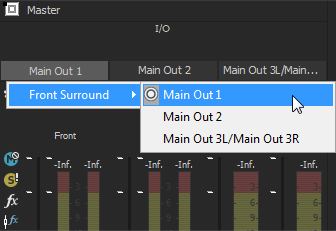
Overriding default device routing
If you've selected a setting
other Microsoft Sound Mapper or Direct Sound Surround Mapper from the Audio device type drop-down list, you can override the default device
routing at any time.
NOTE
Please refer to your
sound card's documentation to determine the type of driver you need to
use for surround output.
Connect powered speakers to your sound
card's outputs as indicated by your sound card's documentation.
or——
Connect your sound card's front, rear,
and center/subwoofer outputs to the appropriate inputs on a 6-channel
amplifier/home theater receiver. Connect front, rear, center, and LFE
speakers to the amplifier.
Using a sound card with six outputs
Connect powered speakers to your sound
card's outputs. The left channel of the Center/LFE pair is the center
channel; the right channel is the LFE channel.
or——
Connect your sound card's outputs
to the appropriate inputs on a 6-channel amplifier/home theater receiver.
Connect front, rear, center, and LFE speakers to the amplifier.
NOTE
The audio cables you'll
need will depend on your specific hardware.
Using three stereo sound cards
Connect powered speakers to your sound
cards' outputs where you have routed each of the pairs of channels. The
left channel of the Center/LFE pair is the center channel; the right channel
is the LFE channel.
or——
Connect your sound cards' outputs
to the appropriate inputs on a 6-channel amplifier/home theater receiver.
Connect front, rear, center, and LFE speakers to the amplifier.
Multiple sound card
setups may not work with ASIO drivers. You can only use a single ASIO
driver at a time, and some ASIO drivers can conflict with other audio
driver models (such as WDM and wave drivers).
NOTE
The audio cables you'll
need will depend on your specific hardware. For a typical application,
you'll need three cables: each will have a 3.5 mm stereo plug on one end
and dual RCA connectors on the other.