Automatic Crossfades

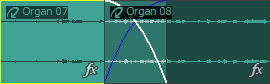
From the Options menu, choose Automatic Crossfades if you want to automatically create crossfades when you overlap two audio events.
NOTE Event crossfades are not available for MIDI events.

Create a crossfade Closed

You can easily create crossfades between events by simply dragging an event.

  1. From the Options menu, choose Automatic Crossfades to turn on automatic crossfades.

  2. Drag an event so that it overlaps another event on the same track.

    A crossfade is automatically added to transition smoothly between the two events.

Change the fade type Closed

You can change a crossfade to use one of many combinations of fast, slow, linear, smooth, and sharp fade curves.

  1. Right-click the overlapping area to display a shortcut menu.

  2. Choose Fade Out Type from the shortcut menu and choose a fade curve from the submenu to set the curve for the first event's fade out.

  3. Choose Fade In Type from the shortcut menu and choose a fade curve from the submenu to set the curve for the first event's fade in.