The Plug-In Manager Window
From the View menu, choose Plug-In Manager to toggle the display of the Plug-In Manager window.
This window organizes your DirectX and VST plug-ins (VST effects and instruments), and ReWire devices.
You can use this window to access effects and effects packages that can be applied to events, tracks, busses, assignable effects chains, and soft synth busses. You can also rename and reorganize plug-ins.
For information about adding effects to your project, see Adding Effects.
TIP To add an effect quickly, drag a plug-in from the Plug-In Manager window to a track, bus, assignable effects chain, or soft synth bus.
Scan your computer for plug-ins
Scanning your computer for VST plug-ins is a two-stage process: first, you need to tell Acid where your plug-ins are installed, and then you can scan those folders for plug-ins.
NOTE You don't need to scan for DirectX or ReWire plug-ins. These plug-ins are registered with Windows and are detected automatically.
-
From the View menu, choose Plug-In Manager if the window isn't already visible.
-
Click the Configure VST button
 at the top of the Plug-In Manager window. The Plug-In
Configuration dialog is displayed. The dialog displays a list of folders
where Acid looks for VST plug-ins.
at the top of the Plug-In Manager window. The Plug-In
Configuration dialog is displayed. The dialog displays a list of folders
where Acid looks for VST plug-ins. -
Indicate where your plug-ins are installed:
-
If you want to add a new folder, click the Add button and then browse to the folder where your plug-in is installed.
-
If you want to edit an existing folder path, select a folder in the Search Folder column, click the Edit button, and then browse to the folder where your plug-in is installed.
-
If you want to remove an existing folder, select a folder in the Search Folder column and click the Remove button.
-
-
Click the Scan button to start scanning your folders for plug-ins.
View plug-ins
When you open the Plug-In Manager window, an Explorer view is displayed with separate folders for your plug-ins.
|
Folder |
Description |
|
Audio FX |
Displays all your DirectX and VST audio plug-ins. You can drag plug-ins to tracks or Mixing Console channel strips to add effects to your project. Select the All folder to display all audio plug-ins.
The Audio FX folder also contains additional folders you can use to organize and categorize your plug-ins. Please see "Organize plug-ins with folders" in this help topic for more information. |
|
ReWire Devices |
Displays your ReWire device (client) applications. Select the All folder to display all ReWire clients. The Ignored folder contains plug-ins that you want to prevent Acid from using without uninstalling the plug-in. You can right-click a plug-in and choose Ignore from the shortcut menu or drag it to the Ignored folder. The ReWire Devices folder also contains a Favorites folder you can use to keep your most-often-used ReWire clients handy. You can right-click a plug-in and choose Add to Favorites from the shortcut menu or drag it to the Favorites folder. To create custom folders for organizing your plug-ins, you can right-click a folder and choose New Folder from the shortcut menu. |
|
Soft Synths |
Displays all your VST instrument (VSTi) plug-ins. Select the All folder to display all soft synths.
The Soft Synths folder also contains subfolders you can use to organize and categorize your plug-ins by instrument type and vendor. Please see "Organize plug-ins with folders" in this help topic for more information. |
The toolbar at the top of the window helps you navigate the Plug-In Manager window and adjust its display.
|
Item |
Name |
Description |
||||
|
|
Address Bar |
Displays the current folder. You can choose a folder from this drop-down list or click a folder in the tree view to navigate the Plug-In Manager. |
||||
|
|
Tree View |
Displays all of the folder that you can use to organize your plug-in. |
||||
|
Contents Pane |
Displays the contents of the selected folder. |
|||||
|
|
Up |
Opens the folder one level above the selected folder. |
||||
|
|
Refresh |
Refreshes the contents of the active folder. |
||||
|
|
New Folder |
Adds a new folder where you can drag plug-ins. |
||||
|
|
Delete |
Deletes a user-created folder or removes the selected plug-in from a user-created folder. When you delete a folder, only the folder is deleted. The plug-ins remain on your system. Only user-created folders can be deleted. |
||||
|
|
Views |
Click the down arrow next to the Views button and choose a command from the menu to change the way the plug-ins are displayed.
|


Organize plug-ins with folders
The Audio FX , ReWire Devices, and Soft Synths folders contain subfolders to help you organize your plug-ins. Several folders are displayed by default, and you can add your own folders. Each plug-in can be assigned to multiple folders, but audio plug-ins and soft synths can be assigned to only one category.
If you want to create a folder to group your plug-ins, select
a folder and click the New Folder button  on the toolbar (or right-click a folder and choose New Folder from the shortcut menu).
To add a plug-in to a folder, drag the plug-in from the right-hand pane to a folder.
To remove a plug-in from a folder, navigate to the folder,
select the plug-in, and click the Delete
button  on the toolbar.
Displaying audio plug-in folders in the Mixing Console window
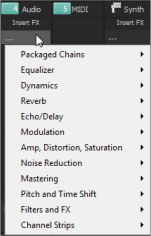
You can use folders and categories to organize plug-ins in the Mixing Console window.
|
When you click the Insert FX button in the Mixing Console, plug-ins are grouped into submenus. If you want to use folders and categories to organize plug-ins in the Mixing Console window, right-click a folder in the Plug-In Manager and choose Show in Insert FX Submenu from the shortcut menu. If you want to remove a folder or category from the Mixing Console window, right-click a folder in the Plug-In Manager and choose Show in Insert FX Submenu from the shortcut menu to deselect the Show in Insert FX Submenu command. |
|
Show or hide folders
To simplify the Plug-In Manager, you can choose to hide specific folders.
You can hide the following folders (default folders cannot be hidden):
-
User-created folders
-
Failed, Unavailable, and Ignored folders
-
DirectX, VST, and Track Optimized folders
Hiding a folder
Right-click a folder in the Plug-In Manager and choose Hide from the shortcut menu.
Showing hidden folders
-
Right-click a folder and choose Properties from the shortcut menu.
-
Click the Show all Hidden Subfolders button. All hidden folders below the selected folder are shown.
Classify audio plug-ins and soft synths with categories
Categories help you organize your plug-ins by type. The Audio FX folder contains several default categories, and the Soft Synths folder contains an Instruments folder with default instrument categories. You can also create your own categories to help you organize your plug-ins.
Each plug-in can be assigned to only one category.
If you want to create a new category, select the Categories
folder and click the New Folder button on the toolbar. To add a plug-in to
a category, perform either of the following actions:
-
Drag the plug-in from the right-hand pane to a category.
-
Right-click a plug-in in the right-hand pane, choose Assign to Category from the shortcut menu, and then choose a category from the menu.
To change a plug-in's category, perform either of the following actions:
-
Navigate to the folder, select the plug-in, and drag it to a different category folder.
-
Right-click a plug-in in the right-hand pane, choose Assign to Category from the shortcut menu, and then choose a category from the menu.
If you want to edit a category, right-click its folder and choose Properties from the shortcut menu. You can edit the category's name (only for user-created categories), short name, and description. Default categories are locked, but you can clear the Locked check box to edit them.
Rename a plug-in
If you want to change a plug-in's name, right-click the plug-in in the Plug-In Manager window and choose Rename from the shortcut menu. You can then type a new name in the edit box.
To reset a plug-in's default name, right-click the plug-in and choose Reset Name from the shortcut menu.
Ignore a plug-in
If you want to prevent Acid from using a plug-in, but you don't want to uninstall the plug-in, you can ignore it: just right-click a plug-in and choose Ignore from the shortcut menu.
To re-enable an ignored plug-in, right-click a plug-in and choose Ignore from the shortcut menu to deselect the Ignore command.
Edit plug-in or folder properties
Right-click a plug-in and choose Properties from the shortcut menu to display a Properties dialog. You can use the plug-in properties dialog to change the name, vendor, or category of a plug-in or to add it to the Favorites folder.
Right-click a folder and choose Properties from the shortcut menu to display a Properties dialog. You can use the folder properties dialog to change the name or description of a folder, show hidden folders, lock/unlock a folder, or show the folder on Insert FX submenu in the Mixing Console.
Use audio plug-ins
When viewing plug-ins in the Audio FX folders, the following icons are used to represent your plug-ins:
|
Icon |
Description |
|
|
Represents a DirectX audio plug-in. |
|
|
Represents a DirectX audio plug-in that supports automation. |
|
|
Represents a VST audio plug-in. |
|
|
Represents a locked VST plug-in. When you use a VST plug-in in your project, Acid will lock it for the remainder of your Acid session. A lock is displayed to indicate that the plug-in cannot be removed until you close and restart the application. |


To add plug-ins to your project, you can drag them from folders in the Plug-In Manager window to tracks or channel strips in the Mixing Console window.
Use ReWire devices
When viewing ReWire devices in the ReWire Devices folders, the following icons are used to represent your plug-ins:
|
Icon |
Description |
|
|
Represents a ReWire device that is not currently in use. |
|
|
Represents a ReWire device that is currently in use by a soft synth bus. |
|
|
When you select a ReWire device, its outputs are displayed on the right side of the Plug-In Manager window. This icon represents an unused ReWire output. |
|
|
Represents a ReWire output that is in use. |


To add a ReWire device to your project, select a ReWire
device  in the left-hand pane to display its
outputs in the right-hand pane. You can then right-click an output
in the left-hand pane to display its
outputs in the right-hand pane. You can then right-click an output  and
choose Insert Rewire Device Bus from the
shortcut menu to add a soft synth bus to the Mixing Console window.
and
choose Insert Rewire Device Bus from the
shortcut menu to add a soft synth bus to the Mixing Console window.
Use soft synths
When viewing soft synths in the Soft Synths folders, the following icons are used to represent your plug-ins:
|
Icon |
Description |
|
|
Represents a soft synth. |
|
|
Represents a locked VSTi plug-in. When you use a VSTi plug-in in your project, Acid will lock it for the remainder of your Acid session. A lock is displayed to indicate that the plug-in cannot be removed until you close and restart the application. |

To add a soft synth to your project, right-click a soft
synth  in
the right-hand pane and choose Insert Soft Synth from
the shortcut menu. A soft synth bus is added to the Mixing Console window.
in
the right-hand pane and choose Insert Soft Synth from
the shortcut menu. A soft synth bus is added to the Mixing Console window.
Last modified on July 01, 2026
Was this page helpful?
What did you particularly like about this page?
What did you dislike about this page?
Thank you for your feedback.