From the Options menu, choose Ripple Edits if you want to shuffle existing events when you cut, delete,
and paste events in the specified track.
Ripple edit mode is not available unless you're using the Time Selection
tool .
TIP Pasting
in ripple edit mode ripples only the events on tracks where events will
be pasted. If you want to ripple all tracks, you can use the Paste Insert command.
Depending on the type of selection you have made, the results
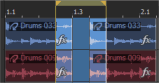
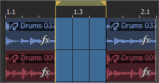
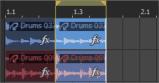
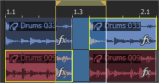
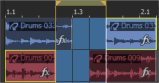
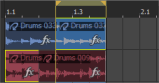
will differ. Following are graphic examples displaying events being cut
with and without ripple mode enabled:
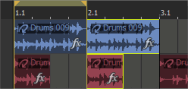
Time selection
Clipboard
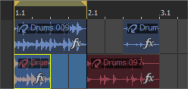
Events after cut without ripple mode
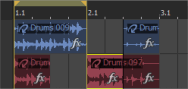
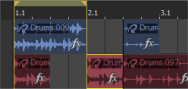
Events after cut with ripple mode
Time/event selection
Clipboard
Events after cut without ripple mode
Events after cut with ripple mode
From the Options menu, choose
Ripple Edits.
Select the Time Selection
tool .
Select the events you want
to cut. If you want all events within a time selection to be cut, do not
select any events and continue to step 4.
Drag along the marker bar
to make a time selection. All events, and/or portions of events within
the region are highlighted.
From the Edit menu, choose
Cut. The events
are removed and copied to the clipboard. The remaining events are moved
along the timeline to fill the empty time space.
Depending on the type of selection you have made, the results
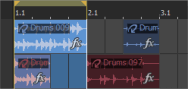
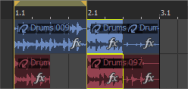
will differ. Following are graphic examples displaying events being pasted
with and without ripple mode enabled:
Time selection copied
Pasting time selection without ripple mode
Pasting time selection with ripple mode
Time/event selection copied
Pasting time/event selection without ripple mode
Pasting time/event selection with ripple mode
From the Options menu, choose
Ripple Edits.
Position the cursor where
you want the events to be pasted.
From the Edit menu, choose
Paste. The events
from the clipboard are inserted at the cursor position. The remaining
events are moved over on the track.
NOTE Events will always be pasted back in their own tracks.
Depending on the type of selection you have made, the results
will differ. Following are graphic examples displaying events being deleted
with and without ripple mode enabled:
Time selection
Events after delete without ripple mode
Events after delete with ripple mode
Time/event selection
Events after delete without ripple mode
Events after delete with ripple mode
From the Options menu, choose
Ripple Edits.
Select the Time Selection
tool .
Select the events you want
to delete. If you want all to delete all events within a time selection,
do not select any events and continue to step 4.
Drag along the marker bar
to make a time selection. All events, and/or portions of events within
the region are highlighted.
From the Edit menu, choose
Delete. The
events are removed from the track and the remaining events are moved on
the track to fill the empty time space.
 .
.