Working with Melodyne
Melodyne from Celemony Software lets you make extremely detailed edits to the pitch, timing, and spectrum of audio material, and even change the melody of individual instruments within complete mixes.
Older versions of Acid Pro supported Melodyne as a VST plug-in. Starting from Acid Pro 9, a special program interface from Melodyne (ARA2 = Audio Random Access) integrates Melodyne (starting from version 4) seamlessly into the Acid Pro interface.
Set up the Melodyne integration
To use Melodyne in your Acid Pro workflow, first install the VST3 plug-in version of the software.
-
Click the Configure VST button
 to open the Configure VST dialog.
 -
Set the search path for VST3 plug-ins (usually C:\Program Files\Common Files\VST3\) as the Default VST search folder.
NOTE An entry level version of Melodyne, Melodyne Essential, is included with Acid Pro.
Edit events with Melodyne
To open an event in Melodyne, do one of the following:
-
Right-click the event and choose Edit Event with Melodyne... from the context menu.
-
Select the event and press Shift + M.
You cannot load the Melodyne VST plug-in into the plug-in chain via the Plug-in Chooser. Although it is listed there, Acid Pro will not load it this way. The ARA interface needs access to the whole audio data in the host application, so the plug-in cannot simply be included in a normal plug-in chain.
Acid Pro loads Melodyne, analyzes the audio data, and opens the Melodyne Editor window, where the audio appears as a typical Melodyne "blob".
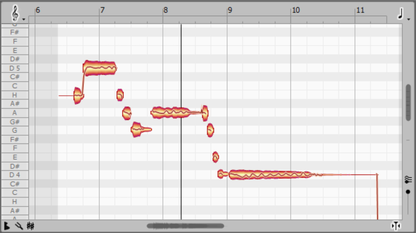
The blob view is a mix of piano roll and waveform display. Here you can copy, move, lengthen, shorten, and play back all notes.
The scope of possible edits depends on the Melodyne version and ranges from pitch and timing changes to detailed intonation control in polyphonic material and spectral editing of multiple tracks.
TIP To use Melodyne to its full capacity, watch the video tutorials on the Celemony website.
You can close the Melodyne Editor window at any time. To show it again, choose Melodyne Editor from the View menu.
To remove the Melodyne edits from an event, choose Remove Event from Melodyne... from the event's context menu.
Edit a track or the whole project
To edit a whole track, choose Edit Track with Melodyne... from the event's context menu instead of Edit Event with Melodyne.... Acid Pro analyzes every event on the track and shows each one in the Melodyne Editor when you select it.
To edit every audio event in the project, choose Edit Project with Melodyne.
Last modified on July 07, 2026
Was this page helpful?
What did you particularly like about this page?
What did you dislike about this page?
Thank you for your feedback.