Loading Audio Files for Audio Editing
To edit audio files directly in Music Studio, open them as a wave project:
-
Select Menu File > Import > Load audio file…. (Keyboard shortcut: W) If a virtual project is already selected, you must activate the option Load file as wave project in the file selection dialog, otherwise the file will be imported as an object into this project instead.
-
Drag audio files from the Music Studio file manager or Windows Explorer to the title bar of the program window or project docker.
To open the audio file of an object in a virtual project, double-click it while holding the Shift key. Alternatively, you can also select the option Edit audio data > Wave Editing… in the Object menu.
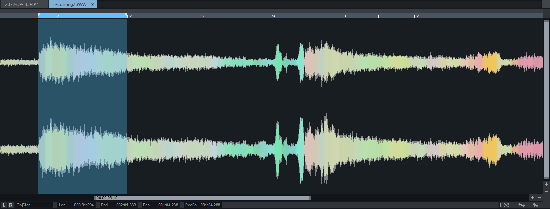
The range in the audio file used by the object is selected as range in the wave project.
If you edit an audio file that is used in several objects with Wave editing…, all objects in the VIP will then access the edited audio file and the edits will affect each of these objects.
If you want to edit the audio file only for a specific object, select Object > Edit audio data > Edit copy of wave project…. Music Studio will create a copy of the audio material and add this to the project folder. The selected object now refers to the copy that has been created. After editing, the edited copy and the original file are available as Take of the object.