Score Settings
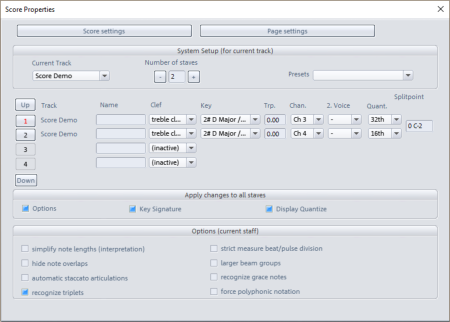
In this dialog you define all settings for the staves, the interpretation and distribution of the MIDI data to the staves.
At Current track you select the track whose settings are being edited and use Number of staves to determine how many staves are created for this track. In the menu Current track only the tracks on which the selected objects are located appear. Therefore, if you have selected only one MIDI object, only this track will be displayed in this menu
Presets: These are preprogrammed standard settings for certain instruments or instrumentation such as string quartet, piano or orchestra. By selecting a preset, the note image can be made more readable and clearer in just a few steps.
In the table below, the settings of the staves of all involved tracks are listed one below the other. The list of the staves can be scrolled vertically using the Up/Down arrow buttons. The active stave is recognizable via the index marked in red.
For each stave there are the following settings:
-
Name: The name of the stave, on the far left under the clef
-
Clef: The clef for the stave. Within the stave it is possible to change the clef. With the help of the +/-12 clef option, octave notation is possible.
-
Key: The key of the stave determines which accidentals apply to the entire stave.
Attention: You cannot insert a key change in a staff. As a workaround, you can create an additional track and select a different key for this track in the score settings.
-
Trp.: For transposing instruments you can set here an offset by which the notes are transposed (e.g. +2 for trumpet in Bb, -3 or +9 for alto saxophone in Eb).
-
Channel: A MIDI channel can be specified for the automatic assignment of notes to the different staves. For more on this, see Note Assignment in Multiple Systems below.
-
2. Voice: A MIDI channel can also be assigned for the automatic assignment of a second voice (direction of the note stem).
-
Quant.: Using the display quantization you can set the rhythmic resolution of the note display, independently of the actual quantization. For example, you can display a freely recorded and unquantized track in sixteenth notes. The display quantization does not have any influence on note playback, but rather adapts the note display to a grid.
Set the value to the smallest note value occurring in the sequence. A display quantization that is too fine can result in an unreadable display.
-
Split point: The split point is also used to automatically assign the notes to the staves: Notes above the split point are assigned to the upper system, notes below the split point to the system below.
In the lower area, the options for interpreting the active stave are displayed.
Changes to the settings for the options, key and display quantization are applied to all staves by default. With the checkboxes you can change this behavior, so you can also set different options for each stave in a system