Controls of the Surround Editor
At Mode you can choose from
Note: The following is an initial description of the controls that exist in all modes except Matrix mode. Other parameters that are specific to certain modes are explained in the section Panorama modes in the Surround Editor.
The speaker channels of the surround setup are shown as blue circular areas. Their position in the Surround Panorama Field is dependent on the selected mode. If a channel is shut off using "Mute", it is displayed as a gray circle. The sound source to be positioned is displayed as a red circular area, with a corresponding setting at Pan L/R also as two circular areas.
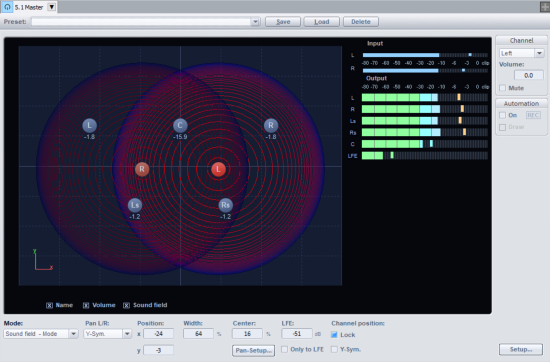
The following additional information is displayed:
Name: The loudspeakers are labeled with the abbreviations specified in the "Surround Setup" window.
Volume: The level readout below the speakers indicates the value of the signal portion that is given from the sound source to the assigned surround channel. If a stereo mode (X-Sym., Y-Sym., XY-Sym., Parallel) is set under "Pan L/R", the sum of the levels of both stereo sources is displayed. Click on one of the two sound sources with the Shift key held down to display only the level value of this source.
Sound field: Depending on the mode being used in the Surround Editor, the sound field is displayed either as a red surface or as concentric circles.
You can hide the display elements Name, Volume and Sound field" by deactivating the corresponding options.
Pan L/R: In the Surround Editor, both mono and stereo sources can be positioned in the panorama. The function Pan L/R determines which way the mono and stereo signals will be arranged. For more information, please read the section Stereo and mono signal processing in Surround projects.
Position: Normally you drag the sound source with the mouse to the desired position. For precise position information, enter the position directly using the number fields x/y. The values can also be changed by dragging the mouse vertically over the number field, or you can use the mouse wheel to make incremental changes.
When dragging the sound source with the mouse on the graphical interface, you can restrict the movement by pressing the following keys simultaneously:
-
x + Mouse movement: Only a position change parallel to the x-axis is possible.
Result: L -> R movement
-
y + Mouse movement or z + Mouse movement: Only a position change parallel to the y-axis is possible.
Result: Front -> Rear movement
-
c + mouse movement: The distance of the sound source to the coordinate origin (position x=0, y=0) remains the same. The result is a circle.
Result: Circular movement
-
a or r + Mouse movement: The sound source can only be moved diagonally. A straight line starting from the initial position of the sound source and passing through the coordinate origin of the panoramic field defines the course of this movement.
Result: Diagonal movement with constant angle.
Pan Setup: see Pan Setup
Center: This parameter controls the portion of the center channel for assignment of the sound source to the front channels. For certain applications (e. g. film sound) it is normal to reserve the center channel exclusively for dialog and to position music and background noises outside of it. A signal placed directly in the center is played back only by the center channel in 5.1 format if the center = 100%; at 0% this is only a phantom sound source that is output by the left and right channels. This parameter is often referred to as "divergence".
LFE(Low Frequency Effect): In this field you can determine the level component of the signal that will be routed to the LFE channel.
LFE only: The source is routed only to the LFE channel.
Input: Peak meter for the input signal. Mono input signals are displayed in both scales of the input meter.
Output: Level meters of the individual channels of the surround bus/master. Only the level components from the audio currently being edited in the Surround Editor are displayed.
Channel: Mutes or changes the level of the bus outputs of the Surround Editor to the Surround buses. Deactivated bus outputs/speakers are displayed as gray circles in the panorama field.
Automation: see Automation in the Surround Editor
Presets: Save your own frequently used surround editor settings as a preset. In addition to the position of the sound source, the mode and the settings of Pan L/R are also saved.
All surround presets are available also with a left click on the Surround pan display in the mixer. There are also a couple of pre-defined settings for frequently used pannings.