File Manager
Sequoia contains a file manager that can be used to preview files and load them directly into projects. The file manager allows you to create favorite folders and access the recently opened folders.
To display the file manager, select menu View > Manager > File Manager.
|
Keyboard Shortcut: |
Ctrl + Shift + B |
|
|
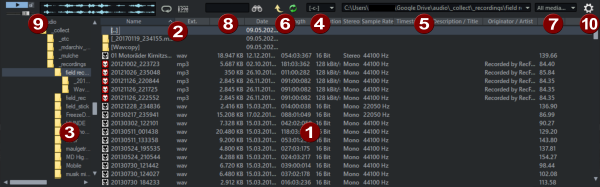
The file manager works in a similar way to Windows Explorer. Folder and files are listed with folder and file icons. |
|
|
The list can be sorted by clicking on the respective column header. Another click switches between ascending and descending sorting. In the context menu of the column header you can select the displayed columns. |
|
|
On the right side is the folder list, which works just like the one in Windows Explorer. It can be hidden in the file manager options. |
|
|
The drive selection menu allows you to quickly switch between all available storage media. |
|
|
Use the Favorites menu to switch to frequently used folders. It initially contains various default folders of the system, the current project folder and all recently visited folders. With Add current folder as favorite… you add the current folder to the list, you can specify a name. |
|
|
Use the buttons to switch to the parent folder and re-read the file list. |
|
|
The display filter allows you to limit the display to certain media types, e.g. only WAV |
|
|
The search field allows you to search the current folder for folders or files. Enter a search term in the input field and click the binoculars icon or press the Enter key. |
|
|
File preview controls |
|
|
File Manager Options |


In this section