DeHisser
The DeHisser is used to eliminate uniform, low-level white noise typically caused by microphone preamps or AD converters. Unlike for the DeNoiser, a Noise Sample is not required.
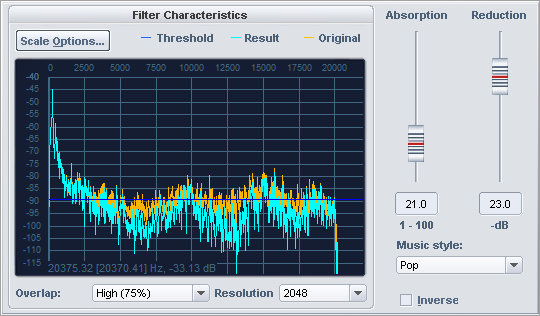
Graphic Display Description
The vertical axis to the left shows the level of the spectrum, while for the horizontal axis you may choose between displaying frequency or notes.
The yellow curve displays the original spectrum of the signal. Here, the spectral analysis is performed over the first second at the beginning of the selected audio section.
The light blue curve represents the spectrum after manipulation by the algorithm.
The dark blue line represents the threshold of the Absorption parameter.
If the threshold is higher than the level of the spectrum (i.e. the dark blue line is above the yellow curve), the signal for De-hissing will be filtered out for these frequencies.
Settings and Controls
| Parameters | Description |
| Absorption (1-100) |
With this parameter a threshold value will be set for differentiating the signal from noise. The right setting for this parameter is crucial for good results. In comparison to noise reduction, where this setting will be automatically determined from a noise sample, with the de-hisser, you have to determine the noise level manually in relation to an absolute noise level. Low settings can lead to incomplete noise removal or increased artifacts. High settings can cause discoloration of the original audio, phase-like distortion or chirping modulation effects. The louder the noise, the more precisely your should try to set the DeHisser. |
| Reduction (0-30) dB |
Set the noise reduction here. The highest possible reduction value is 30 dB. In practice, extremely quiet passages, like the slow fading out of one instrument prove to be critical – here the noise level can exceed that of the audio signal. Limit yourself to a lower Reduction value (-10 -15 dB) to avoid side effects like artifacts. |
| Music style | Minimize artifacts by selecting a fitting music style to aid in determining transients in the signal and by de-hissing only between them. |
| Inverse |
If this switch is activated, you will hear only the part of the signal that is removed by the algorithm. If the correction parameters are set optimally, only the noise will be audible. If the correction parameters are too high, parts of the music or speech signal will also be filtered, which will discolor the music. When Inverse is active, the Reduction parameter will have no influence. |
|
Scale options |
The scale options correspond to those in the FFT filter. |
| Overlap | This parameter controls the overlap of the time windows for the calculations of the spectrum. Higher values improve the result, but also increase CPU load. |
| Resolution |
This parameter allows you to select the internal resolution of the algorithm. Higher resolutions do not automatically mean better results - the optimal setting depends on the audio signal. |
Operation
- Find a critical place in the audio material to preview. Critical points are the quietest points, since the noise here has a relatively high level compared to the useful signal.
- Set the Reduction parameter to the highest value (-30 dB).
- Slowly increase the value of the Absorption setting. There are four stages in this process:
Stage 1: If the value is very low, no noise will be removed.
Stage 2: The noise is partially removed. Depending on the level of the noise signal, a small number of artifacts may be introduced.
Stage 3: The noise is completely removed.
Stage 4: If the value is very high, not only will the noise be removed, but also a part of the signal.The audio material will lose its brilliance and sound duller. Click Inverse" to hear the removed parts of the audio signal.
Optimal settings are usually available in Stage 3, where the noise signal will already be removed, but the audio signal is played back unaltered.
It often helps to listen to the critical parts with high volume and additionally boosted treble.
- If the noise cannot be removed without affecting the sound, now reduce the value for the parameter Reduction until you achieve the best possible compromise between reducing the noise on the one hand and still having an acceptable effect on the sound of the audio material on the other.
To remove humming noise, please use the DeNoiser.