Macro Functionality
 Expand all
With macros you have the possibility to combine frequently needed consecutive commands as a macro and execute them together.
-
With the control commands used in the macros (referred to as "macro commands" in the following), Sequoia can also be operated via text input, e.g. search for specific object or track names, filter the displayed tracks by name, zoom, scroll and much more!
-
If you are using an EUCON controller, you can assign softkeys to the macros in the EUControl app. In order for the macros to be available in the EUcontrol app, it must first be restarted.
To record macros, click the magnifying glass icon on the command search bar and select Record Macro from the menu or select Menu File > Program Preferences > Record Macro.
|
For this function, you can also add a dedicated icon to the toolbar
|

|
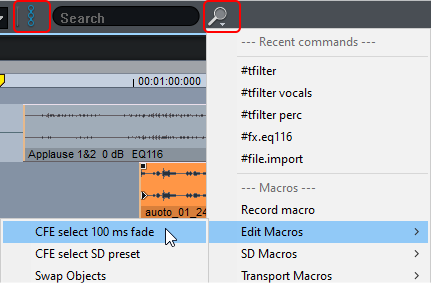
-
Execute the commands consecutively that you want to record together as a macro.
Example: Place the play cursor over the selected object and press the keyboard shortcut "T" to split the object and then use the keyboard combination "Ctrl + D" to duplicate and move.
-
If you have executed your command sequence, chose Record macro again.
-
Now give the newly created macro a name and save it.
Note: Only simple command sequences without settings dialogs can be recorded in the way described. For more complex macros we recommend editing the macro files in a text editor (see below). This also allows the use of other functions, e.g. crossfade editor functions. A complete list with short descriptions of the commands available can be found in the file MacroCommand.list in the program folder.
Macros can be executed using the following methods:
-
via the context menu of the command search bar
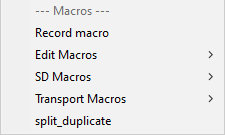
-
directly in the command search bar with the command #run
#run MacroName
(in our example: #run split_duplicate)
-
In the Macro menu of keyboard settings/menu settings you can also assign a keyboard shortcut to any macro.
-
In the toolbars you can assign your own buttons to the macros.
-
When playing over specially named project markers (see below).
Macro files are simple text files. To create a macro file, open a text editor, copy and paste the desired command sequence from the MacroCommand.list file and save the file in the .macro format in the c:\ProgramData\Boris FX\Sequoia 2025 > "Macros" folder.
The "AppData" folder is not visible unless the the option Hidden Items is selected on the "View" tab of the Windows Explorer
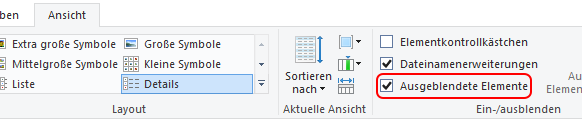
To edit existing macro files, open them and insert additional command sequences.
To execute macros at a specific playback position, you can use project markers.
-
Place the play cursor at the desired position in the project and select Menu Play/Rec > Marker > Marker with name....
-
Name the macro marker Macro#MacroCommand, e.g. Macro#zoom.1s.

-
This causes the corresponding macro command to be executed each time the play cursor reaches the marker during playback. In this example: The zoom factor, i.e. the screen section displayed, changes to one second.
-
Entire macro files with a sequence of macro commands can be executed instead of individual macro commands. To do this, name the marker in the form Macro#run filename.macro.
In the command search bar, macro commands can be executed by first typing in # as in the following:
- #tfind TrackName
- #tfilter TrackName (Reset using #tfilter, without arguments)
- #mfind MarkerName
- #ofind ObjectName
- #rfind RangeName
- #timeedit.startpos ms -1000
A complete list with short descriptions of the commands available can be found in the file MacroCommand.list in the program folder.
Besides the macros in the folder c:\ProgramData\Boris FX\Sequoia 2025 there is also a special file alias.list.
In this file you can assign your own names for certain macro commands, e.g. "zoom+" and "zoomin" for zooming in:
[Aliases]
zoom+=zoom.in
zoomin=zoom.in
or „zoomout“ und „zoom-“ for zooming out:
[Aliases]
zoomout=zoom.out
zoom-=zoom.out
Note: These names cannot be used as macro commands in macro files.