Normalize
The Normalize function raises the level of an audio object to the maximum possible level without clipping the material. This is done by searching for the largest signal peak in the audio material and raising the level of the object so that this point is set to exactly 0 dB (or any other value between 1% and 400% of the level).
Keyboard shortcut: Shift + N
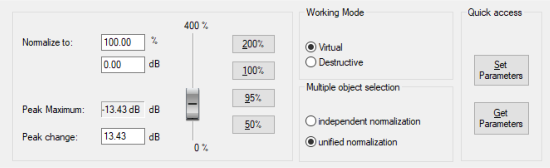
Normalize to: Here you define the value to which the audio material should be normalized by entering it in the input field in % or dB, adjusting it at the slider or selecting one of the preset values (50, 95, 100 or 200%).
Peak Maximum: Displays the maximum level determined for the selected range or object.
Peak Change: Displays the level change to be applied according to the selected normalization level and the detected peak maximum.
Working Mode
-
Virtual: No sample data is changed, only the object level is adjusted.
You can also apply this function to an object by clicking the Norm. button below the volume fader in the Object Editor. This normalizes to 0dB.
-
Destructive: Normalization is performed directly in the audio file, changing the stored data on the hard disk. In the dialog there is now an option Create Copy (on by default). The copy enables you to undo the normalization.
Multiple object selection
-
Independent normalization: Each object is normalized according to its own maximum (peak) level.
-
Unified normalization: (default) The maximum level of all selected objects is determined and each object is normalized based on this value.
Quick access: Use the button Set parameters to set the current settings of the dialog as parameters for the function Normalize (Quick access).
Keyboard shortcut: N
Use the Get Parameters button to set the current Quick Access parameters in the dialog.