Watch Folder
The Watch Folder feature allows you to automate all audio file edits and conversions that are possible via batch processing as soon as the files are saved to a specific folder. You can do this in the following way:
-
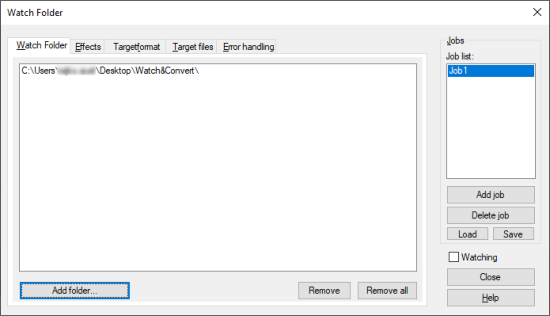
From the menu, select Edit > Watch Folder…. A dialog opens that is mostly identical to the batch processing dialog.
-
In the Watch Folder tab, add folders to the list of watched folders using Add Folder….
-
Define the edits and conversions you need. For details, see Batch Processing. As with batch processing, you can also define multiple jobs, for example saving in several different formats. These jobs can also be saved for later reuse.
The storage format for Watch Jobs is different from that for Batch Jobs. However, the presets from the Effects and Target format tabs of the batch processing can also be used for the Watch jobs.
-
Once you enable the Watching option, all compatible audio files in the watch folders will be processed and saved according to the defined jobs. As soon as new files are encountered in the watch folders, they are processed as well.
-
The monitoring function is only active as long as the dialog is open. However, the settings of the dialog are retained until you exit Sequoia, so you can continue monitoring with the same settings when you open the dialog again.
To use the Watch Folder feature all the time in the background, you could simply open a second instance of Sequoia and keep it open in the background. However, it is better to open Sequoia with the special command line parameter -watch to avoid hardware conflicts and to save your computer's resources. In this case, Sequoia will only open the Watch Folder dialog and can remain open in the background.
Sequoia.exe -watch [path]\Watchfolder_Job_Name.watch.xml
Batch job processing can also be done from the command line, start Sequoia with Sequoia.exe -batch [path]\Batch_Job_Name.watch.xml