Macro Functionality
 Expand all
Macros allow you to combine frequently used sequential commands into a macro and execute them together.
-
With the control commands used in the macros (referred to as "macro commands" in the following), Sequoia can also be operated via text input, e.g. search for specific object or track names, filter the displayed tracks by name, zoom, scroll and much more!
-
If you are using an EUCON controller, you can assign softkeys to the macros in the EUControl app. In order for the macros to be available in the EUcontrol app, it must first be restarted.
To record macros, click the magnifying glass icon on the command search bar and select Record Macro from the menu or select Menu File > Program Preferences > Record Macro.
|
For this function, you can also add a dedicated icon to the toolbar
|

|
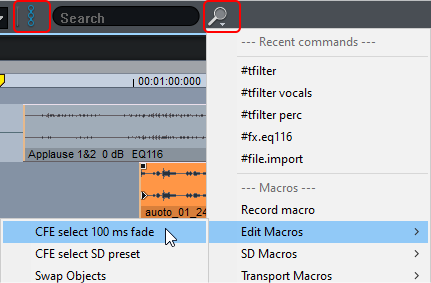
-
Execute the commands consecutively that you want to record together as a macro.
Example: Place the play cursor over the selected object and press the keyboard shortcut "T" to split the object and then use the keyboard combination "Ctrl + D" to duplicate and move.
-
If you have executed your command sequence, chose Record macro again.
-
Now give the newly created macro a name and save it.
Note: Only simple command sequences without settings dialogs can be recorded in the way described. For more complex macros we recommend editing the macro files in a text editor (see below). This also allows the use of other functions, e.g. crossfade editor functions. A complete list with short descriptions of the commands available can be found in the file MacroCommand.list in the program folder.
Macros can be executed using the following methods:
-
via the context menu of the command search bar
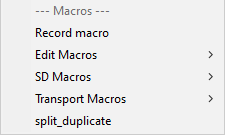
-
directly in the command search bar with the command #run
#run MacroName
(in our example: #run split_duplicate)
-
In the Macro menu of keyboard settings/menu settings you can also assign a keyboard shortcut to any macro.
-
In the toolbars you can assign your own buttons to the macros.
-
When playing over specially named project markers (see below).
Macro files are simple text files. To create or edit a macro file, you can use a text editor such as notepad.exe. Create the desired command sequence using the macro commands from the MacroCommand.list file and save the file in the format <macroname>.macro in the folder c:\ProgramData\Boris FX\Sequoia 2026\Macros. Subdirectories in this folder are displayed as submenus in the macro commands menu.
The "ProgramData" folder is not visible unless the the option Hidden Items is selected on the "View" tab of the Windows Explorer
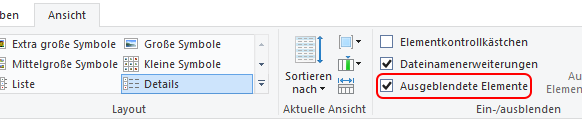
Most macro commands are shortcuts for executing commands from the Sequoia menus. Since the program is designed for keyboard operation and the keyboard shortcuts are linked to the menu entries, almost all commands for controlling the program can be found in the menus. In certain cases, however, simply calling up these menu commands, which can be recorded by the macro recorder, is not sufficient:
-
Menu commands that switch states, for example track properties such as mute or solo, are toggle switches. This means that calling up the command changes the existing state, on becomes off and vice versa. The corresponding macro commands therefore support the parameters on and off to explicitly set a state in a macro.
Example: tmute turns mute off on a muted track and on on an audible track. To mute the selected track regardless of its state, tmute on must therefore be used.
-
Some menu commands open dialogs in which settings for execution are made. For example, the command for loading an audio file (load.audio) opens a file selection dialog. To run a macro automatically, i.e., without user interaction, parameters can be specified for some menu commands when they are called. In the case of load.audio, these would be the file path and name of the file.
-
Basic properties of the program that are not controlled via the menu but on the program interface with the mouse, such as track level or panorama, have macro commands where the value can be specified directly as a parameter.
Example: tvolume -7.4 sets the level of the selected track to -7.4dB. tsel 3:8 selects tracks 3 to 8.
For information on which macro commands support which parameters, refer to the comments in the MacroCommand.list file in the program folder.
To execute macros at a specific playback position, you can use project markers.
-
Place the play cursor at the desired position in the project and select Menu Play/Rec > Marker > Marker with name....
-
Name the macro marker Macro#MacroCommand, e.g. Macro#zoom.1s.

-
This causes the corresponding macro command to be executed each time the play cursor reaches the marker during playback. In this example: The zoom factor, i.e. the screen section displayed, changes to one second.
-
Entire macro files with a sequence of macro commands can be executed instead of individual macro commands. To do this, name the marker in the form Macro#run filename.macro.
In the command search bar, macro commands can be executed by first typing in # as in the following:
- #tfind TrackName
- #tfilter TrackName (Reset using #tfilter, without arguments)
- #mfind MarkerName
- #ofind ObjectName
- #rfind RangeName
- #timeedit.startpos ms -1000
A complete list with short descriptions of the commands available can be found in the file MacroCommand.list in the program folder.
Besides the macros in the folder c:\ProgramData\Boris FX\Sequoia 2026 there is also a special file alias.list.
In this file you can assign your own names for certain macro commands, e.g. "zoom+" and "zoomin" for zooming in:
[Aliases]
zoom+=zoom.in
zoomin=zoom.in
or „zoomout“ und „zoom-“ for zooming out:
[Aliases]
zoomout=zoom.out
zoom-=zoom.out
Note: These names cannot be used as macro commands in macro files.