OSC in Sequoia
The OSC protocol enables remote control of Sequoia over a network without requiring dedicated or proprietary hardware. It works with OSC-capable devices such as large broadcast consoles or StreamDecks, and because OSC is network-based, it does not rely on physical cable connections like MIDI devices. Instead, it can be used over Wi-Fi with custom OSC applications running in any browser on tablets or mobile phones.
The OSC implementation supports customizable control setups, allowing users to build tailored remote-control solutions for studios, live environments, and broadcast workflows. It features bidirectional communication, enabling both sending and receiving OSC messages for dynamic interaction with the control surface. A built-in OSC Monitor provides a message log of incoming and outgoing OSC traffic for testing, debugging, and verification.
Setting up Sequoia for OSC Remote Control
Open the Program preferences dialog from the File menu with the Y key and click at OSC in the tree structure to the left to show the OSC settings.
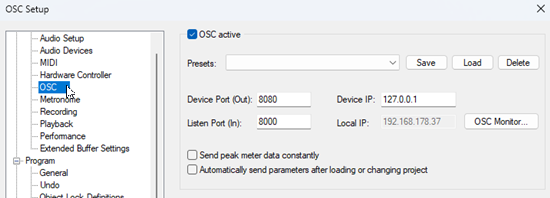
The Device port is the port the controller device is listen to for visual feedback on the controller, the Device IP is its IP address. (In the screenshot a virtual controller on the same computer was used so it shows localhost, i.e. 127.0.0.1). The Listen port is the port Sequoia is listening to the controller. In the controller setup you set up these values the other way around.
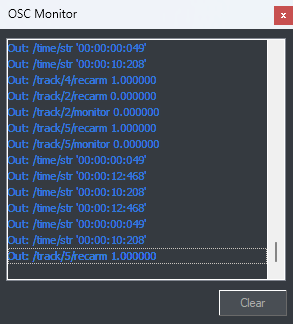
OSC Monitor opens a window that shows a log of all in coming and outgoing messages. This window can stay open after closing the setup dialog so you can always see what is sent and received.
Send peak meter data constantly: To reduce cluttering in the OSC log output you can disable the sending of peak meter data here.
Automatically send parameters when loading or changing projects: When this is activated, all parameters of all tracks are sent when a project is loaded or when you change between loaded projects. This is to synchronize the programs state with the console, but is also a big amount of data so you can disable it here.
Supported OSC commands
OSC messages are transferred in both directions between the controller and Sequoia. A change of a parameter attached to a certain address triggers a message that transfers this parameter change to the other side. An OSC message therefore consists of an OSC Address Pattern followed by an OSC Type Tag String followed by zero or more OSC Arguments.
The Address Pattern is a path-like structure to address a certain parameter of Sequoia, so for instance /track/1/volume addresses the volume of track 1, /track/2/pan addresses panorama of track 2 and so on. The Type Tag is omitted in most cases as you usually set up the suitable types and ranges on the controller side and sequoia interprets it as intended by default: most values (volume, pan, send level...) for faders are normalized float values between 0 and 1 and the f (float) type is the default type tag. The type s string is used for names and the time position. The following addresses/commands can be used by now:
Mixer values
| Function | Address | Type | Values |
| Track volume |
(# = track number) |
f |
0 … 1 = -100 … 12dB 0.75 = 0dB |
| Track pan |
|
f |
0 … 1 = L … R 0.5 = center |
| Aux send level |
(# = track number, % = send number) |
f |
like track volume |
| Master volume | /master/volume
|
f |
like track volume |
| Track name |
|
s | "example track name" |
| Master name | /master/name
|
s | "example track name" |
| Peak meter data |
|
f |
0…x 1.0 = 0 dB |
Toggles for several track and program states
All these states use binary values 0 or 1 as values to switch on or off, a message without a value toggles the state.
| Function | Address |
| Track mute | /track/#/mute
|
| Track solo | /track/#/solo
|
| Track record arm | /track/#/recarm
|
| Track monitor | /track/#/monitor
|
| Metronome on/off | /click
|
| Loop on/off | /loop
|
Transport console
The transport console buttons are triggers, actions like start or stop are triggered when a message is received on this address, there are no values.
| Play | /play
|
| Stop | /stop
|
| Record | /record
|
| Fast forward | /forward
|
| Rewind | /rewind
|
The time positions (play cursor position and playback range selection) are transferred as string. The format of the string depends on the set time format, for example /time/str "hh:mm:ss:ff" is used, when the time format is set to SMPTE. At the moment, this works only in outgoing direction (from Sequoia). As long as only the play cursor is moved and there is no play range selection, a single message is sent. When a play range is selected (including an inactive), always three consecutive messages are sent for range end, range length and play cursor position.
Menu actions
Under the address /menu_action/#ID you can trigger any menu command from the main menu and many other menus via its internal command ID. As almost any command, state or setting is accessible via the menus, this is the way to address track settings like automation modes and other functions, that are not implemented as a dedicated OSC parameter yet. For instance, /menu_action/32782 triggers menu Play/Rec > Move play cursor > To beginning which acts as the Home button on the transport console. These are, for instance, the IDs for the automation modes:
| Command | ID | Command | ID |
| Off | 42420 | Latch (use Fadertouch on only) | 42423 |
| Read | 42421 | Overwrite (write always) | 42424 |
| Touch (use Fadertouch on/off) | 42422 | Trim (relative mode) | 42420 |
A comprehensive list of all internal commands is not publicly available nor maintained, as it would contain a lot of internal and deprecated entries. But we added a way to find out the ID for a certain menu command: Search for it in the search field and click on it with the Ctrl and Shift keys held to copy the ID in the clipboard.

Another useful benefit of triggering menu commands via OSC is that this also possible when the menus are out of reach, e.g with modal dialogs open.
Crossfade Editor
The following commands (addresses) can be used to control the Crossfade editor window.
In this list, the address parts are to combine, e.g. the button address for "fade in position to play cursor" is /cfe/position/fadein/p
/cfe/
position/
link i ; link on/off
fadeout/
b t ; - push back
f t ; + push forward
p t ; * to play cursor
fadein/
b t ; - push back
f t ; + push forward
p t ; * to play cursor
stepsize i ; step size 1..3
mode/
classical t ; Classical
lock t ; Lock audio
mfa t ; move fade in + audio
fade/
link i ; link on/off
length/
out i ; fade-out length 0..4000 ms
in i ; fade-in length 0..4000 ms
overlap/
out f ; fade-out overlap 0..1 (0..100%)
in f ; fade-in overlap 0..1 (0..100%)
align i ; align on/off
keep_fade i ; Keep fade on/off
shape/
out f ; fade-out shape 0..1 (-200..200%)
in f ; fade-in shape 0..1 (-200..200%)
powerlock i ; Powerlock on/off
volume f ; fade-in object volume 0.3822..1 (-20..+20db)*
play t ; play with pre+post roll
playout t; play upper part
playin t ; play lower part
prepost i ; play pre/post on/off
snapshot/**
save i ; save snapshot 1..8
load i ; load snapshot 1..8
preset/
save s name ; save preset
load s name ; load preset
previous t
next t
previous t ; previous crossfade
next t ; next crossfade
revert t; discard changes
cancel t ; discard changes and close dialog
ok t ; close dialog
sym i ; symmetric on/off
autozoom i , Autozoom on/off
* The lower bound is when the crossfade editor volume fader is at -20db
** There are separate commands for saving/loading, but loading from an empty snapshot results in saving the actual state into it like with the buttons in the crossfade editor
The message types are: i...integer. If the address is a switch, 0 is off, 1 is on. s...string, like, a name. f...float. t is not a standard OSC type, it's used here to mark push buttons. With these, the command is executed, when a message is received at this address and all arguments are ignored.
Monitoring Section
/monitor/
select/
in/
1..4 i ; select input 1..4
out/
1..4 i ; select output 1..4
volume f; monitor volume 0..1 (-24..+10dB)
trim/
in/
1..4 f; input trim 0..1 (-90..+10dB)
out/
1..4 f ; output trim 0..1 (-90..+10dB)
tb f ; talkback trim 0..1 (-inf..+12dB)
dim f ;dim trim 0..1 (-inf..+12dB)
dim i
mute i
tb i
ll i
rr i
mono i
phase i
Software for using OSC with Sequoia
Here are two examples of software and hardware solutions that allow you to use OSC in Sequoia
Open Stage Control
This is a multi-platform open source tool to build OSC based control surfaces. Download it here: https://openstagecontrol.ammd.net/download/.
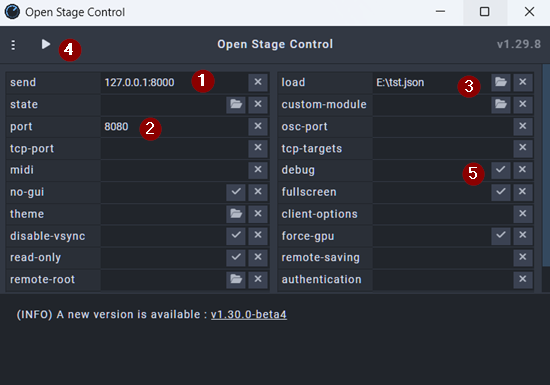
To set it up:
-
enter the IP (usually localhost) and the port at send (1). The program sends its commands at this address, so this should correspond to the Listen port in the Sequoia OSC settings.
-
The program provides a local server, the port (2) is where it is listening. osc-port is the Device port from the settings above and defaults to the same port, this is where Sequoia is sending its messages to.
-
At load (3) you specify a .json file that hold the control surface definition and will be loaded when starting the server with the play button (4). Without a given file, it opens an empty surface.
In the surface: Press Ctrl+E to switch into edit mode, where you can add controls by right clicking at the surface and choosing them from the menu. In the Inspector pane to the right, where you get all the properties of a selected control is an OSC section, this is where the address goes into to make this work.
Controlling Sequoia with a separate software on the same computer does not seem particularly helpful at first glance. However, Open Sound Control starts a server and you are not limited to controlling this server from the same computer; you can also do this from any computer in the same network by opening the server's IP address with the selected server port as URL in your browser. For this purpose, after starting the server, a QR code is displayed in Open Sound Control, which gives you this URL and you can use to open the control surface on your mobile phone or tablet.
Elgato Stream Deck
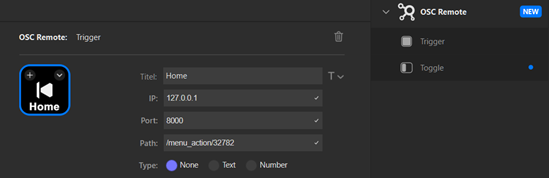
As an example for a customizable hardware control you could use the Elgato Stream Deck (https://www.elgato.com/ww/en/s/explore-stream-deck). This is a device that gives you buttons with displays that can be used to control almost everything on your computer.
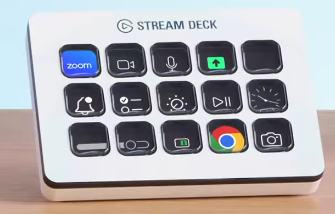
In the Elgato marketplace, where you can find plug-ins that add additional capabilities to the device, search for OSC to get a OSC Remote plug-in to make it send OSC commands to Sequoia.