Surround Masters
To create a surround mix in Sequoia, you need a Surround Master.
If the project is to be set up for surround mixing from the start, you can already select Surround in the New Virtual Project Settings dialog under Mixer Settings > Surround, and select the desired target format for the Surround Master under Surround Setup.
The entries in the Surround Setup menu correspond to the presets in the Surround Settings dialog.
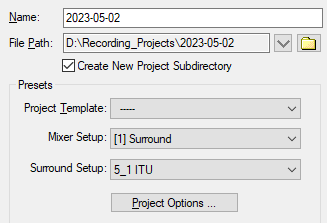
The mixer for the new project contains a surround master in the selected surround format, and all tracks are routed to this surround master. A stereo master is also present in the mixer, but it is not used and is hidden by default. However, you can show it by clicking the hide Master button in the mixer if you want to use it for an additional stereo mix.
You can also mix an existing stereo project in surround by adding the surround master later:
-
Open the dialog via File > Project Options > Mixer Settings (keyboard shortcut Ctrl + Shift + M) and activate the Surround Master option in the Master section.
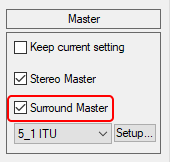
In the list box below, you can select your preferred surround format. For further adjustments and for assigning the surround channels to the output devices, use the Setup button to open the Surround Settings dialog.
-
Surround Masters can also be created via Track > Insert New Tracks > New Surround Master. This automatically opens the Surround Settings dialog, where you can define the format of the Surround Master.
You can create any number of Surround Masters in order to create different surround mixes at the same time. By default, the panorama positions of the tracks in the different mixes are linked to each other. For more information, see Spatial Panner.
To use a newly created Surround Master for the surround mix, you must route the tracks to this master. To do this, open the Spatial Panner by right-clicking the panorama control of a track and open the Targets menu on the right side of the dialog.
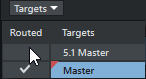
Click in the Routed column to route the track to the Surround Master. The Surround Master is now selected on the target side, and you can use the source menu to route the other tracks to the Surround Master.
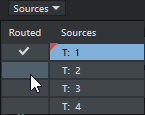
You can also perform the routing via the output menu in the Mixer/Track Editor or via the Routing Manager.