Preferences - Audio Tab
From the Options menu, choose Preferences and select the Audio tab to specify playback and recording options. Click the Advanced button to access the advanced audio preferences.
| Item | Description |
|---|---|
|
Audio Device Type |
Choose a driver type from the drop-down list.
|
|
Playback |
Click the Playback tab to adjust playback routing and buffering settings. |
|
Playback device routing |
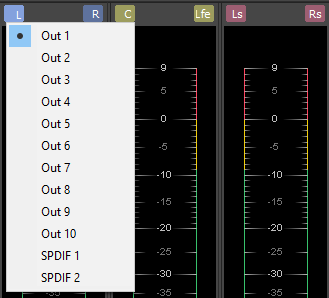
The Channel and Device columns indicate which audio output will be used to play each channel in a multichannel file. To assign a channel to a different output, click the Device entry and choose a new output from the drop-down list. TIP
To change a channel's output device using
the Channel Meters window, click the channel number and choose a new output port from the
menu: |
|
Playback buffering (seconds) |
Specifies the total amount of buffering that is used during playback. The larger the number, the more buffering is performed during playback. This value must be as low as possible without gapping. To set it, start at .25 and play back a typical song. If the playback gaps, try increasing this slider in small increments until the gapping goes away. If you simply cannot get playback to be free of gapping, you need to install more RAM in your computer so you can increase buffering, buy a faster access hard drive, or minimize the number of audio plug-ins you are trying to use simultaneously. |
|
Recording |
Click the Record tab to adjust record input routing and buffering settings. |
|
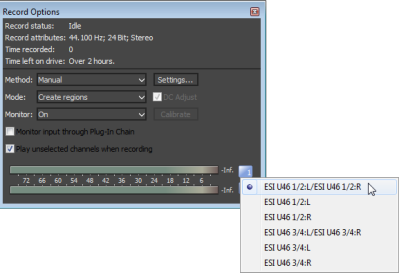
The Channel and Device columns indicate which audio output will be used to record each channel in a multichannel file. To assign a channel to a different input, click the Device entry and choose a new input from the drop-down list. TIP
To change a channel's input in the Record Options window, click the channel number
and choose a new input port from the menu. |
|
|
Record buffering (seconds) |
Specifies the total amount of buffering that is used during recording. If you use your computer for other tasks while recording, increasing this setting can reduce the likelihood of those tasks interrupting recording. |
|
Advanced |
Click this button to open the Advanced Audio Configuration dialog. »For more information, see Advanced Audio Configuration |
|
Default All |
Click to restore the Audio tab to the default settings. |
Last modified on June 09, 2026
Was this page helpful?
What did you particularly like about this page?
What did you dislike about this page?
Thank you for your feedback.