Dynamic effects
Dynamic effects have a common working principle: the level of an audio signal is amplified, and the degree of amplification is simultaneously controlled by the level of this signal. When the level goes above or below a certain point (Threshold), the amplification changes to achieve a certain effect: For example, you get a compressor when the amplification is reduced above the threshold, or a noise gate when the amplification is reduced to 0 below the threshold, suppressing the signal.
A secondary stereo input channel pair can be used to side-chain the dynamic effects (except the Limiter). The dynamics effect is then controlled by another audio signal, for example to create the classic "pump" effects where the kick drum on one track affects the compression of another track to create additional space for the kick drum.
NOTE There are useful presets for each effect as a starting point for the desired processing.
Common Controls
These controls can be found in all dynamics effects.
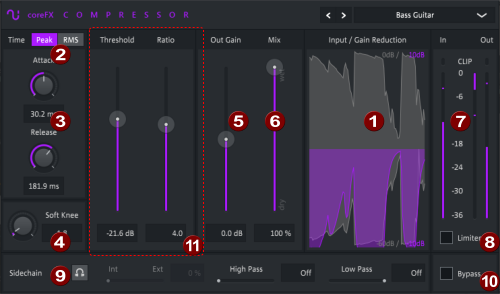
The picture shows the interface of the CoreFx Compressor as an example. The interface of the other dynamics effects differ only in the marked section and in the color scheme.
|
1 |
Wave form display |
The central waveform display shows the waveform of the unprocessed input signal in real time. The overlaid colored waveform shows the amount of amplification or attenuation of the signal by the effect processing. In the upper and lower right corners of the display, the maximum and minimum values of the display are shown in dB. By right-clicking on these displays you can choose from a menu other range of values for the respective display. |
|
2 |
Peak/RMS |
There are two methods to determine the input level, Peak and RMS. Peak uses the peak level while RMS uses an average over a short period of time. Peak is therefore faster, while RMS is more accurate. Which method is more suitable depends on the audio material used. |
|
3 |
Attack/Release |
These time factors determine how fast the effect starts (Attack) and how long it takes until the effect becomes inactive again (Release). |
|
4 |
Soft |
The characteristic curve of a dynamic effect has a typical fold, the so-called "knee" at the threshold (or two kinks, in the case of the 2-point compressor). With the Soft value you can make the fold more or less round to let the effect sound more natural (this is called "soft knee"). |
|
5 |
Out Gain |
After the signal is processed by the variable amplifier according to the input level, there may be a level reduction or amplification. The Out Gain fader can be used to compensate for this. NOTE This is also known as Makeup Gain. |
|
6 |
Mix |
Adjusts the volume balance between the unprocessed (dry) and the processed (wet) audio signal. |
|
7 |
Peak meter |
The peak meters show input and output signal, the CLIP indicators light up red when an overload occurs. Click on it to reset these indicators. |
|
8 |
Limiter |
To prevent overloading of the output signal, you can activate a simple limiter for all dynamic effects except the actual coreFX Limiter. This limiter works with 10 ms look-ahead and reliably prevents the output level from exceeding 0 dB. |
|
9 |
Sidechain |
Controls for sidechain control. |
|
10 |
Bypass |
Turns the effect on and off. |
|
11 |
Effect-specific settings |
See the following explanations of the individual dynamic effects. |
Compressor
The Compressor is used to compress the audio to balance out the differences between louder and softer signals. When the signal level exceeds the threshold, the amplification is reduced. This reduces prominent level peaks and reduces the dynamic range. The level of the signal can then be increased overall (makeup gain) without overdriving at the level peaks. This is also the main purpose of this most important dynamic effect: to increase the volume of a signal.
Effect specific parameters
Threshold: Here the threshold value is set, above which the regulation starts. For example, -20dB means that the input signal is compressed only from a level of -20 dB, below which no change takes place.
NOTE Strictly speaking, this is only true if Softis set to 0. For soft values above 0, compression starts a bit before the threshold.
Ratio: Controls the expansion ratio. A value of 2 means that, above the threshold level, any additional 2dB of input level will result in a 1dB increase in the output level.
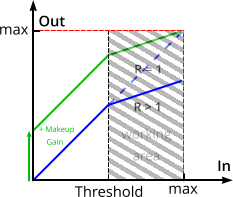
In the characteristic curve you can see that at a ratio > 1 the out gain can be increased without exceeding the maximum level.
Expander
coreFX Expander is a dynamic effect that changes the signal gain depending on the input level. If the level falls below a certain value (the threshold), the signal is attenuated by a factor (ratio) for every dB it drops below the threshold. This preserves the loud parts of the audio signal and attenuates the quiet parts. This can be used to emphasize the attack of percussion instruments over their decay phases and room ambience in a recording.
The expander is also ideal for gradually fading out noise to produce a more natural sound than a pure noise gate, which simply mutes the signal below the threshold completely.
The expander stretches the dynamic range of an audio signal and, so to speak, works as a counterpart to the compressor, which reduces dynamic range. The expander can therefore also be used to compensate for the effects of excessive compression of a signal.
A secondary stereo input channel pair can be used to control the effect with sidechaining. The expander is then controlled by another audio signal. This allows the volume of the signal to be controlled by the volume of another signal. For example, you can link the drums and bass more rhythmically by having the drums on one track increase the volume of the bass on another track.
Effect specific parameters
Threshold: This sets the threshold below which the control starts. Note that, strictly speaking, this is only the case if Soft is set to 0. If the Soft value is above 0, rounding results in a transition range, which means that level reduction already starts a little above the threshold.
Ratio: You can control the expansion ratio using this parameter.
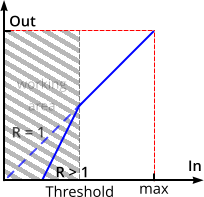
You can see from the characteristic curve that the output signal goes to 0 even when input signals > 0, so the expander acts as a noise gate for very low levels.
The expander works as a so-called "downward expander". This means that dynamic processing starts below the threshold and then works "downwards". For example, with a set ratio of 2, this means that when the input level is reduced by 3 dB, the output level drops by 6 dB. The larger the ratio value, the faster the signal drops.
Limiter
The limiter is a special case of a compressor with a (theoretically) infinite compression ratio: when the level reaches the threshold, it is not amplified at all to ensure that the signal always remains below this level, typically full scale (0 dB). This is why the threshold of the limiter is also called ceiling, because it cannot and should not go higher. If a limiter is active at the end of the audio processing chain, the overall volume of the signal can therefore be raised slightly without clipping, since the level peaks are limited.
While the use of compressors or expanders is to shape the sound the best limiter is the one you don't notice at all, apart from the desired perceived loudness increase.
Effect specific parameters
In Gain: The slider In Gain can be used to raise the signal level before the limiter.
Ceiling: The purpose of the limiter is to prevent the signal level from becoming higher than the ceiling level, this value is typically just below 0 dB, preset to -0.1 dB.
Output Clip/Look Ahead: Because of the "attack" time, it takes a few milliseconds before the limiter can follow fast input level changes. This can lead to very fast transients (transient phases) exceeding the ceiling level despite limiting. In the Clip setting, clipping is not completely prevented, but an attempt is made to avoid hard distortions as far as possible. The limiter can also be used in this setting for intentional clipping for creative sound shaping. In the Look Ahead setting, a second limiter is used that proactively scans the audio material for level peaks in the 10ms period and starts to reduce the level even before the transients occur, effectively preventing clipping. This results in an additional latency of 10ms. This is automatically compensated by the host software during playback, but is relevant when audio processing is to be done in real time, e.g. when recording monitoring with effects.
NOTE The input level analysis is always done in Peak mode, the Peak/RMS control is therefore missing. Also there is no Mix control.
Gate
The gate is a special case of a "downward" expander with a very high compression ratio, so that practically the entire signal is suppressed when it falls below the threshold. When the gate is closed, nothing can get through! The effect is also called "Noise Gate" and this also indicates the most common application of this effect: to remove unwanted background noise in the pauses of a vocal or instrumental recording.
With the Sidechain the gate can also be opened by another audio signal, a typical use is the popular "Trance Gate", where a long pad sound is controlled by a rhythmic pattern.
Effect specific parameters
Level:The Level controls the threshold, below which the signal will be suppressed.
Attack/Release: The attack time can be used to process the transients (in and out phases) of the signal. With longer attack times, the gate is opened more slowly and thus the attack phase of a sound is weakened. Likewise, the release time can be used to edit the decay phase of a sound, for example to make it sound more or less percussive.
2-Point Compressor
The Two Point Compressor is a dual compressor/expander that gives you even greater flexibility in dynamic processing. Unlike a simple compressor, it has two threshold values for levels, above which signal gain is adjusted by a certain factor (ratio) respectively. Both compression and expansion of the signal are possible for these two stages. For example, you can combine the two sections into a compressor/expander to shape drum sounds: Expand the sound at lower levels to remove background noise and compress the loud beats in one go.
Effect specific parameters
Threshold 1/2: (5) This sets the two thresholds above which control kicks in. Note that, strictly speaking, this is only the case if Soft is set to 0. If the Soft value is above 0, there is a transition range due to the rounding, so that the level reduction or attenuation already starts a bit above the threshold.
Ratio 1/2: (6) These parameters control the compression or expansion ratio of the two stages. With a setting of ratio < 1 (range expander on the slider) the stage works as an expander, with settings > 1 (range compressor on the slider) as a compressor.
If a stage works as a compressor, it means that the gain above the threshold is reduced: For example, with a set ratio of 2, this means that if the input level is increased by 3 dB, the output level will only be increased by 1.5 dB. High levels (above the threshold) are therefore amplified less than low levels, reducing the dynamic range and compressing the signal. The larger the ratio value, the stronger the compression.
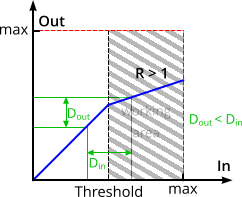
The dynamic range of an input signal (exemplarily marked by the green lines) is reduced by the compressor.
If a stage works as an expander, it means that the gain above the threshold is increased: For example, with a set ratio of 2, this means that increasing the input level by 3 dB will increase the output level by 6 dB. High levels (above the threshold) are thus amplified more than low levels, increasing the dynamic range and expanding the signal. The smaller the ratio value, the stronger the expansion.
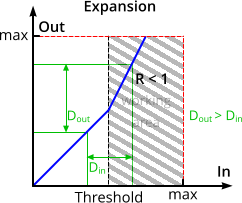
The dynamic range of an input signal (exemplarily marked by the green lines) is increased by the expander.
NOTE When a stage works as an expander, it works as a so-called "upward expander". The mode of operation is somewhat different from that of common expanders (such as the coreFX Expander), which are "downward expanders" that process the dynamics below the threshold, i.e. they act "downwards" and attenuate quiet signals, even to the point of a noise gate.
The two-point compressor is not the easiest tool to master; its strengths lie more in creative sound shaping than in offering a simple, neutral function to "make sounds louder" or "emphasize accents". We recommend the following strategies as a starting point:
-
Expander/compressor: Expand the sound at an initial, low threshold to emphasize accents and remove background noise, and compress the loud passages from a second threshold.
-
Two compressor stages: Compress quieter material with a higher ratio and choose a slightly lower ratio for the second stage to boost quieter parts without affecting the dynamics in the crucial, louder signals too much.
-
Compressor/Expander: Compress the signal in a first stage and then expand the accents. It is important to enter the effect with an input level that is not too high and to activate the limiter, since an expander stage with a high threshold can very quickly lead to overload.
It takes some patience and precise adjustment of the threshold and ratio parameters to get good results. First and foremost, rely on your ears.
Sidechain controls and filter
A side-chain is a secondary stereo input channel pair that can be used to control the dynamic effect by a different signal as the one being processed. For instance, to realize the classical "pumping" effects where a kick drum on one track controls compression of another track to make that little extra headroom for the kick drum to be really in front.
NOTE Your host software has to support side-chaining, i.e. it has to be capable of routing audio from one track (or bus) into the additional inputs (3/4) of the plug-in on another track. Consult the manual of your host software if and how you can do this in your host software!
If side-chaining is not possible, you can simulate this effect with the Volume Former

To use a mix between the internal and the side-chain signal, move the Int/Ext (2) slider towards Ext. With the High Pass/ Low Pass (3) filter you can use just certain frequency components to control the effect, for instance lower the low pass filter value to let only the bass components of the side-chain signal control the dynamic effect. For control purposes you can click the Listen button (1) to listen to the side-chain signal only.
Last modified on June 09, 2026
Was this page helpful?
What did you particularly like about this page?
What did you dislike about this page?
Thank you for your feedback.