From the Insert menu, choose Sample Loop (or press
Alt+L). A sustaining loop region is displayed in the data window, and
the Play as Sample
button appears on
the playbar.
Right-click the sustaining loop
and choose Edit Sample
Loop from the shortcut menu (or press Alt+Shift+L). The Sampler
Loops window appears.
Use the Sustain
count box to indicate how many times the sustaining loop should
be played. Click the value and choose Custom
to type a number, or choose Infinite
if you want the loop to repeat infinitely.
From the Insert menu, choose Sample Loop. A sustaining
loop region is displayed in the data window, and the Play
as Sample button appears on the playbar.
Right-click the sustaining loop
and choose Edit Sample
Loop from the shortcut menu (or press Alt+Shift+L). The Sampler
Loops window appears.
Click the Sustain
count value, choose Custom
from the drop-down list, and type a number to indicate how many times
the sustaining loop should be played.
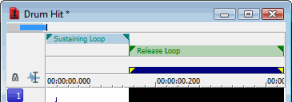
In the Sample
type box, choose Sustaining
with Release. A release loop is created for the same length as
the sustaining loop.
Edit the length of the release loop
as needed. You can drag the release loop markers in the data window or
edit the Start, End, or Length boxes in the Sampler Loops window.
Type a value in the Release
count box to indicate how many times the release loop should be
played.
Click the Play
as Sample button in the playbar. The sustaining loop plays the number of times specified by its Sustain count setting,
and then the release loop plays the number of times specified by its Release count setting.
From the View menu, choose
Metadata, and
then choose Sampler Loops
from the submenu to display the Sampler
Loops window.
In the MIDI
unity note box, click the down arrow and choose a note and octave. This MIDI note will cause a sampler
to play the sound file at the pitch (sample rate) it was originally recorded.
In the Fine
tune box, type a value from 0 to 99.999 cents if you want to pitch
shift the unity note up from 0 to 99.999 cents. Sound Forge Pro software does not fine-tune the sound file when fine tuning
is used, and not all samplers support the setting. This option is an informational
setting that will be transmitted to a sampler via a sample-transfer procedure.
A sampler such as the K2000 can use this information to play back the
sample. The K2000 should accurately display this information on Master/Sample/Misc.
page as Pitch
Adjust.
If you want to add SMPTE offset information
to your sample, double-click the SMPTE
offset box and type a new value. If you want to choose a different time format, click the down arrow
in the SMPTE format
column and choose a SMPTE format from the drop-down list.
Sound Forge Pro software ignores this offset
value, and not all samplers can store a SMPTE offset value in the sample.
After you've created a loop, you can edit it by moving the
loop tags in a data window.
Drag the beginning or ending
tag to a new position to change the start, end, or length of a loop.
To move a loop without
changing its length, drag the bar between the loop markers: .
Select a range of data,
right-click a loop marker, and choose Update
from Selection from the shortcut menu to move the marker tags to
the beginning and end of your selection.
To edit the start, end, length, or play count for a loop,
right-click the loop in the data window and choose Edit
Sample Loop from the shortcut menu (or press Alt+Shift+L). The
Sampler Loops window appears.

 appears on
the playbar.
appears on
the playbar.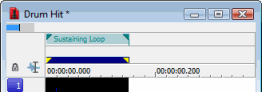
 and choose a note and octave.
  in a data window.