Using the MIDI Keyboard

From the View menu, choose Keyboard to open or close the MIDI Keyboard window. The keyboard allows you to send MIDI note on and MIDI note off commands to your sound card or sampler.

With the Sound Forge Pro MIDI keyboard, you can control internal or external synthesizers and samplers from Sound Forge Pro software. For example, you might want to test a sound in a sampler after sending (downloading) it from Sound Forge Pro software. You can also use the MIDI keyboard to listen to the different sounds on a synthesizer or in the synthesis section of your sound card.

Open the MIDI Keyboard Closed

From the View menu, choose Keyboard to open or close the MIDI Keyboard window.

Resize the MIDI KeyboardClosed

Like any other toolbar or shortcut menu window in Sound Forge Pro, you can resize the MIDI Keyboard window, move it, or dock it to any side of the Sound Forge Pro window.

When the cursor is over any edge of the window, the cursor is displayed as a . Drag to resize. Depending on how you resize the keyboard, the keys will be arranged horizontally or vertically.

Configuring the output device and channel Closed
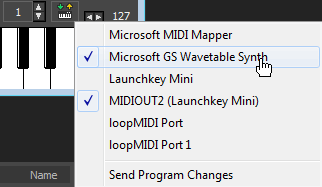
  1. To select a MIDI device, click the MIDI Out button and choose a device from the menu:

  2. Select the Send Program Changes command to select instruments in the device from the keyboard. Program changes are sent only when a key on the MIDI Keyboard is clicked.

  3. Click the up and down arrows to select the MIDI channel you want to use for the selected device. Most MIDI devices are configurable to accept MIDI commands on any channel.

Select instruments Closed

The Instrument drop-down list contains instrument patches listed in the General MIDI standard. Choose an instrument from the drop-down list and click a key on the keyboard to play the patch.

NOTE

Notes:

  • The Send Program Changes command must be selected if you want to be able to select instruments. Program changes are sent only when a key on the MIDI Keyboard is clicked.

  • If your synthesizer does not use the General MIDI convention, choose a patch number instead of an instrument name.

Play the keyboard Closed

Click the keys to play them:

  • Choose Note from the Chord structure drop-down list to play a single note, or choose a chord structure or interval to play a chord (the key you click will be the chord's root).

  • Drag the Velocity slider to set the MIDI output velocity.

  • Click the arrow buttons to change the range of the MIDI Keyboard to display higher or lower octaves.

Troubleshoot the MIDI Keyboard Closed

If, after selecting the correct device, you still can’t hear anything when you play on the keyboard, check the following:

  • Set the MIDI output velocity to a high value (above 100).

  • Set the MIDI input channel in your sound module to the same channel as the MIDI keyboard channel. Also, make sure the device is set to receive MIDI input.

  • Check the device output volume level: is the mixer level for your sound card or the output volume of the sampler and speakers at a high enough setting?

  • For external devices, check your MIDI cables.