Vocal Activity Detection
You can display vocal activity in data windows to quickly locate spoken or sung voice. The analysis is done by an AI algorithm that tries to detect the presence of human voice in an audio signal. The result is a probability value, that an according segment contains vocal activity.
This value is mapped on to shades of color, ranging from the original waveform color (blue) which means "surely no voice" and the vocal activity color (red) which means "definitely voice".
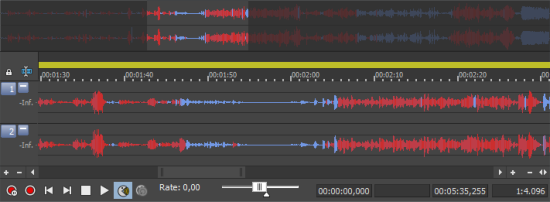
The Vocal activity display is inactive by default and has to be activated for each data window separately. For this, click the Vocal Activity Display button  in the transport control of the data window.
WARNING The analysis is quite CPU-intensive so it'll take some time until the display is visible after switching it on.
To toggle the Vocal Activity Display globally in Sound Forge Pro, go to the Options menu, and click Data Window. In the sub-menu you can activate the check box for Vocal Activity Display in Data Window or Vocal Activity in Overview (on top of the Data Window) separately.
After editing or processing the audio data in the window you might need to refresh the analysis. You will recognize this by the fact that the Refresh Vocal Activity Detection button  becomes active.
This button is not visible as long as Vocal Activity Display was not switched on in a data window.
You can change the wave form color for the Vocal Activity Display on the Display tab of the Preferences dialog.
Last modified on February 23, 2026
Was this page helpful?
What did you particularly like about this page?
What did you dislike about this page?
Thank you for your feedback.