Selecting Events

When working with the Event tool , you can select one or more events, but you cannot create time selections.

TIP If you want to zoom to an event, right-click the event and choose Zoom Event from the shortcut menu (or press Ctrl+Up Arrow). The event is zoomed to fit the width of the data window.

Expand allClosed

Selecting events with the mouseClosed

To select an event, click it with the Event tool . To deselect an event, hold Ctrl while clicking it.

To select multiple nonadjacent events, hold the Ctrl key and click each event you want to select.

To select multiple adjacent events, hold the Shift key and click the first and last event you want to select. All events between the first and last selected events are also selected.

Double-click an event to select it and adjust the loop bar to the length of the event.

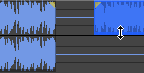
TIP You can drag the top and bottom edges of events if you want to use only a subset of the channels in a multichannel file. This method is also useful for duplicating or rearranging channels without performing channel conversion, which always processes the entire file:

You can quickly restore contiguous channels by dragging the event edge back.

Selecting events using menu commandsClosed

From the Edit menu, choose Event, and then choose Select Next Event or Select Previous Event from the submenu to select the next or previous event in the data window.

Choose Select First Event or Select Last Event to select the first or last event in the data window.

Choose Extend to Next Event or Extend to Previous Event to extend the current selection to the next or previous event in the data window.

Choose Extend to First Event or Extend to Last Event to extend the current selection to the first or last event in the data window.

Selecting events using keyboard shortcutsClosed

You can use keyboard shortcuts to select events while using the Event tool.