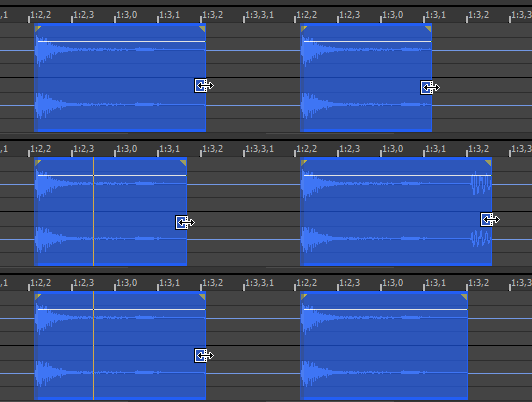
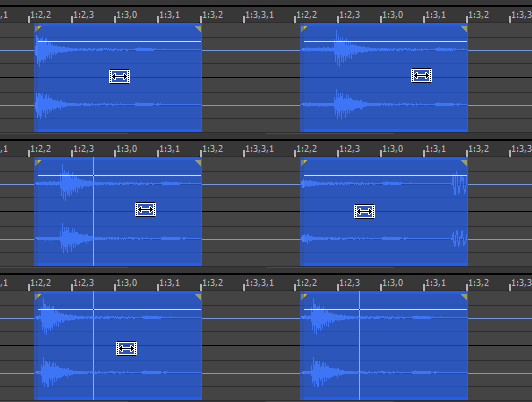
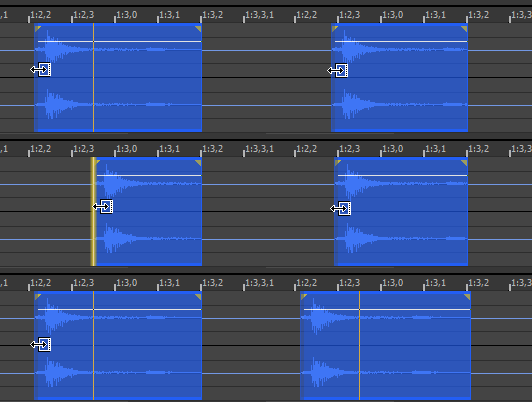
Slipping and Trimming Events

You can use any of the following methods to adjust events.

TIP You can drag the top and bottom edges of events if you want to use only a subset of the channels in a multichannel file. This method is also useful for duplicating or rearranging channels without performing channel conversion, which always processes the entire file:
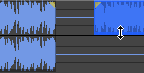
You can quickly restore contiguous channels by dragging the event edge back.

Trim an eventClosed

  1. With the Event tool selected, hover over the edge of an event. The cursor is displayed as a .

  2. Drag the edge of the event to trim it.

Events do not loop and cannot exceed the start, end, or channels of the underlying media. For example, you cannot trim an event past its right edge to insert silence.

Slip (shift the contents of) an eventClosed

Hold Alt while dragging an event. The cursor is displayed as a .

As you drag the event, the contents of the event shift, but the event will not move. You can use this technique when you want to maintain an event's length and position, but have the event play a different section of the source media file.

TIP

Tips:

  • Hold the Shift key to temporarily override snapping.

  • Regions, markers, and envelope points are moved with the contents of the event. To turn this feature off, turn off the Lock to Selection > Markers/Regions and Envelope Points commands on the Options menu.

Slip-trim an eventClosed

Hold Alt while dragging the right or left edge of an event. The cursor is displayed as a .

As you drag the event edge, the opposite edge of the event will remain fixed, trimming the media from the edge you drag.

TIP

Tips:

  • Hold Alt+Shift while dragging any portion of an event to slip-trim the right edge. The left edge of the event will remain fixed on the timeline, and the media is slipped past the left edge of the event. This slip mode is useful when you want to slip an event without changing its last frame.

  • Holding the Shift key temporarily overrides snapping if it is enabled. Release the Shift key while dragging to snap the event to available snap points.

  • Regions, markers, and envelope points are moved with the contents of the event. To turn this feature off, turn off the Lock to Selection > Markers/Regions and Envelope Points commands on the Options menu.