Custom File Templates

If the selected file type supports it, the Save As/Render as dialog allows you to enter custom settings and create templates for saving files, if the chosen file format supports this.

Create or edit a templateClosed

  1. Use the Save As dialog to specify a location and name for the file you want to save.

  2. Click the Custom button to open the Custom Template dialog.

  3. Choose a template from the Template drop-down list, or enter a new name in the edit box.

    NOTE
    • Built-in templates cannot be edited.

    • When determining bit rates, 1K=1024.

  4. Use the Custom Template dialog to set the template's properties.

    NOTE For information about specific controls in each file type's Custom Template settings, click the Help button .

  5. Click the Save Template button .

  6. Click OK to return to the Save As dialog.

Delete a templateClosed

  1. Use the Save As dialog to specify a location and name for the file you want to save.

  2. Click the Custom button to open the Custom Template dialog.

  3. Choose a template from the Template drop-down list.

  4. Click the Delete Template button .

    NOTE Built-in templates cannot be deleted.

  5. Click OK to return to the Save As dialog.

Copy rendering templates between computers or user accountsClosed

You can make your customized rendering templates available on another computer or user account by copying .sft2 files to the appropriate location in the new account or computer.

Rendering templates are stored in the following folder: C:\Users\<username>\AppData\Roaming\BorisFX\Render Templates\<plug-in name>.

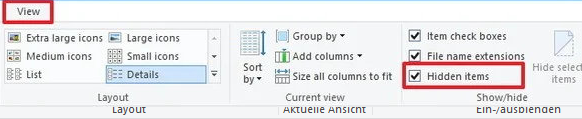
NOTE The "AppData" folder is not visible unless the the option Hidden Items is selected on the "View" tab of the Windows Explorer

TIP You can find a plug-in's name by clicking the About button in the Save As/Render As dialog.

To make a template available on another computer or user account, copy the .sft2 file to the same location in another account.

For example, to make JSmith's custom wave template available for the AJones user account, copy the appropriate .sft2 file from this folder:

C:\User\JSchmidt\AppData\Roaming\BorisFX\Render Templates\wave\

to this folder:

C:\User\AMueller\AppData\Roaming\BorisFX\Render Templates\wave\.