The Video Strip

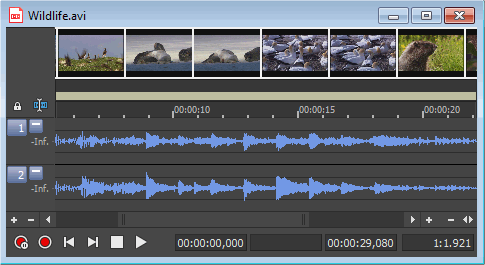
When you open a file that contains a video stream, a video strip is displayed above the audio waveform to help you navigate the file.
Show or hide the video strip Closed

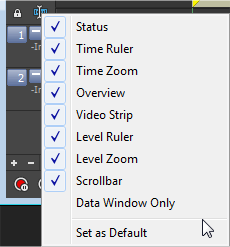
To toggle the display of the video strip, choose Options > Data Window > Video Strip or right-click the edit tool selector and choose Video Strip from the shortcut menu:

TIP You can adjust the height of the video strip by dragging the separator between the video strip and time ruler.

Turn animation on or off Closed

When you play back a video file, the video strip can display animated or still frames.

Right-click the video strip and choose Animate from the shortcut menu to toggle frame animation. A check mark is displayed next to the command when the feature is turned on. When the video strip is animated, the video strip always displays the frame that corresponds to the cursor position. Press Alt+Right or Left Arrow to move the cursor one frame.

When frame animation is turned off, the video strip always shows the frame that corresponds to the left edge of each image in the video strip.

TIP If you experience slow or stuttering video preview, turn off animated video to reduce the load on your CPU.

Display frame numbers Closed

You can choose to number the frames in the video strip to help you navigate a file. Turning on frame animation will ensure that the displayed frame number matches the cursor position.

Right-click the video strip and choose Number Frames from the shortcut menu to toggle frame numbering. As you zoom in, each thumbnail will eventually represent one frame.

TIP To choose the numbering format, choose a setting from the Frame numbering on thumbnails drop-down list on the Video tab of the Preferences dialog.