Using Processing Dialogs

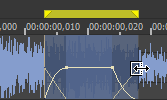
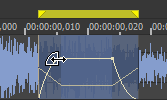
In previous versions of Sound Forge Pro, processing dialogs were modal: after opening a processing dialog, you couldn't adjust the selection in the data window. Now you can move freely between processing dialogs and data windows to adjust your selection, fade-in and -out, and gain levels.

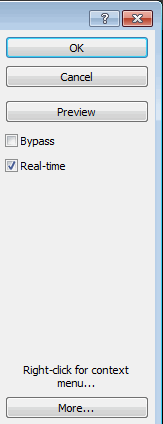
All processing dialogs share common controls along the right-hand side of the dialog. Use these controls to save and delete custom presets, preview your changes, and modify the selection.
Item Description

OK

Closes the dialog and processes the dialog settings.

Cancel

Closes the dialog without making changes.

Preview

Click to begin previewing the processed sound file.

Bypass

Select this check box and click Preview to hear the unprocessed audio. This is a useful feature when comparing the affected and unprocessed signal.

Real-time

If the check box is activated, Sound Forge Pro creates a preview of the plug-in in real time. Clear the check box if your computer does not have enough power.

When the check box is cleared, the maximum preview length is determined by the Limit non-realtime previews to setting on the Previews tab of the Preferences dialog.

More

Click to display additional controls at the bottom of the dialog that you can use to change the selection you want to process or adjust dry and wet gain and fades.

Preview audioClosed

Click the Preview button to hear the effect of the current dialog settings on the selected audio.

During playback, you can select the Bypass check box to hear the unprocessed audio. This is a useful feature when comparing the affected and unprocessed signal.

Preview with pre- or post-rollClosed

If you want to listen to the unprocessed audio before or after the current selection, right-click the processing dialog and choose Pre-Roll or Post-Roll from the shortcut menu. A check box is displayed next to the commands when they're selected.

Pre- and post-roll allow you to hear the transition from unprocessed to processed data.

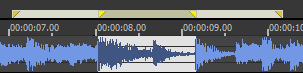
When the Pre-Roll and Post-Roll buttons are selected, the pre/post roll regions are displayed next to the loop region in the data window:

You can use the Previews tab in the Preferences dialog to specify how many seconds of unprocessed audio will be played before and after the processed selection.

Choose a processing mode for tail dataClosed

If you want to choose a processing mode to determine how Sound Forge Pro software handles the extra audio tail of plug-ins such as reverb or delay, right-click the processing dialog and choose a command from the shortcut menu:

  • Choose Ignore Tail Data to ignore the tail. The effect will end abruptly at the end of the selection.

  • Choose Mix Tail Data to mix the tail into the adjacent material. This is the most natural-sounding option.

  • Choose Insert Tail Data to insert the audio tail. All audio to the right of the tail will be moved over to accommodate the extra audio.

Create a preset Closed

  1. Choose a command from the Process, Effects, or FX Plug-Ins menu.

  2. Adjust the dialog controls to create the desired effect.

  3. Type a name in the Preset box.

  4. Click the Save Preset button :

Delete a preset Closed

  1. Choose a command from the Process, Effects, or FX Plug-Ins menu.

  2. Choose a preset from the Preset drop-down list.

  3. Click the Delete Preset button .

The Delete Preset button is available only for custom presets.

Use Sound Forge Pro controlsClosed

Control Description

Slider/Fader

Drag the handle to change the setting.

TIP

Tips:

  • Hold the left and right mouse buttons (or hold the Control key) to fine-tune a control's value.

  • You can use the Up, Down, Left and Right arrow keys to change the value in small increments or the Page Up and Page Down keys to change the value in larger increments. The Home and End keys change the parameter value to its maximum or minimum.

  • Double-click a handle to return to the default value (usually 0%, 50%, or 100%). Left-clicking on the hash marks in a fader also changes the value by very small increments.

Spin Control

Use the up/down buttons or type a value in the edit box to change the setting.

TIP

Tips:

  • Click the button between the up/down buttons and drag the mouse to change the setting in large increments.

  • Hold down both mouse buttons (or hold down the Control key) to fine-tune a control's value.

  • You can use the Up/Down arrow and Page Up/Page Down keys to alter the value.

Drop-down list

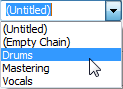
Click the drop-down list and choose an item. If you have to scroll through a large list, click the scroll buttons or use the arrow keys.

TIP If you scroll down the drop-down list for a preset, you can see all of the parameters change for each preset. This is useful for getting a feel for which parameters are used to create different effects.


Button

Click a button or press the spacebar while it is selected.

Radio Button

Radio buttons always come in groups of two or more where you can select only one option. When you select a radio button, the previously selected button is turned off.

Check Box

Click a check box to select it. You can click a selected check box to clear it.


Envelope Graph

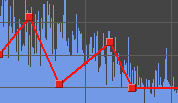
An envelope allows you to change a sound over time.

  • Drag the small boxes (envelope points) up or down.

  • To create a new envelope point, click the envelope.

  • To delete an envelope point, click it with the right mouse button, or double-click it with the left mouse button.

  • To move all envelope points, press Ctrl+A and drag when the envelope has focus (the cursor will be displayed as a ).

You can create up to 16 envelope points. Click the Reset Envelope button to reset the graph.

Change the data window selectionClosed

You can adjust the selection to be processed by changing the selection in the data window or using the controls at the bottom of the processing dialog.

TIP Right-click the processing dialog and choose a command from the shortcut menu to change the selection quickly. Choose Select Original to restore the selection that existed when you first opened the processing dialog. Choose Select All to select all data in the current window.

  1. Click the More button in the processing dialog. Selection and gain controls are displayed at the bottom of the dialog.

  2. Type a value in the Start box (or use the spinner) if you want to change the beginning of the selection.
    Click the Lock Start button if you want to preserve the selection start when adjusting the Length or End settings.

    When using the Event tool , the Start box is automatically locked.

    Changing this setting has the same effect as dragging the beginning of the selection in the data window:

  3. Type a value in the End box (or use the spinner) if you want to change the end of the selection.

    When using the Event tool , the End box is not available.

    Changing this setting has the same effect as dragging the end of the selection in the data window:

  4. Type a value in the Length box (or use the spinner) if you want to specify the length of the selection. The beginning of the selection remains fixed. Click the Lock Selection Length button if you want to preserve the selection length when adjusting the Start or End settings.

    When using the Event tool , the Length box is automatically locked.

  5. Type a value in the Channels box to change the current channel selection. You can separate individual channels with commas or use hyphens to indicate channel ranges. Click the Lock Channels button if you want to lock the channel selection. For example, enter 1, 3, 4-6 to select channels 1, 3, 4, 5, and 6. Changing this setting has the same effect as holding down the Ctrl key while clicking on the channels in the data window. When using the Event tool , the Channels box is automatically locked.

  6. When using the Event tool , you can click the Go to Previous Event or Go to Next Event button at the bottom of the processing dialog to navigate events when multiple events are selected.
Change the wet/dry mix and fade in/outClosed

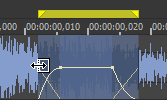
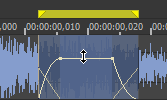
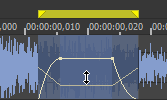
You can adjust the wet/dry mix and fade in/out by changing the envelopes in the data window or using the controls at the bottom of the processing dialog.

If you want to change the default fade values, you can use the Editing tab in the Preferences dialog.

  1. Click the More button in the processing dialog. Selection and gain controls are displayed at the bottom of the dialog.

  2. Type a value in the Wet Gain box (or use the spinner) to set the level of the processed signal that will be mixed into the output.

    Changing this setting has the same effect as dragging the sustain portion of the wet gain envelope in the data window:

  3. Type a value in the Dry Gain box (or use the spinner) to set the level of the unprocessed signal that will be mixed into the output. Changing this setting has the same effect as dragging the sustain portion of the dry gain envelope in the data window:

  4. Type a value in the Fade In box (or use the spinner) to set the length of the fade in between the unprocessed and processed signal. Changing this setting has the same effect as dragging the attack portion of the envelope in the data window:

  5. Click the Fade Curves button and choose a curve type from the menu to set the speed of the fade in.
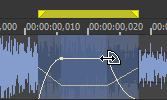
  6. Type a value in the Fade Out box (or use the spinner) to set the length of the fade out between the processed and unprocessed signal. Changing this setting has the same effect as dragging the release portion of the envelope in the data window:

  7. Click the Fade Curves button and choose a curve type from the menu to set the speed of the fade out.
TIP

Tips:

  • To reset the fade in and out to the default values, right-click the processing dialog and choose Reset Fade Values from the shortcut menu.

  • To save the default fade in and fade out values, adjust the sliders Fade In and Fade Out. Then right-click on the processing dialog and select Save Fade Values from the context menu.