Adding Stock Content (Storyblocks)
Vegas Content helps you find ready-to-use stock media for your projects directly in Vegas Pro. Use it when you want to add licensed video clips or audio to a project without switching to an external service. This is especially useful when you need to fill gaps in an edit, build an intro, or add background music.
NOTE This feature is available only with a Vegas Pro subscription.
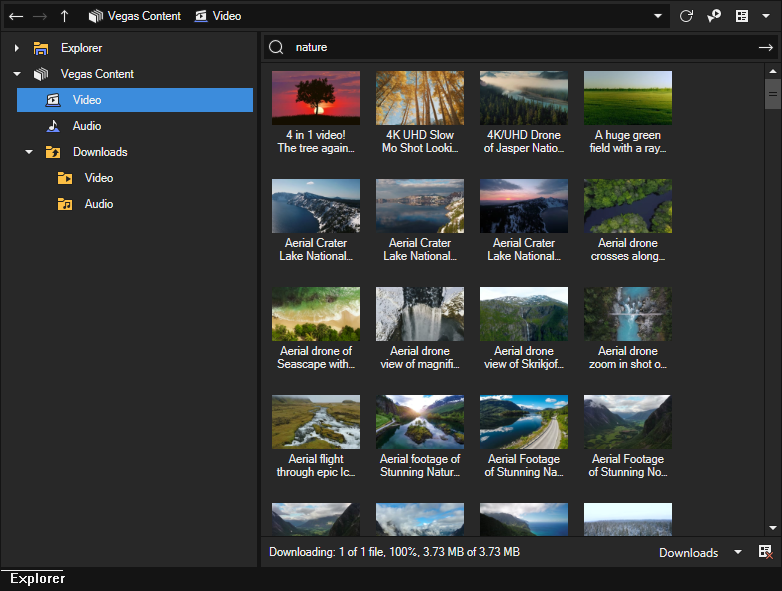
FIGURE Vegas Content in the Explorer window
The EULA that you accepted when you installed Vegas Pro defines how you can use stock media from Vegas Content. Check the EULA if a copyright or licensing question occurs.
Find and preview stock content
- Open the Explorer window.
- Expand Vegas Content and click Video or Audio.
- Enter a search term in the search box.
- Review the results on the right side.
- Point to a thumbnail to show the available actions.
- Click Start Preview.
- Watch the preview in the Video Preview window.
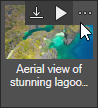
FIGURE Thumbnail actions
Download stock content
-
Point to a thumbnail to show the available actions.
-
Click Download.
-
Choose the file format and resolution that you want to download.
-
Wait until the download is complete.
The download area at the bottom of the window shows the current download progress.

FIGURE Download progress
Find downloaded files
-
In the Explorer window, expand Downloads.
-
Click Video or Audio to open your downloaded files.
Last modified on April 15, 2026
Was this page helpful?
What did you particularly like about this page?
What did you dislike about this page?
Thank you for your feedback.