Pan/Crop Dialog Controls
The Pan/Crop window contains a set of tools and properties for cropping, zooming, rotating, and masking video events. When masking is enabled, additional controls appear for creating and adjusting Bézier shapes.
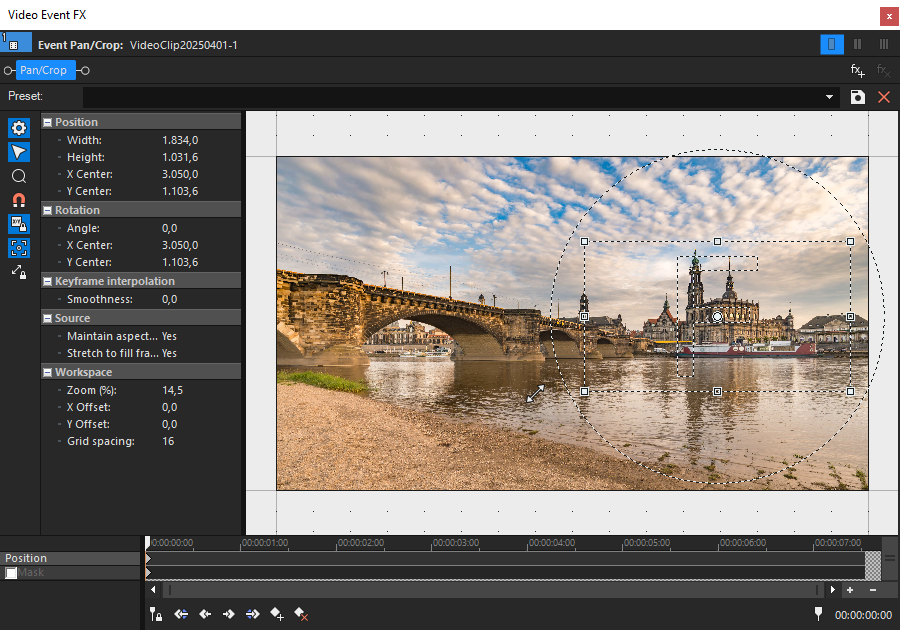
FIGURE Pan/Crop dialog with standard properties view (masking disabled)
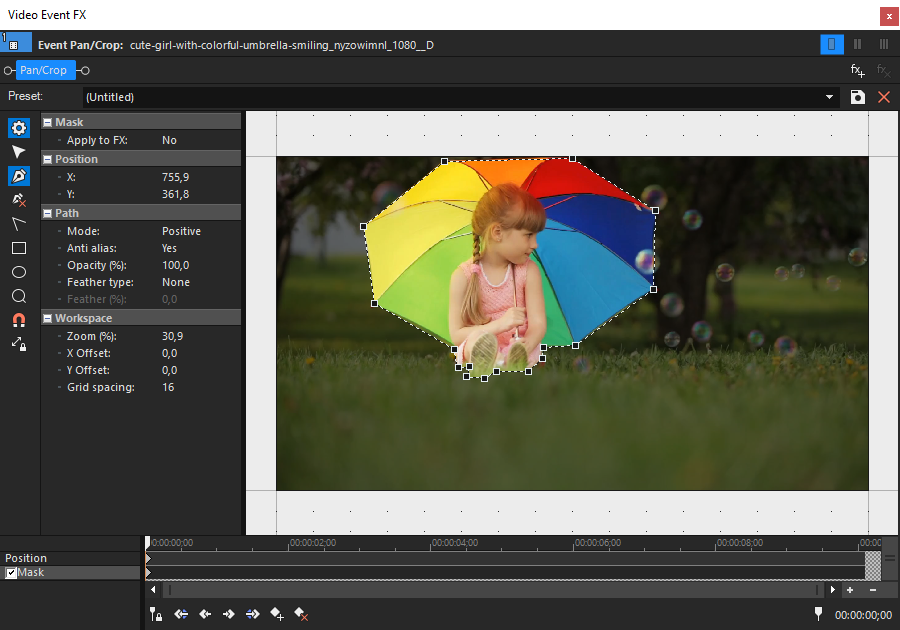
FIGURE Pan/Crop dialog with extended properties view for masking (mask enabled)
Toolbar
| Icon | Tool | Description |
|---|---|---|

|
Show properties | Opens properties for the Pan/Crop workspace. |

|
Normal Edit Tool | Select and manipulate items in the workspace such as masks or selection boxes. |

|
Zoom Edit Tool | Zoom in and out of the Pan/Crop workspace. Left-click to zoom in, right-click to zoom out. |

|
Enable Snapping | Enable or disable snapping to grid lines when moving or resizing objects. |

|
Lock Aspect Ratio | Preserve the aspect ratio when resizing the selection box. Hold Ctrl while resizing to temporarily override the locked aspect ratio. |

|
Size About Center | Resize the selection box symmetrically around its center. Hold Alt while resizing to temporarily override center scaling. |

|
Move Freely (X or Y) | Move the selection box freely along both the horizontal (X) and vertical (Y) axes. |
Properties
| Section | Control | Description |
|---|---|---|
| Position | Width / Height | Defines the size of the selection box. Adjust manually or enter numeric values. |
| X Center / Y Center | Specifies the position of the selection box in the frame. | |
| Rotation | Angle | Sets the rotation angle of the selection box. |
| X Center / Y Center | Defines the pivot point around which rotation occurs. | |
| Keyframe Interpolation | Smoothness | Controls the curvature of motion paths between keyframes for smoother animations. |
| Source | Maintain aspect ratio | Preserves the aspect ratio of the source media when scaling. |
| Stretch to fill frame | When enabled, the selection fills the output frame. Otherwise, cropping occurs. | |
| Workspace | Zoom | Adjusts the zoom level of the workspace for more precise editing. |
| X Offset / Y Offset | Offsets the display horizontally or vertically within the Pan/Crop window. | |
| Grid spacing | Sets the distance between grid lines for alignment and precision. | |
| Mask | Apply to FX | Determines whether the applied effect is masked by the current mask shape. |
| Path | Mode | Sets the mask polarity: Positive masks inside, Negative masks outside the shape. |
| Anti alias | Enables edge smoothing to reduce jagged lines. | |
| Opacity (%) | Defines the transparency level of the mask. | |
| Feather type | Defines how the mask edge is softened (Inside, Outside, Both). | |
| Feather (%) | Specifies how much edge softness is applied. |
Toolbar functions for mask editing
| Icon | Tool | Description |
|---|---|---|

|
Anchor Creation Tool | Draw a custom Bézier mask by clicking or dragging to create path points. |

|
Anchor Deletion Tool | Remove a point from a Bézier mask path by clicking on it. |

|
Split Tangent Tool | Select and modify points in a Bézier path, including handles and curvature. |

|
Rectangle or Square Mask Creation Tool | Draw a rectangular mask shape. Hold Shift to constrain the shape to a square. |

|
Oval or Circle Mask Creation Tool | Draw an oval mask shape. Hold Shift to constrain the shape to a circle. |
Further information
Last modified on April 15, 2026
Was this page helpful?
What did you particularly like about this page?
What did you dislike about this page?
Thank you for your feedback.