Shuffling events
Much like ripple editing, shuffling events allows you to change the order of a sequence of events with a single operation.
NOTE Ripple edit mode does not need to be active to shuffle events. »For further information: Post-edit ripple
-
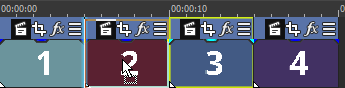
Right-click and drag an event to a new location on the timeline.
In this example, we'll drag event 3 between events 1 and 2.
-
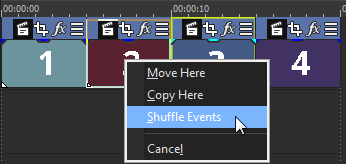
From the shortcut menu, choose Shuffle Events.
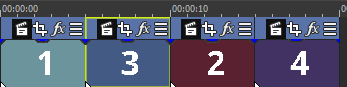
After the shuffle, event 3 appears between events 1 and 2:
You can also use the Shuffle tool  to shuffle events.
-
Select the Shuffle tool.
-
Click the down arrow next to the Normal tool
 and select Shuffle Tool.
 -
Choose Edit | Editing Tool | Shuffle Tool.
-
Drag an event to a new location on the timeline.
»For further information: Editing Tool
Last modified on April 15, 2026
Was this page helpful?
What did you particularly like about this page?
What did you dislike about this page?
Thank you for your feedback.