AI Z-Depth
AI Z-Depth is an AI-powered compositing tool that analyzes your footage and separates it into depth layers — foreground objects and background elements. Powered by the Depth Anything AI model, it generates high-resolution depth maps directly in Vegas Pro. Use it to place text or graphics between depth layers, apply effects selectively to the background, or build sophisticated compositing results.
NOTE Z-Depth 2.0 is part of the AI Model Installer. Install the required AI models before using this plug-in.
-
Add a title to your video and make it appear between a person in the foreground and the background — as if the text is part of the scene.
-
Apply a Style Transfer effect only to the background of your footage, leaving the foreground subject untouched and natural.
-
Combine Z-Depth with color grading, displacement maps, or other AI effects to build a multi-layer depth composite for complex visual storytelling.
Using AI Z-Depth as a compositor
Use the Z-Depth compositor to place a text or graphic element between the foreground and background layers of your footage.
-
Your project contains at least two tracks: a text or graphics track on top and a video track below.
-
Add a text event to the first track of your project.
-
Place a video clip or still image directly below the text event.
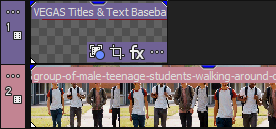
TIP Choose a clip with a clear foreground subject and distinct background elements — for example, a person standing in front of buildings.
-
Position the text to overlay the foreground object in the video.

-
Click the More
 button for the text track and choose Compositing Mode | Custom from the pop-up menu.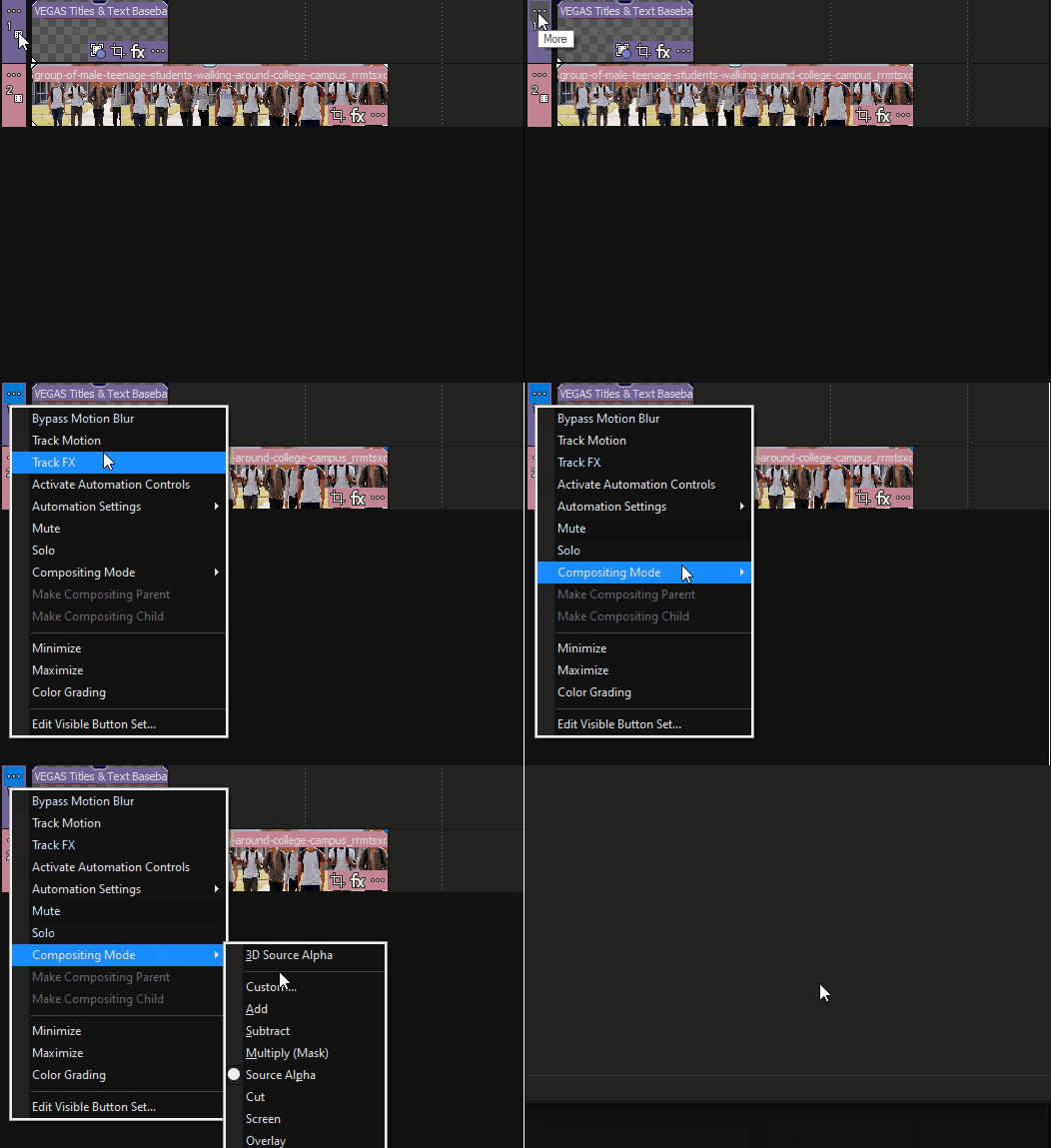
-
In the Plug-In-Chooser window, select Z-Depth from the list of compositors.
-
Click Add, then OK.
Z-Depth analyzes your footage and creates a foreground layer and a background layer. Foreground elements appear in front of the text; background elements appear behind it.
-
Adjust the Z-Depth parameters to refine the depth mask. For a description of all available controls, see the Z-Depth parameters section below.
-
Choose None from the Visualization drop-down to remove the visual overlay.
-
Review the result in the Video Preview window. Portions of the text appear masked out, behind the foreground objects. Adjust the Feather parameter for smoother mask edges.
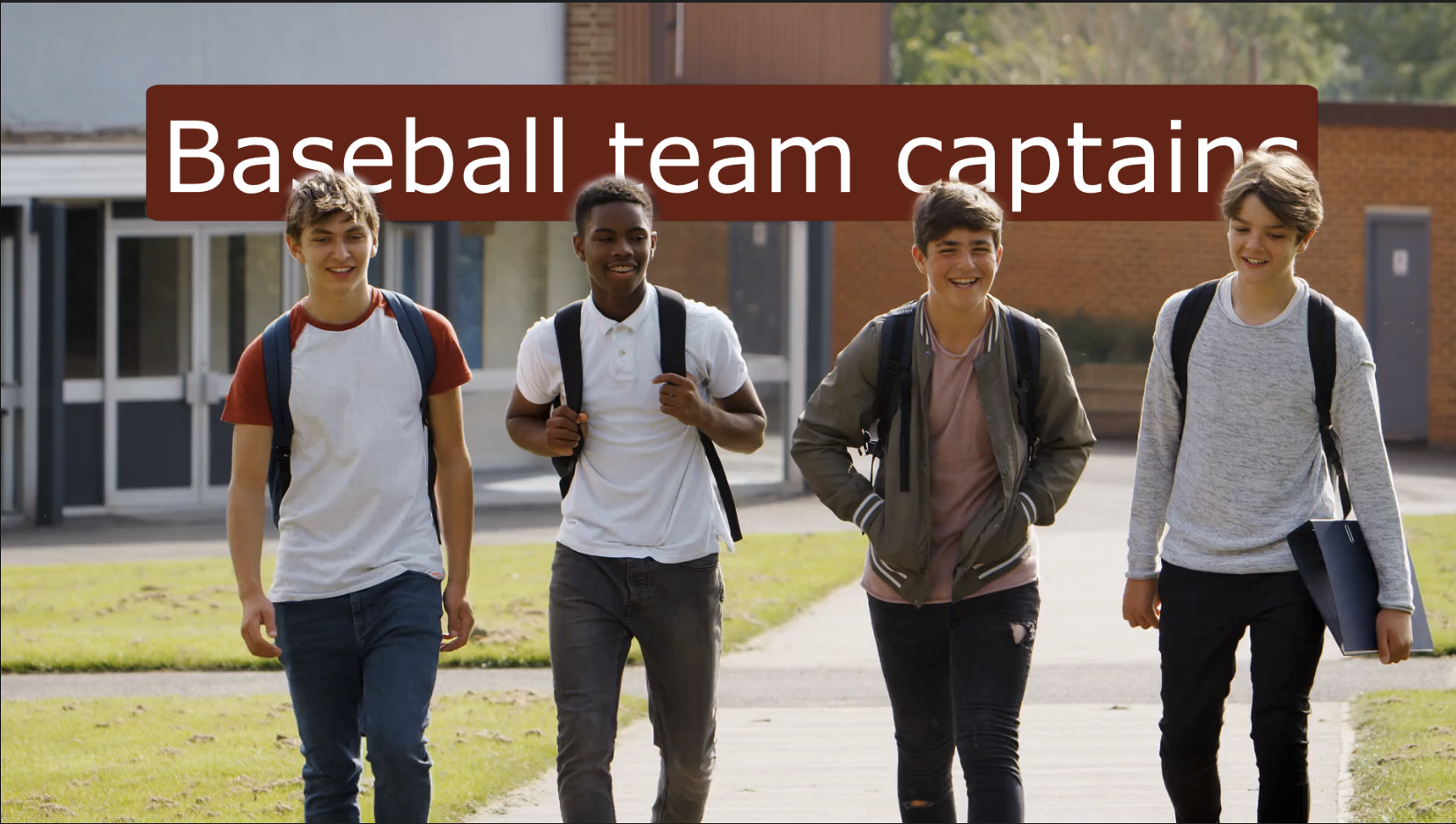
FIGURE Z-Depth compositor result: the text appears between foreground and background layers
Z-Depth parameters
Use the following parameters to control how Z-Depth analyzes and applies the depth mask.
NOTE The Depth visualization shows the raw depth map only. It does not respond to parameter changes. To see how your adjustments affect the mask, select Thresholded Depth from the Visualization drop-down.
NOTE The Visualization setting resets to None automatically when you switch to a different effect in the FX chain. This is intended behavior.
|
Mode |
Sets the scale used for depth values. Absolute Values (default): Uses pixel-based depth values. The slider range is 0–10; the text box accepts values up to 12. Normalized Values: Scales depth values between 0 and 1, making it easier to understand the depth distribution regardless of image resolution. |
|
Visualization |
Controls the preview overlay in the Video Preview window. Select an option to inspect the depth mask during adjustment; set to None for the final output. None: Displays the normal video without any overlay. Thresholded Depth: Shows the depth mask with parameter adjustments applied. Background areas appear in shades of blue (furthest) through red (closest); foreground elements appear as they do in the original video. To identify foreground objects manually, drag a selection box within the target object in the preview. If part of the object turns red, drag additional small selections within the red area until the full object is correctly identified.
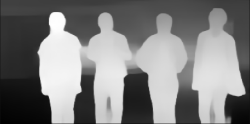
Depth: Displays the raw depth map generated by the AI model. Foreground objects appear white; background objects appear black. This view does not respond to parameter changes — it always shows the unprocessed depth map.
Opacity: Shows background areas at 50% transparency. Use this view to see background content while adjusting depth settings.
|
|
Furthest |
Displays the depth value assigned to the object identified as furthest from the camera. Z-Depth assigns this object a value of 0.000. |
|
Nearest |
Displays the depth value assigned to the object identified as nearest to the camera. Z-Depth assigns this object a value of 1.000. |
|
Depth In |
Sets the furthest depth threshold for foreground detection. Objects beyond this depth are treated as background. |
|
Depth Out |
Sets the nearest depth threshold for foreground detection. Objects closer than this depth are excluded from the foreground layer. |
|
Auto Feather |
Automatically softens mask edges based on detected depth transitions. Enable this option to reduce hard edges without adjusting the Feather slider manually. NOTE Auto Feather availability may be limited in the current release. If the control appears grayed out, check for available product updates. |
|
Feather |
Controls the softness of mask edges manually. Values range from 0 (hard edges) to 2.00 (maximum softness). Use this parameter when Auto Feather does not produce the desired result. |
|
Invert |
Reverses the depth mask, swapping the foreground and background layers. Use this option to apply an effect to the background instead of the foreground. |
|
Nearest object only |
Limits the foreground layer to only the nearest detected object. All other elements are treated as background. |
|
Transparency |
Controls transparency output for the depth mask. Disable this option when using Z-Depth as a Mask FX — otherwise the mask is not applied correctly to the effects chain. |
|
Mask Effects |
Activates Mask FX mode. When enabled, Z-Depth uses its depth mask to apply effects placed before it in the FX chain only to specific depth layers. Disable Transparency before activating this option. Place the effect to be masked between Pan/Crop and Z-Depth in the Video Event FX window. |


Use Z-Depth as a video filter
You can use Z-Depth as a video filter to apply effects selectively to the foreground or background of your footage. Z-Depth acts as a depth-based matte: it generates a mask from the depth map and applies it to effects placed earlier in the FX chain.
NOTE Z-Depth creates a foreground matte (Z-comp), not a full depth-compositing system. Effects are applied to the entire image and then masked by depth — not computed per depth layer. This workflow cannot produce a selective depth-of-field effect that blurs only the background.
The following steps demonstrate the workflow using Style Transfer as an example.
-
Add a clip to the timeline.
TIP Choose a clip with a prominent foreground subject and a clearly distinct background.
-
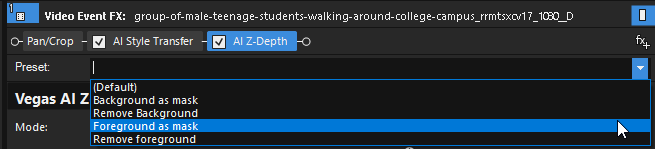
Open the Video FX tab, select Z-Depth from the list of plug-ins, and drag the Background as mask or Foreground as mask preset onto the clip.
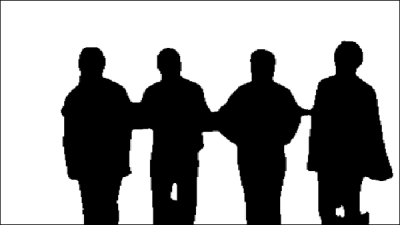
FIGURE Preset: Background as mask
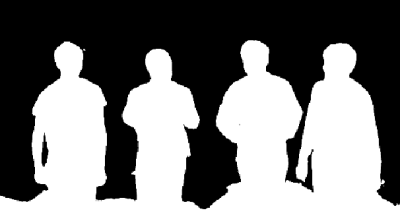
FIGURE Preset: Foreground as mask
The Video Preview window shows the detected depth: foreground objects appear black, background objects appear white.
-
Adjust the parameters to refine the depth mask. Get the white (background) area as tight around your foreground subject as possible.
-
Set Visualization to None.
-
In the Z-Depth plug-in controls, deselect the Transparency checkbox.
-
Click the Mask Effects button to activate it.
-
Choose a Style Transfer preset from the Video FX window and drag it onto the clip.
-
In the Video Event FX window, drag Style Transfer to a position between Pan/Crop and Z-Depth in the effects chain.
The Style Transfer effect now applies only to the foreground layer.
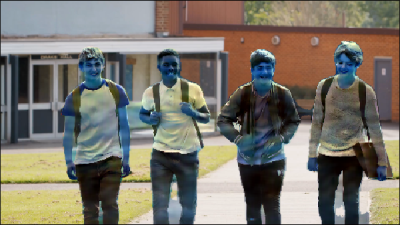
FIGURE Style transfer effect with Background as mask preset
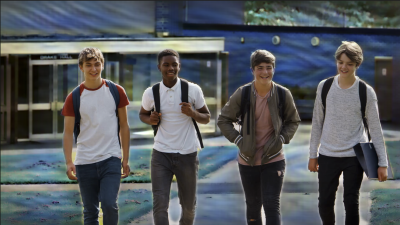
FIGURE Style transfer effect with Foreground as mask preset
-
To apply the Style Transfer effect to the background instead of the foreground, use one of the following options:
-
Select the Invert checkbox in the Z-Depth plug-in controls.
- or -
-
In the Video Event FX window, click the Z-Depth effect and select Foreground as mask / Background as mask from the Preset drop-down list.
-
-
Adjust the Feather parameter to smooth the mask edges.
Watch the video: Vegas Pro AI Z-Depth: Your Guide to Depth Masking
Last modified on April 15, 2026
Was this page helpful?
What did you particularly like about this page?
What did you dislike about this page?
Thank you for your feedback.