Mocha Vegas
NOTE This feature is available in the Plus/Ultimate version of Vegas Pro.
Mocha Vegas is the Boris FX Mocha motion tracking tool that is integrated in Vegas Pro as an OFX plug-in. Use it when you need to track motion in a video event and apply the track to effects, picture-in-picture, or stabilization. You can invoke the software from inside Vegas Pro and perform all the sophisticated motion tracking that this industry-standard tool offers. Once you’ve created the tracking data inside Mocha, you can easily transfer that data to the Vegas Pro Motion Tracking tool and apply it to your project in all the normal ways. You can also apply the tracking data to the Stabilization tool in Vegas Pro for great video stabilization results.
-
Track an object and apply a blur or pixelation that follows it through the shot.
-
Track a screen (or sign) to attach an insert or picture-in-picture element.
-
Export tracking data to the Vegas Pro Motion Tracking tool for additional workflows (for example, stabilization).
Add Mocha Vegas to your project
Mocha Vegas is an OFX plug-in, so use all the normal techniques to add it to your project.
-
Place your media on the timeline.
-
Place the cursor at the beginning of the event you want to track on the timeline.
-
Click the Video FX tab.
-
Select Mocha Vegas from the list of plug-ins.
-
Drag the Default preset onto the event.
-
In the Video Event dialog box, click the Launch Mocha UI button.
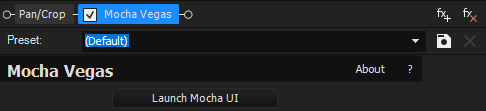
FIGURE Launch Mocha UI button
This starts the Mocha application and opens with your clip already loaded.
Create tracking in Mocha Vegas
Mocha Vegas is open (you clicked Launch Mocha UI).
-
Create a mask over the object you want to track.
-
Create a quick mask over the object you want to track. Tip: To keep things simple for this training, use the Spline, Rectangular, or Elliptical tool.
-
Adjust the mask so it covers the planar area you want to track.
-
In the Track controls, select the motion types you want to track (Translation, Scale, Rotation, Shear, Perspective).
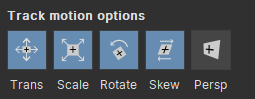
FIGURE Track motion options
-
Click Track Forward (or Track Backward) to start tracking.
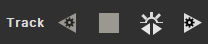
FIGURE Track buttons
-
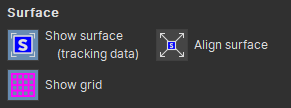
Turn on the Surface (and optionally the Grid) to check the track.
-
Adjust the Surface corners so they match the tracked plane.
-
After the track finishes, make sure Mocha created a layer in the Layers list.
-
Rename that layer if you want to.
-
Choose File | Save Project to save your work.
-
Choose File | Exit to close Mocha.

FIGURE Basic toolbar
Tip: To keep things simple, use the Spline, Rectangular, or Elliptical tool.
The position of the Surface affects exported tracking data. Set the Surface before you export or apply tracking data in Vegas Pro.
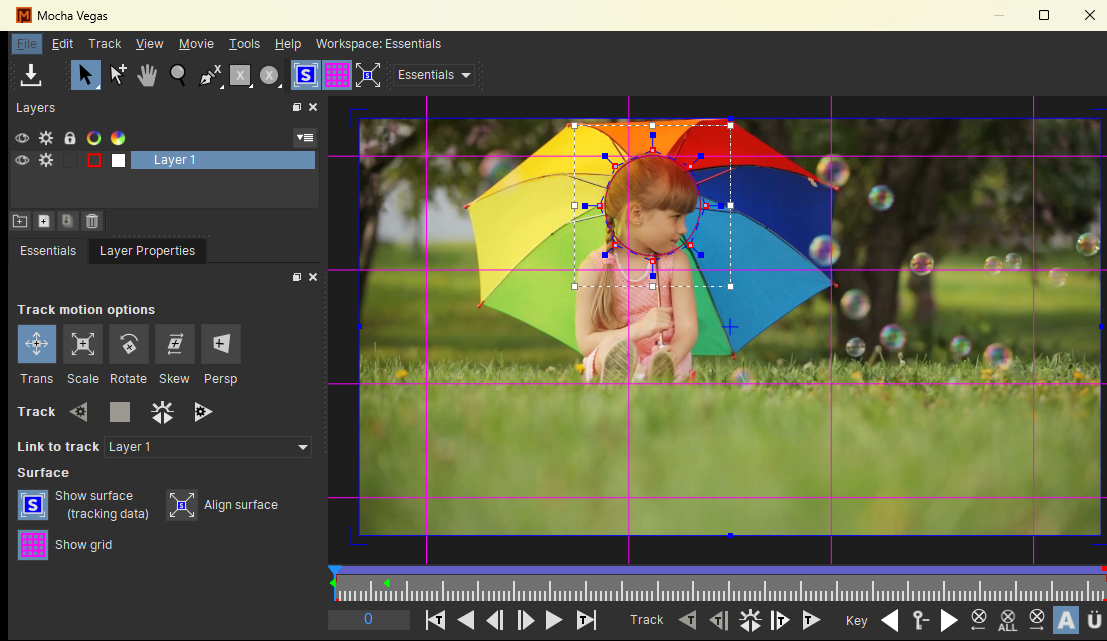
FIGURE Mocha Vegas user interface
Apply tracking data in Vegas Pro
-
You saved and closed Mocha Vegas.
Bring tracking data into Vegas Pro
-
In the Video FX window, click the Expand arrow for the Tracking Data section.
-
Click the Create Track Data... button.

FIGURE Create Track Data button
If the project contains more than one layer, the Layer Controls dialog box opens.
-
If the Layer Controls dialog box opens, select the layer you created in Mocha and click OK.
You can now see the calculated tracking data in the plug-in.
Create a matching mask in Vegas Pro
-
Click the Create Masks button to add a Bézier Masking plug-in to your FX chain.
This creates a mask in Vegas Pro that matches the tracking mask you made in Mocha.
You can see in the Video Preview window that the mask has been applied.
Add an effect to the tracked area
Use this workflow to apply any effect to a tracked area by limiting it to the mask.
-
From the Video FX window, select an effect you want to apply (for example, Pixelate) from the list of effects.
-
Add one of the presets to your effects chain in front of the Bézier Masking plug-in.
-
Adjust the effect settings until you’re happy with the results.
-
In the Bézier Masking plug-in, expand the General Options section and select the Mask Effects checkbox. You now have a tracked effect limited to the masked area.
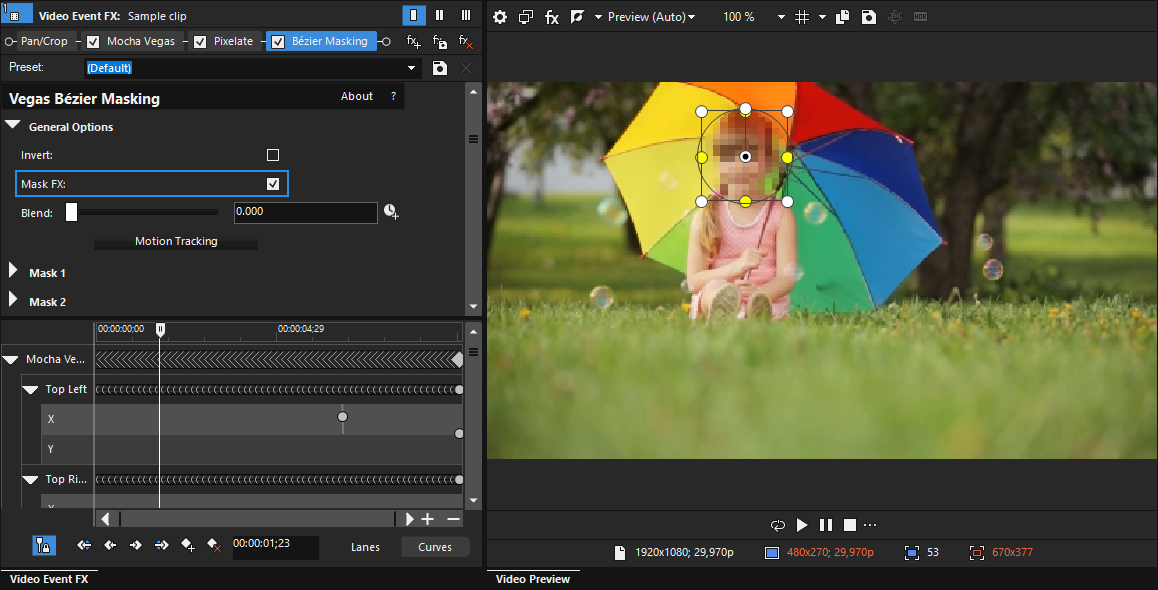
FIGURE Bézier Masking effect
-
Play your Vegas Pro project to see the results.
Last modified on April 29, 2026
Was this page helpful?
What did you particularly like about this page?
What did you dislike about this page?
Thank you for your feedback.