Speech to Text
NOTE This feature is available only with a Vegas Pro subscription.
The Speech to Text tool enables you to analyze the audio in timeline clip events offline and create a transcript from spoken content without an internet connection. You can correct mistakes in the generated text, search for recurring errors with Find and Replace, and use text-based editing tools to refine your project more efficiently.
The Speech to Text feature also includes text-based editing tools. After you create a transcript, you can edit the text directly—for example, delete a section of text, cut and paste text, or reorganize spoken passages—and Vegas Pro updates the corresponding events on the timeline to match the transcript edits. The reverse is also possible: if you edit the timeline, the transcript updates to reflect those changes.
-
Editing interview footage: Transcribe interviews and remove unwanted passages by editing the text instead of searching manually through the timeline.
-
Creating a transcript for review: Generate a transcript that you can proofread, correct, and use as the basis for further editing decisions.
-
Preparing spoken content for text-based editing: Create a transcript first, then rearrange or delete spoken passages to speed up rough cuts.
-
Creating accessible content: Generate text from spoken content to support accessibility workflows and downstream subtitle creation.
Open the Speech to Text tool
-
Add an audio or video file that contains someone speaking.
TIP You can also try the feature with music. Depending upon the type of music and how “out front” the vocals are, you may have good luck turning those vocals into text so you can then make, for example, a lyric video for your song.
-
Select the event and choose Tools | Speech to Text to open the window.
The window opens in Transcript view.
NOTE The event list can contain multiple items from your project. Select an event in the timeline if you want to focus on a specific clip.
Generate text from the audio file
-
Select the analysis target for the event you want to process:
Source Media Analyzes the complete source file, regardless of how much of the file is currently used on the timeline. Timeline Event Analyzes only the selected event on the timeline. -
Click the Language drop-down list and choose the correct language.
-
Choose an item from the AI Model list.
The available models provide different speed and quality trade-offs.
Tiny - Fast (~78MB) Fastest option with the lowest model size. Base - Balanced (~148MB) Balanced option for speed and accuracy. Small - Good Quality (~488MB) Improved accuracy with moderate processing speed. This is the default model. Medium - High Quality (~1530MB) Higher quality with a larger model and longer processing time. Large v1 - Best Quality (~3090MB) Large model for maximum quality at the cost of processing speed. Large v2 - Enhanced (~3090MB) Enhanced large model. Large v3 - Latest (~3100MB) Latest large model. -
Optional: Select Enhanced Word Alignment to improve word timing alignment in the transcript.
-
Click Analyze selected event to process only the current event, or click Analyze all to process all listed items.
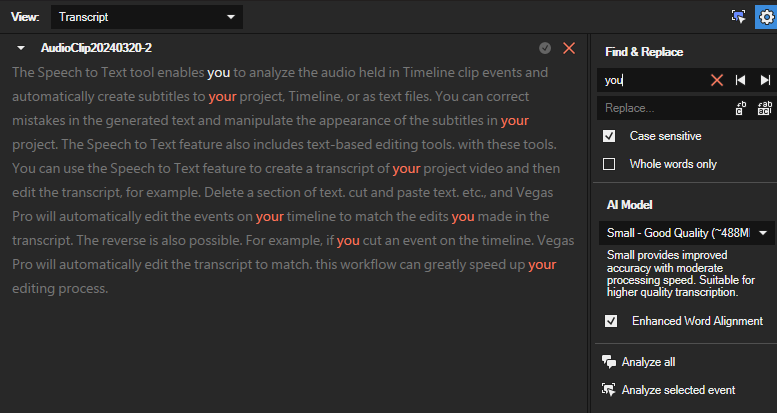
When processing is complete, the generated transcript appears in the main pane.
-
Review the transcript and correct any recognition errors directly in the text.
You can now do either or both of two things with your transcript: perform text-based editing and create subtitles.
Find and Replace
Use the Find and Replace controls on the right side of the window to locate repeated errors and correct them efficiently.
| Find text box | Enter the word or phrase you want to search for in the transcript. |
| Replace text box | Enter the word or phrase you want to use as a replacement. |
| Case sensitive | Check this box to make the search case sensitive. |
| Whole words only | Check this box to find only whole words that match the search term. |
| Previous Occurrence | Navigate to the previous instance of the search term. |
| Next Occurrence | Navigate to the next instance of the search term. |
| Replace this Occurrence | Replace the currently highlighted instance of the search term. |
| Replace all Occurrences | Replace all instances of the search term in the transcript. |
| Clear | Clear the text in the "Find" or "Replace" text boxes. |
| Analyze all | Process the entire transcript for analysis. |
Text-Based Editing
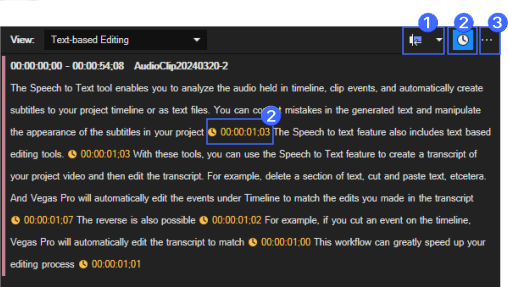
You can edit the timeline by editing the transcript in Text-based Editing view. Time ranges and pause markers help you identify the exact portions of speech represented by each section of text.
Choose Text-based editing from the View list.
|
1
|
Auto-Ripple |
Select this button and choose a mode from the drop-down list to automatically ripple the contents of the timeline following an edit after adjusting an event's length, cutting, copying, pasting, or deleting events. »For further information: Post-edit ripple |
|
2
|
Pauses | Click to turn the pause value displays on or off in your transcript. |
|
3
|
Additional settings |
|
Selecting Text in the Transcript
-
Click on the first word of the desired sentence to highlight it and observe the playback cursor move to the matching audio in the timeline.
-
For a full sentence selection, hold the Shift key and click the last word; this action selects the entire range of text and the associated segment in the timeline.
Deleting Text and Corresponding Audio
-
Select the text you want to remove and press Delete.
Vegas Pro removes the selected text and the corresponding section from the timeline.
If you later decide to restore deleted material, trim the corresponding timeline event to bring the media back. The transcript updates automatically.
Rearranging Text and Timeline Events
-
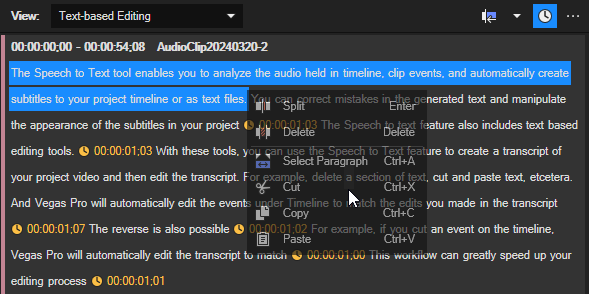
In the Text-based editing window, click to select a word or a range of words you want to move.
-
Right-click on the highlighted text and choose Cut from the context menu to remove it from the current position.
-
Move to the new location in the transcript where you want to insert the cut text.
-
Right-click and choose Paste from the context menu to insert the text at this new position.
The timeline will automatically adjust, moving the associated audio to match the rearranged text in the transcript.
Creating subtitles
Once you’re done with all of your edits (using either the timeline or the Text-based editing window), you’re ready to generate subtitles.
-
Choose Subtitles from the View drop-down list.
Vegas Pro has already broken your transcript up into subtitles of reasonable length. These are listed along with the timecode of when the subtitle appears and disappears. Any edits you made in the transcript and Text-based editing view also appear here in subtitles view.
-
Control the look of your subtitles on the right.
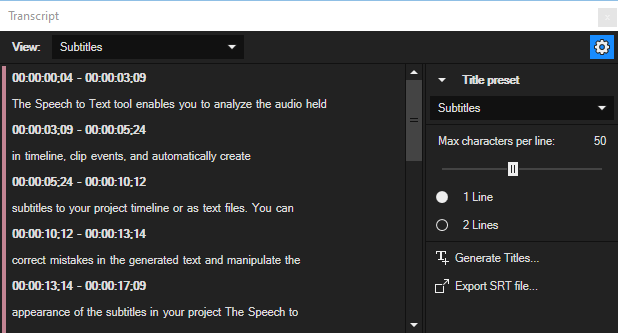
Title preset The Subtitles text preset has been chosen by default, but you can use the drop-down to choose any other preset. If you’ve previously created a custom preset for your subtitles, it will appear in this list. Choose it from the list to apply it to your subtitles. Max characters per line Use the Max characters per line slider to set the length of your subtitle lines. 1 Line / 2 Lines Select the appropriate radio button depending upon whether you want one-line or two-line subtitles. -
With all of these settings in place, click the Generate Titles button.
Vegas Pro creates Titles & Text events on a new track in your timeline.
If you’ve generated a new subtitle track, the tool creates a new text event for each of the subtitles in your list. These events are standard Titles & Text events, and you can edit them however you need to. For instance, if the text doesn’t line up perfectly with the spoken audio, you can move the text event to line it up properly. Or you can trim either edge of the event to make it last longer or shorter. You can open the generator and make corrections or adjustments to the text. In short, any edit you would normally make to a text event on your timeline you can make here to perfect your subtitles.
Exporting Subtitles
Export your subtitles as an SRT file (SubRip file format), which is a common subtitle file format used for sharing and displaying subtitles across various media players and platforms.
Last modified on April 15, 2026
Was this page helpful?
What did you particularly like about this page?
What did you dislike about this page?
Thank you for your feedback.