Text to Speech
NOTE This feature is available only with a Vegas Pro subscription.
Text to Speech converts written text into spoken voice-over. Use it to generate narration offline on your computer in Vegas Pro, with selectable voices and adjustable voice settings. Add the generated speech to Project Media or place it on the timeline.
-
Create a quick guide track for a rough cut before you record a final narration.
-
Generate temporary voice-over for client previews or internal review versions.
-
Create spoken inserts for tutorials, explainers, or social media videos without recording new audio.
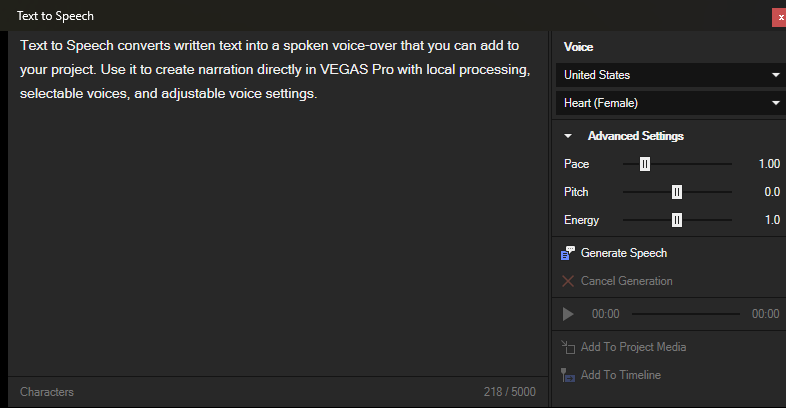
FIGURE Voice selection and advanced settings for speech generation.
Create speech from text
-
Choose Tools | Text to Speech.
-
Type or paste the text that you want to convert to speech into the text field.
NOTE The dialog shows a 5,000-character counter for the current text entry.
-
Select a language variant in the first Voice list.
-
Select a voice in the second Voice list.
-
Expand Advanced Settings and adjust Pace, Pitch, and Energy.
TIP Use Pace to make the speech slower or faster, Pitch to raise or lower the voice, and Energy to control the volume.
-
Click Generate Speech.
-
Preview the generated speech by clicking the Play button.
Add the generated speech to your project:
-
Click Add To Project Media to save the generated speech in the current project without placing it on the timeline.
-
Click Add To Timeline to place the generated speech on the timeline.
-
Dialog options
| Option | Description |
|---|---|
| Voice | Select the language variant and the voice that Vegas Pro uses for speech generation. |
| Pace | Adjust the speaking speed. |
| Pitch | Adjust the voice pitch. |
| Energy | Adjust the intensity of the generated speech. |
| Generate Speech | Generate speech from the current text and settings. |
| Cancel Generation | Cancel the current generation process. |
| Add To Project Media | Save the generated speech as media in the current project. |
| Add To Timeline | Insert the generated speech on the timeline at the current cursor position. |
Last modified on April 29, 2026
Was this page helpful?
What did you particularly like about this page?
What did you dislike about this page?
Thank you for your feedback.