Video tutorial
View or change media file properties
The Media Properties dialog shows information about a media file and lets you edit supported properties.
Open it from Project Media, Explorer, or a timeline event to review or edit properties for the selected media. The available pages depend on the selected media and the information Vegas Pro can read.
Open the Media Properties dialog
Open Media Properties from Project Media
-
Select one or more media files in the Project Media window.
-
Click the Media Properties button
 .
Open Media Properties from a timeline event
-
Right-click the event.
-
Choose Media Properties from the shortcut menu.
Open Media Properties from Explorer
-
Select a media file in Explorer.
-
Right-click the file and choose Properties from the shortcut menu, or press Ctrl+P.
NOTE When you open Media Properties from Explorer, the dialog shows only the Information page, because the file is not opened as project media.
Review and edit media properties
Review available Media Properties pages
The pages available in the dialog depend on the selected media and the information that Vegas Pro can read.
|
Page |
Available when |
|---|---|
|
Time code |
The media file is part of the project. |
|
Video |
The media contains a video stream. |
|
Audio |
The media contains an audio stream. |
|
Information |
The media is not a media generator. |
|
Still image |
The media contains a still-image stream. |
|
Generator |
The media contains a generator stream. |
|
Nested Sequence |
The media is a nested sequence. The page replaces the Video page. The color settings of a nested sequence come from the saved project and cannot be changed; you can change Pixel Aspect Ratio, Alpha Channel, Background Color, and Rotation. |
|
Meta Data |
The file contains metadata. The page is read-only. |
Media generators do not have an Information page. The dialog selects the Generator page for these files.
Media Properties actions
|
Action |
Description |
|---|---|
|
Help |
Opens the relevant help page. |
|
Copy to Clipboard |
Copies the settings of the current page to the clipboard, one |
|
Save Profile |
Saves Pixel Aspect Ratio, Scan Type, and Alpha Channel as a video profile. Available on the Video page when a single video file is selected. See Save settings to a video profile. |
Set the timecode source
Use the Time code page to choose the timecode source for a media file.
|
Setting |
Description |
|---|---|
|
Physical media |
Type the name of the tape or other physical media that the file was captured from. |
|
Use custom timecode |
Clear this check box to use the timecode from the media file. Select it to type a custom starting value for the timecode and choose its format from the drop-down list. |
View media information
Click the Information page to view common media information.
The dialog retains the common-media information text from the previous dialog.
View audio properties
The Audio page shows the following read-only information for audio streams.
|
Item |
Description |
|---|---|
|
Format |
Displays the audio format. |
|
Sampling Rate (Hz) |
Displays the audio sampling rate. |
|
Bit Rate (Bps) |
Displays the average data rate of the audio stream in bytes per second. |
|
Channels |
Displays the number of audio channels. |
|
Bit Depth (bit) |
Displays the audio bit depth. |
|
Duration |
Displays the audio duration. |
Edit video properties
The Video page provides the following settings for video files.
In each drop-down list, the value that Vegas Pro read from the file when importing it is marked (detected). Choose it to undo a manual change.
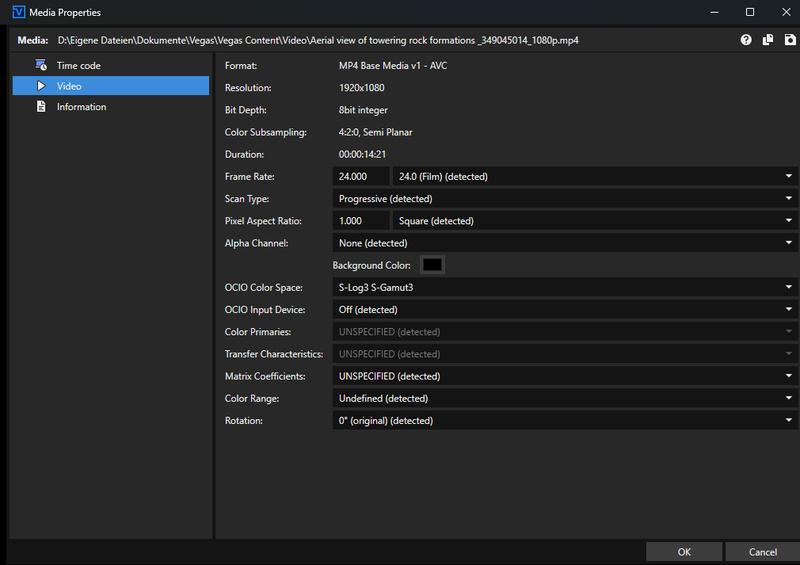
FIGURE The Video page of the Media Properties dialog
|
Item |
Description |
|---|---|
|
Format |
Displays the media format. |
|
Resolution |
Displays the media resolution. |
|
Bit Depth |
Displays the media bit depth. |
|
Color Subsampling |
Displays the media color subsampling. |
|
Duration |
Displays the media duration. |
|
Frame Rate |
Type a frame rate or choose a preset from the drop-down list to change the frame rate of the file. |
|
Choose a setting from the drop-down list to select the scan type of the file.
|
|
|
Pixel Aspect Ratio |
Choose a setting from the drop-down list to change the pixel aspect of the file. This setting will depend on your capture/video output card. Consult your capture/video output card manual for the proper settings. |
|
Alpha Channel |
Choose a setting from the drop-down list to change the alpha channel information for the file. If the alpha channel in an image is not detected, choose the correct type of alpha channel from this drop-down list. If you're unsure, try the Premultiplied setting first.
|
|
Background Color |
Click the color box to change the background color of the file. |
|
Choose the OpenColorIO input color space of the file, for example the Log format of a camera, or choose Off to use the internal color conversion. Available only in a 32-bit floating point project. The setting takes effect only when the project uses a view transform other than Off, for example in HDR Mode. »For further information: Specify the color space for individual clips |
|
|
OCIO Input Device |
For display-referred footage, such as HDR video in HLG or PQ, choose the display and view that the file was mastered for. Vegas Pro reverses this output transform. Choose Off if you do not need it. Available only in a 32-bit floating point project with ACES version 1.3. Like OCIO Color Space, the setting takes effect only when the project uses a view transform other than Off. |
|
Color Primaries |
Choose the color primaries (the color gamut) of the source, or keep the value detected from the file. For camera Log formats, choose the gamut that matches the recording mode of the camera. As soon as OCIO Color Space or OCIO Input Device is not set to Off, Color Primaries and Transfer Characteristics are unavailable, because OpenColorIO performs this conversion. Matrix Coefficients and Color Range stay available. NOTE Manual overrides of Color Primaries, Transfer Characteristics, Matrix Coefficients, and Color Range stay with the project. »For further information: Check the interpretation of each media file |
|
Transfer Characteristics |
Choose how the format encodes the brightness of the source, or keep the value detected from the file. Typical values are an SDR transfer function, a Log curve, HLG, or PQ. A source with the correct color primaries can still look wrong if the transfer characteristic is wrong. |
|
Matrix Coefficients |
Choose how Vegas Pro converts the YUV or YCbCr values of the source to RGB, or keep the value detected from the file. BT.709 is common for SDR HD video. BT.2020 non-constant luminance is common for HDR workflows in BT.2020. |
|
Choose the color range of the selected media: Undefined, Full, or Limited. Vegas Pro detects the media's color range if the media supports color range metadata. Most reader plug-ins support the color range override option. »For further information: Check the interpretation of each media file NOTE If the color range is “limited” or “Undefined” in Y’CbCr format, 16-236 and 16-255 color ranges will be converted to 0-255 RGB (full range). If the color range is full, no level conversion is performed when decoding Y’CbCr format into RGB color space. IMPORTANT The color range override option applies only when you've set 8-bit Pixel Format in Projects to full range mode. Some reader plug-ins, including MVC and WMV, do not support color range override. Still-image readers do not support it. |
|
|
Rotation |
Choose a setting from the drop-down list to rotate a media file's orientation.
In this example, the video was shot with the camera tripod rotated 90 degrees. The project is rotated, but the media doesn't match the project orientation, so the video is letterboxed within the frame.
After choosing 90° clockwise from the Rotation drop-down list, the media is rotated, and the video fills the frame. TIP
|


Edit properties for multiple video files
Select two or more video files in the Project Media window and open Media Properties.
The page list shows a subpage for each selected file. A change on the parent page applies to all selected files. On the Information page, the information for each additional file appears below the preceding file.
The following settings can be edited for multiple video files:
-
Frame Rate
-
Scan Type
-
Pixel Aspect Ratio
-
Alpha Channel and Background Color
-
OCIO Color Space and OCIO Input Device
-
Color Primaries, Transfer Characteristics, Matrix Coefficients, and Color Range
-
Rotation
If a setting is not the same for all selected video files, the drop-down list shows (Multiple selection) and number boxes show ###. If you do not change the setting, the differing values are kept.
Save settings to a video profile
If you frequently edit a type of video file, click Save Profile after editing its settings. The button is available on the Video page when a single video file is selected.
Vegas Pro saves Pixel Aspect Ratio, Scan Type, and Alpha Channel. These settings are used whenever you add a file with the same format, resolution, frame rate, and bit depth.
Last modified on October 20, 2026
Was this page helpful?
What did you particularly like about this page?
What did you dislike about this page?
Thank you for your feedback.