Video tutorial
Selectively prerender video
From the Tools menu, choose Selectively Prerender Video to render temporary preview files for the sections of your project that cannot be rendered in real time. These temporary preview files are used when you play back that section of the project.
When you perform a selective prerender, a separate preview file is created for each section of your project that needs to be prerendered. Sections that contain transitions, effects, and compositing will need to be prerendered; unprocessed DV media files will not.
TIP Selective prerendering is helpful when previewing on an external monitor. »For further information: Using an External Video Monitor
-
Optional: To prerender to a different format, choose File | Properties, select the Override project settings when prerendering video checkbox on the Video tab, and click Select. In the Prerender Video dialog, choose a format and a template, and click Select.

By default, Vegas Pro prerenders video to an AVC (H.264) format with a template that matches your project settings. Format and Template on the Video tab show the settings that are used. »For further information: Setting project properties
-
Select the area of your project that you want to preview. If there is no time selection, the entire project will be used.
-
Choose Tools | Selectively Prerender Video or press Shift+M. The rendering process begins right away, and a progress dialog shows status and details for each prerendered file. When completed, a bar appears at the top of the timeline to indicate each rendered section.
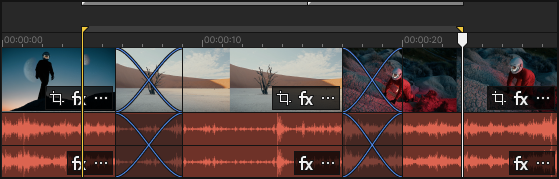
NOTE Each prerendered section will consist of no more than 300 frames. Because selective prerendering creates multiple files, minor editing on the timeline will not invalidate all of your prerendered video—only the sections you modify will need to be rerendered.
Last modified on October 20, 2026
Was this page helpful?
What did you particularly like about this page?
What did you dislike about this page?
Thank you for your feedback.