Adding or Deleting Busses
From the Insert menu, choose Bus
(or click the Insert Bus button  in the Mixing Console window) to add a bus to your project.
The number of busses in your project will be determined by several factors, such as the number of outputs that your hardware contains or how you will be using and applying effects throughout your project.
NOTE You can add up to 26 busses, and you can change the number of busses at any time.
By default, all busses are assigned to the Master bus. In this configuration, you can use them for creating subgroups of tracksfor example, you could route all your drum tracks to a bus so you can adjust their levels together without changing their relative levels. However, you can also route busses to hardware outputs so you can use busses for sending tracks to external effects processors or for mixing on an external mixer.—
Add a bus

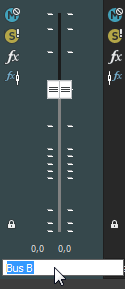
Rename a bus
Delete a bus
Last modified on July 01, 2026
Was this page helpful?
What did you particularly like about this page?
What did you dislike about this page?
Thank you for your feedback.