You can create up to 26 (plus the Master) virtual busses
that you can route to hardware attached to your computer or to other busses.
By default, all busses are assigned to the Master bus. In this configuration,
you can use them for creating subgroups of tracksfor
example, you could route all your drum tracks to a bus so you can adjust
their levels together without changing their relative levels. When you
assign busses to hardware outputs, you can use busses for sending tracks
to external effects processors or for mixing on an external mixer.—
When
you route busses to hardware outputs, those busses will not be included
in the mix when you render your project.
If bus tracks aren't
already visible, choose Show Bus Tracks from the View menu.
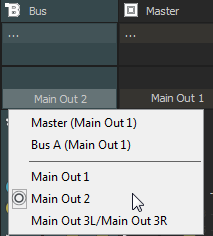
Click the Playback Device Selector button on the audio bus track and choose a bus
from the menu:
The
button is displayed as a when a bus is routed to the master bus.
The bus
letter is displayed (, , and so on) when a bus is routed to another bus.
The button
is displayed as a when a bus is routed to a hardware
output (not available for soft synth bus controls).
NOTE To prevent feedback, you cannot perform circular
routing. For example, if your project has two busses and bus A is routed
to B, bus B can only be routed to the Master bus.
Before you get started, verify that you are using Windows
classic wave drivers or an ASIO driver:
From the Options menu, choose
Preferences and click the Audio Device tab.
From the Audio device type drop-down list, choose Windows Classic Wave Driver or an ASIO driver.
Click OK
to close the Preferences dialog.
NOTE If you have selected Microsoft Sound Mapper in the Audio device type drop-down list on the Audio
Device tab in the Preferences dialog, you will not be able to assign
the bus to a different device.

 when a bus is routed to the master bus.
 ,
,  , and so on) when a bus is routed to another bus.