Editing Grooves
You can use the bottom portion of the Groove Pool window to edit grooves.
NOTE Notes:
-
Your edits are saved with your project. If you want to use the edited groove in other projects, you'll need to export it as a .groove file and import the edited groove in each project where you want to use it.
-
The grooves listed in the Groove Pool are specific to your project. If you've deleted grooves and saved your project, those grooves will be unavailable unless you import the grooves again.
-
From the View menu, choose Groove Pool to display the Groove Pool window.
-
Select a groove in the top portion of the window. For information about creating or duplicating grooves, see Creating Grooves.
TIP If you want to audition your edits in real-time, apply the groove to an event and start looped playback before you start editing the groove.
-
The bottom half of the Groove Pool window displays your groove as a timeline with beat anchors and groove markers to represent how beats will be adjusted.
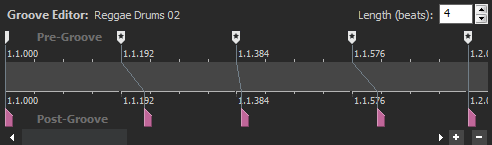
A beat anchor
 represents the beat that will be adjusted, and a
groove marker
represents the beat that will be adjusted, and a
groove marker  represents the point in time when that
beat will be played. A groove marker can occur before or after the beat
anchor. A line connects a groove marker to its associated beat anchor.
represents the point in time when that
beat will be played. A groove marker can occur before or after the beat
anchor. A line connects a groove marker to its associated beat anchor.
-
Use the Length spin control to adjust the length of the groove. Decreasing the setting will remove beat anchors and groove markers from the file; increasing the setting will add anchors and markers.
-
Add or remove markers as needed:
-
If you want to add a marker, press M or double-click the beat ruler. A beat anchor and groove marker are added to the nearest division on the beat ruler.
-
If you want to delete a marker, right-click it and choose Delete from the shortcut menu.
TIP Use a single beat anchor/groove marker to adjust all beats forward or back equally. This produces an effect similar to slipping an event.
-
Adjust beat anchors and groove markers as necessary. Adjusting anchors and markers during looped playback helps you hear the results of your edits.
-
Drag a beat anchor
 (or insert a new one) to indicate which beat
you want to adjust.
(or insert a new one) to indicate which beat
you want to adjust.If snapping is enabled, beat anchors snap to the current grid spacing. Hold Shift while dragging to bypass snapping.
-
Drag a groove marker
to adjust when the beat will be played. Drag to the left if you want a
beat to be played early, or drag left if you want it to be played late.You cannot drag groove markers past each other, but multiple markers can exist at the same point in time.
When the Allow snapping for Post-Groove Markerscheck box is selected on the General tab of the Preferences dialog, groove markers will snap to the current grid spacing if snapping is enabled. Hold shift while dragging to bypass snapping.
-
Double-click a beat anchor or groove marker to reset the marker to the beat anchor position.
TIP Hover over a beat anchor or groove marker to display a ToolTip that explains the effect of groove marker adjustments.
Last modified on July 09, 2026
Was this page helpful?
What did you particularly like about this page?
What did you dislike about this page?
Thank you for your feedback.