Applying or Removing Grooves
From the View menu, choose Groove Pool to toggle the display of the Groove Pool window.
Did you record a drum track that doesn't swing quite right? Before you rerecord the drum part, try applying the Hard Swing setting from the Groove Pool.
With the Groove Pool and Groove tool  , you can use groove
maps to adjust the timing of entire tracks or portions of tracks.
, you can use groove
maps to adjust the timing of entire tracks or portions of tracks.
TIP Tips:
-
If you want to get really creative, try setting a clip's stretching method to Pitch shift segments (on the Stretch tab of the Clip Properties window). When a groove adjusts a beat so it plays early, the pitch will be raised. When a beat is played late, its pitch will be lowered.
-
If a groove map does not seem to work correctly on a loop, the beats in the file may not be properly detected. Click the Redetect Beats button on the Stretch tab of the Clip Properties window to apply the Acid beat-detection algorithm to the loop.
NOTE Notes:
-
Groove maps are applied non-destructively. If you want to change a media file's inherent groove, use the render to new track command to render a new, grooved media file.
-
The grooves listed in the Groove Pool are specific to your project. If you've deleted grooves and saved your project, those grooves will be unavailable unless you import the grooves again.
Grooves cannot be applied to tracks that contain Beatmapped clips.
Apply a groove to an entire track
 to erase the entire event.
Set a default groove for new tracks
Apply multiple groove events to a track
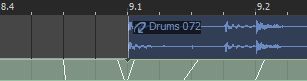
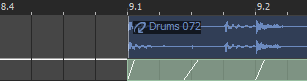
 next to the Groove toolbar button and choose a groove from the menu (or
double-click a groove in the Groove Pool).
next to the Groove toolbar button and choose a groove from the menu (or
double-click a groove in the Groove Pool).Erase groove events
Remove unused grooves from your project
 to remove any grooves that have not been
used in your project.
to remove any grooves that have not been
used in your project.Remove a groove from your project
 . The selected groove is removed from your
project.
. The selected groove is removed from your
project.Last modified on July 09, 2026
Was this page helpful?
What did you particularly like about this page?
What did you dislike about this page?
Thank you for your feedback.