Editing Audio Clip Properties
From the View menu, choose Clip Properties to display the Clip Properties window. The contents of the Clip Properties window will change to display properties for the currently selected clip in the timeline.
For information about MIDI clip properties, see Editing MIDI Clip Properties.
NOTE Notes:
-
If you adjust a clip's properties and do not click the Save button
 , the new properties are saved in your Acid
project only (the media file is not modified).
, the new properties are saved in your Acid
project only (the media file is not modified). -
If you adjust a clip's properties and click the Save button
, the modified properties are embedded in the media file if possible
(you will be prompted to save to a different file if necessary). -
When you load a project, the clip properties saved in the Acid project are displayed first. If clip properties have been edited since the project was saved or if the clip was modified in an external editor, you can click the Reload button
 to load the properties saved in the file.
Manage a track's clips
Each track in your Acid project can contain multiple, distinct media files, called clips. Use the Clip Pool tab in the Track Properties window to add, remove, and preview clips.
For more information about using clips with tracks, please see Using Clips with Tracks.
Adjust general properties for a loop, one-shot,
or Beatmapped clip
The General tab displays information about the file associated with a track and allows you to change the Acid type, apply pitch shifting to all events on the track that use the same clip, and adjust time-stretching for Beatmapped clips.
Changing Acid type
Choose a setting from the Acid Type drop-down list to change how the clip's media is handled in your Acid project.
|
Acid Type |
Description |
|
Loop |
When Loop is selected, the clip will be transposed to the project key and stretched to fit the project tempo. Loops can be drawn across the track and will repeat end-to-end. |
|
One-shot |
When One-shot is selected, the clip is streamed from the hard disk rather than being stored in RAM, will not change tempo with the rest of the loops, and will not be transposed to the project key. The Stretch tab is not available when One-shot is selected. |
|
Beatmapped |
When a file that is longer than thirty seconds is added to a project, The Beatmapper Wizard starts to allow you to add tempo information to the file. You cannot choose Beatmapped for very short media files. A file must be at least one measure long at 300 BPM to be Beatmapped. TIP Use the Open files as loops if between (seconds) setting on the Audio tab of the Preferences dialog to determine the file length. |
Adjusting pitch shift
Enter a value in the Pitch shift box (or use the spinner control) to adjust the pitch of all events that use the same clip.
NOTE Track pitch shifting is not saved to the media file
when you click the Save button .
Adjusting time-stretching (Beatmapped tracks only)
Acid provides two time-stretching methods for Beatmapped tracks: Classic and élastique. Classic is the standard time-stretch method used by Acid.
-
Select the Preserve pitch when stretching check box if you want your track to maintain its pitch when your project tempo changes.
When the check box is cleared, the clip's pitch will raise and lower with tempo changes. When the check box is cleared, you cannot change the pitch of a Beatmapped event.
-
Choose a setting from the Method drop-down list to determine the time-stretch method to use.
Method
Description
Classic
Classic is the standard time-stretch method used by Acid.
élastique
The élastique method uses technology from zplane.development, and provides enhanced real-time time stretching and pitch-shifting capabilities. The élastique method also allows you to preserve and shift a track’s formants, which are the characteristic resonant frequencies of a sound.
-
Choose a setting from the Mode drop-down list to choose the stretching method best suited to your media.
TIP The élastique Pro mode provides the highest quality stretching but requires more RAM usage and CPU power. The élastique Efficient mode uses fewer resources while still producing great time-stretching quality for polyphonic audio. The Soloist (Monophonic) and Soloist (Speech) provide good quality for monophonic audio with little effect on system resources.
-
Select the Preserve formants when stretching check box if you want your track to maintain its characteristic resonance when your project tempo changes. Formant preservation is most often used to avoid the "chipmunk effect" in vocal performances.
This option is only available for élastique Pro and Soloist (Monophonic) modes.
-
Type a value in the Formant shift (semitones) box (or use the spinner control) to adjust the formants of all events that use the same clip.
Formant shifting can be used to deepen the tone of a vocal performance without changing the pitch.
For élastique Pro mode, this amount represents the number of semitones to shift the timbre in addition to the offset required to compensate for any pitch shifting. For example, a setting of 0.000 applies formant correction with no additional shifting, while a setting of -7.000 will apply formant correction and deepen a sound by 7 semitones.
This option is only available when the Preserve formants when stretching check box is selected.
Adjust clip offset for looped recordings
When you perform looped recording, multiple clips are created in your recorded file. You can use the General tab of the Clip Properties dialog to adjust which portion of the recording is used for each clip (clip take offset).
A green region marks the clip's location in the recorded file. Drag the region markers to adjust the clip:

Adjust stretching properties for a loop
The Stretch tab allows you to specify how to handle pitch shifting and time stretching for loops or Beatmapped tracks.
TIP Click the Redetect Beats button to apply the Acid beat-detection algorithm to existing media.
You'll notice that the Stretch
tab looks similar to the Groove
Editor window. Both windows contain
beat anchors  and
markers; however, the markers on these windows perform complementary functions:
and
markers; however, the markers on these windows perform complementary functions:
-
On the Stretch tab of the Clip Properties window, the beat markers
 indicate beats in the media, and the beat anchors
indicate the
adjustment that is required to quantize the media to straight time before
applying a new groove.
indicate beats in the media, and the beat anchors
indicate the
adjustment that is required to quantize the media to straight time before
applying a new groove. -
In the Groove Editor window, a beat anchor
represents the beat that will be adjusted, and a
groove marker  represents the point in time when that
beat will be played when the groove is applied. A groove marker can occur
before or after the beat anchor. A line connects a groove marker to its
associated beat anchor.
represents the point in time when that
beat will be played when the groove is applied. A groove marker can occur
before or after the beat anchor. A line connects a groove marker to its
associated beat anchor.
If you want to hear the results
of editing beat anchors and markers, select the Play Quantized button  at the bottom of the Clip Properties window and use the Clip
Properties transport controls to preview the loop. Playing the clip in
Play Quantized mode demonstrates how the track sounds when the Quantize to Straight groove is applied. Click the Play
button
at the bottom of the Clip Properties window and use the Clip
Properties transport controls to preview the loop. Playing the clip in
Play Quantized mode demonstrates how the track sounds when the Quantize to Straight groove is applied. Click the Play
button  to hear the
original loop.
to hear the
original loop.
After you've edited a clip's properties, click the Save button to embed Acid information
in the file.
TIP Hold Ctrl while clicking the Save
button to save your
changes to a new file.
NOTE If you save stretching properties to a new file, the changes will also be applied to the current clip and saved with the Acid project; the changes are not saved to the original file.
NOTE If you edit a file in another audio-editing program, it is possible that the Acid data will be removed. Simply edit the settings on the Stretch tab to optimize the file again.
|
Item |
Description |
||||||
|
Root note |
Choose a note from the drop-down list to set the base note for loops that you want to conform to the project key. If you do not want a clip transposed to the project key (a clip that contains a drum sample, for example) choose Don't transpose. |
||||||
|
Number of beats |
Choose a setting from the drop-down list to specify the length of the original file. Selecting a value that does not match the actual file will cause the loop to play at a different speed than normal. For example, specifying a length of 8 beats for a 4-beat loop will cause the loop to play at half speed at any given tempo. |
||||||
|
Stretching method |
Stretching properties determine how time compression and expansion is performed on audio events. If you hear audio anomalies due to time compression, try editing the stretching properties of the track.
|
||||||
|
Transient sensitivity |
Type a value in the box
or use the spin control to adjust the sensitivity for beat detection.
When you set the control to 100, beat markers As you decrease the setting, markers are created for only strong transients. Increasing this setting can be advantageous when working with audio that has complex rhythms. Lower settings are more suitable for synthesizer pads and other basic material. |
||||||
|
Timing tightness |
Choose a setting from the
drop-down list to choose the resolution for beat anchors Quantized beat anchors are
displayed as |
||||||
|
Stretch spacing |
Choose a setting from the drop-down list to
specify how many stretch markers Audio that contains rapid notes such as drum rolls will benefit from setting the divisions at a smaller fraction of a beat. Slower-paced material, however, may actually suffer from high resolution. |
||||||
|
Re-Detect beats |
Click to automatically detect the beats in the current file. Use this button to reapply the Acid beat-detection algorithm to existing media. |
||||||
|
Stretch markers |
Stretch markers correspond to subdivisions of beats in the audio file. These markers tell Acid software where to divide the audio when performing time stretching to match tempo. Accurately detecting these beats is the key to making the time-compression process sound good.
TIP Use the Zoom In Time As a general rule, markers that are excessively close to each other may cause clicks in the audio. However, markers should not be more than one second apart, or pitch and echo artifacts may result. You can add, move, and delete stretch markers on the Stretch tab. If snapping is enabled, markers will snap to the current grid spacing. Moving markersYou can drag any marker
to a new location. If you move a combination stretch/beat marker Adding markersDouble-click the marker bar at the bottom of the waveform display to create a new marker. It is advantageous to add new markers if the software does not detect any quick subdivisions in beats. The biggest cause of audio artifacts due to time compression is a lack of beat detection. Make sure that you add markers anywhere the application fails to put one on a pronounced beat. Deleting markersYou can remove a user-defined
marker by right-clicking and choosing Delete
from the shortcut menu. Double-click
a combination stretch/beat marker Reset stretching markersClick
the Reload button |
||||||
|
Beat anchors and markers |
Beat anchors Beat anchors and markers are used only when a groove is applied to a track. Offsets between beat anchors and beat markers indicate that the beat represented by an anchor is actually played at the marker position, which may occur before or after the beat. This mapping represents the difference required to remove an existing groove from a media file and return the media to straight machine time so that grooves can be applied accurately. If you want to hear the results of editing
beat anchors and markers, select the Play Quantized button
In most cases, you won't need to edit beat anchors. TIP Use the Zoom In Time Grooves are not applied using the markers on the Stretch tab. Autodetected stretch markers are used to establish a baseline for applying other grooves with the Groove Pool window and Groove tool. User-defined markers have no effect on groove quantization. You can add, move, and delete beat anchors and markers on the Stretch tab. Moving anchorsYou can drag beat anchors and stretch markers to map the sample data in the waveform to a specific beat:
Adding anchorsDouble-click the marker bar (above or above the beat ruler) to create a new anchor and marker. Deleting anchorsYou can remove a marker by right-clicking and choosing Delete from the shortcut menu (or by double-clicking it). Reset beat anchorsRight-click the beat marker bar and choose Reset All from the shortcut menu to reset the markers to their last-saved positions. |
 and stretch-only markers
  represent the divisions in the clip media.
  .
.  .
If the you choose a resolution from the
.
If the you choose a resolution from the 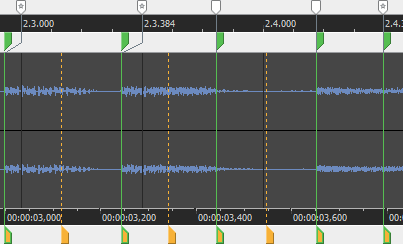
 and
and
 buttons to change the magnification of the
waveform.
buttons to change the magnification of the
waveform.


Adjust stretching properties for a Beatmapped
clip
Use the Stretch tab to quickly edit Beatmapper information
for a clip without starting the Beatmapper
Wizard. After you've edited a clip's properties, click the Save button to
embed Acid information in the file.
TIP Hold Ctrl while clicking the Save
button to save your
changes to a new file.
NOTE Notes:
-
If you save stretching properties to a new file, the changes will also be applied to the current clip and saved with the Acid project; the changes are not saved to the original file.
-
If you edit a file in another audio-editing program, it is possible that the Acid data will be removed. Simply edit the settings on the Stretch tab to optimize the file again.
-
Support for multitempo clips is available for clips that are recorded or rendered in Acid or by adding Beatmap markers on the Clip Properties dialog.
-
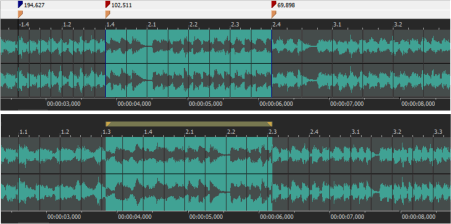
The ruler on the General tab is fixed, and the ruler on the Stretch tab is stretched to represent measures of varying lengths. In the following image, you can see how the beat ruler has been compressed to change the lengths of the measures as we switch from the Stretch to the General tab:
|
Item |
Description |
|
Initial root note |
Choose a note from the drop-down list to set the first root note for clips that you want to conform to the project key. If you do not want a track transposed to the project key, choose Don't transpose. |
|
Initial tempo |
Displays the starting tempo of the clip as determined by the Beatmapper Wizard. Type a value in the box or use the spin control to adjust the tempo. |
|
Initial time signature |
Choose settings from the Beats per measure and Beat value controls to set the starting time signature of your clip. Time signature changes in the clip will be marked by Beatmap markers. |
|
Ignore root note changes |
Select this check box if you do not want to transpose the Beatmapped clip when stretching. Root note changes in the Beatmap will be ignored. When the check box is cleared, pitch-shifting will be applied so the clip will conform to your project key |
|
Beatmapper Wizard |
Click the Beatmapper Wizard button to use the Wizard to adjust a track's tempo information. More. . . |
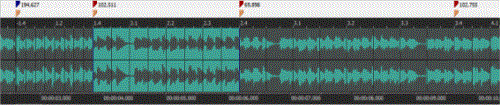
The waveform display shows tempo changes and measures:
-
The blue marker
 represents the first downbeat.
 -
Tempo changes are indicated with Beatmap markers
 . These
markers can be added manually or are added by Acid when recording
or rendering.
. These
markers can be added manually or are added by Acid when recording
or rendering. -
Orange markers
 represent measures.
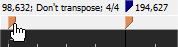
You can adjust tempo by dragging measure or Beatmap markers:
|
|
Dragging a measure marker that occurs before the first Beatmap marker sets the clip's initial tempo. |
|
|
Measure markers between Beatmap markers cannot be moved. |
|
|
Dragging a Beatmap marker adjusts the tempo of the Beatmap marker you drag and the previous marker. The length of the measures between the Beatmap markers is adjusted as you drag. |
|
|
Dragging a measure marker that occurs after the last Beatmap marker sets the clip's final tempo. |
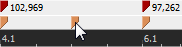
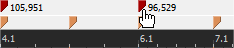
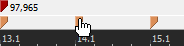
You can add Beatmap markers to signal a tempo change: just double-click a measure marker or a blank area of the Beatmap marker bar to add a marker.
To remove a Beatmap marker, double-click an existing marker.
To edit a Beatmap marker, right-click it and choose a new setting from the Root Note or Time Signature submenu.
For more information about using the Stretch tab to add Beatmap information to a clip, please see Fine-Tuning Beatmapped Clips.
Reload a clip
Click the Reload
button in the Clip
Properties window to reload the last-saved version of a media file. All
events remain in the timeline, but changes made in the Clip Properties
window since the file was last saved are discarded.
NOTE When you edit a clip in an external editor, changes to the sound file will be reflected immediately after you save the file in the external editor.
Replace a clip with another media file
Click the Replace
button  to replace the current clip with another
file. The events and envelopes in the timeline remain intact, but the
audio will be replaced with the new file.
to replace the current clip with another
file. The events and envelopes in the timeline remain intact, but the
audio will be replaced with the new file.
TIP Drag a file from the Explorer to the track name in the track list to quickly replace the active paint clip with another file.
Edit a clip's source project
If a clip's media was created from an Acid project and rendered
with the project path
reference in the file, you can click the Edit Source Project button  to open the
source project in a new Acid window.
to open the
source project in a new Acid window.
If you render the edited file using the same file name and location as the track's original media, your project will automatically be updated to use the latest rendered media file.
Add a clip to the Groove Pool
Click the Add to Groove Pool button  to make the selected clip available in the Groove
Pool so you can apply its timing to other tracks.
to make the selected clip available in the Groove
Pool so you can apply its timing to other tracks.
NOTE Groove cloning can extract grooves from loop tracks only.
Save changes to clip properties
Click the Save File button
to save the current clip and clip properties.
Click the Save File As button  to save the current clip and clip properties to a new file. The clip is
updated to use the new file.
to save the current clip and clip properties to a new file. The clip is
updated to use the new file.
NOTE Clip pitch shifting is not saved to the media file.
Last modified on July 09, 2026
Was this page helpful?
What did you particularly like about this page?
What did you dislike about this page?
Thank you for your feedback.