Editing Tools
From the Edit menu, choose Editing Tool, and select a tool from the submenu to change the active tool.
To use the Draw tool  , choose Editing Tool from the Edit menu, and then choose Draw
from the submenu (or press Ctrl+D). This tool allows you to insert, edit,
select, and move events in the timeline.
, choose Editing Tool from the Edit menu, and then choose Draw
from the submenu (or press Ctrl+D). This tool allows you to insert, edit,
select, and move events in the timeline.
Adding events
Click in the timeline and drag
to add an event. The longer you drag, the more times the loop will be
repeated (one-shots and Beatmapped clips do not repeat).
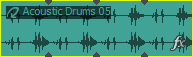
Repetitions in a loop are denoted
by the black indentations in the top and bottom borders of the event:
Selecting events
Click an event to select it.
Hold Ctrl while clicking to select multiple events, or hold Shift to select
all events between the first and last event you click.
Move events
Select events and drag them
along the timeline.
Change an event's length
Drag either edge of an event
to change its length. The event edge will snap to grid lines if snapping
is on. Hold the Shift key while dragging to temporarily suspend snapping
(press Shift after clicking).
To use the Selection tool  , choose Editing Tool from the Edit menu, and then choose Selection
from the submenu.
, choose Editing Tool from the Edit menu, and then choose Selection
from the submenu.
The Selection tool is designed to select
multiple events across tracks by drawing selection boxes around the events
you want to include. The Selection
tool can draw three types of selection boxes:
|
Type
|
Description
|
|
Free Selection
|
The default behavior of the tool:
-
Click to select individual
events (hold Shift or Ctrl to select multiple events).
-
Drag
to draw a rectangular region that begins where you start drawing and ends
where you release the mouse button. All of the events that are inside
the region will be selected. This method is good for selecting a group
of events that are close together.
|
|
Vertical
|
Can be used
to easily select all events that occur within a time range. The vertical
selection box automatically selects all of the tracks between your first
mouse click and where you draw the selection box; even tracks that are
not visible at the current magnification are selected.
|
|
Horizontal
|
Can be used
to easily select all events on a single or multiple adjacent tracks. The
horizontal selection box automatically selects all events on a track that
is touched by the selection box; even events that are not visible at the
current magnification are selected.
|
To change the type of selection box you are using, right-click
the mouse while holding down the left mouse button. Clicking the right
mouse button will toggle through the three types of selection boxes.
To use the Paint tool  , choose Editing Tool from the Edit menu, and then choose Paint
from the submenu.
, choose Editing Tool from the Edit menu, and then choose Paint
from the submenu.
The Paint tool
is designed to paint events across multiple tracks. With the Paint
tool selected, you can paint events across multiple tracks by clicking
and dragging the mouse. This tool is also useful for inserting one-shot
events evenly along the grid.
The Paint tool is different from the Draw tool in that it
can cross track boundaries. Use the Paint tool to add a random element
to your Acid projects.
When painting MIDI or one-shot clips, you can click the
down arrow  next to the Paint tool to set the length of events that will
be created when you drag with the Paint tool.
next to the Paint tool to set the length of events that will
be created when you drag with the Paint tool.
Loops and MIDI clips (with the Looped
check box selected in the Clip
Pool) will paint continuously across the timeline. One-shots and Beatmapped
clips do not repeat.
|
To do this
|
Do this
|
|
Add Events
|
Click and drag across tracks to add
events.
TIP Hold Ctrl while clicking
to paint the entire media file as an event, or Ctrl+right-click to delete
an entire event.
|
|
Merge Events
|
Click and
drag across two or more existing events to merge them.
|
|
Erase Events
|
Right-clicking
will cause the tool to function like the Erase tool.
|
To use the Erase tool  , choose Editing Tool from the Edit menu, and then choose Erase
from the submenu.
, choose Editing Tool from the Edit menu, and then choose Erase
from the submenu.
The Erase tool
allows you to remove sections of an event.
|
To do this
|
Do this
|
|
Erase Events
|
With the Erase
tool selected, click and drag across an event to erase sections equal
to the current Snap to
value.
|
|
Split Events
|
With the Erase tool selected, click once in the middle of an event to split the event
at the closest snap point.
|
|
Paint Events
|
Right-clicking
with the Erase tool selected will cause the tool to function like the
Paint tool.
|
To use the Envelope
tool  , choose Editing Tool from the Edit menu, and then choose Envelope
from the submenu.
, choose Editing Tool from the Edit menu, and then choose Envelope
from the submenu.
The Envelope tool
is designed to manipulate envelopes
in events. With the Envelope tool
selected, you can add, delete, select, and move envelope points, but events
cannot be moved or edited.
To use the Time Selection tool  , choose Editing Tool from the Edit menu, and then choose Time Selection from the submenu.
The Time Selection tool is designed to select all events
within a range of time. Drag within the timeline to make a selection.
To use the Groove tool  , choose Editing Tool from the Edit menu, and then choose Groove
from the submenu. You can use the Groove tool to adjust the timing of
media in your project by applying grooves
to events on the timeline.
, choose Editing Tool from the Edit menu, and then choose Groove
from the submenu. You can use the Groove tool to adjust the timing of
media in your project by applying grooves
to events on the timeline.
Choosing a groove
To choose the groove you want
to apply, click the down arrow next to the Groove toolbar button and choose
a groove from the menu (or double-click a groove in the Groove
Pool window). The name of the selected groove is displayed next to
the toolbar button:

Painting or erasing groove events
When the Groove tool is selected,
perform any of the following actions to add or remove groove events:
-
Click and drag in the timeline to
paint groove events. Groove events indicate where a groove will be applied.
-
Hold Ctrl while clicking the space
between two groove events to create a new groove event to fill the space
between the events.
-
Right-click and drag with the Groove
tool to erase a groove event, or hold Ctrl while right-clicking to remove
an entire groove event.
TIP Tips:
-
Drag a groove from the Groove Pool
to an existing groove event to change the event's groove.
-
Drag a groove from the Groove Pool
to a space between two groove events to create a new groove event to fill
the space between the events.
Grooves cannot be applied to Beatmapped
tracks.
-
Select the Groove Erase tool
 .
.
-
Click and drag across a groove
event to remove it.
TIP Tips:
-
Hold Ctrl while clicking a track
with the Groove Erase tool
to erase all groove events from a track.
-
You can also right-click and drag
with the Groove tool to erase a groove event, or hold Ctrl while right-clicking
to remove an entire groove event.
Choose Next Tool (or press D) to switch to the next tool in the list. For example,
if you're using the Paint tool, Next Tool selects the Erase tool.
Choose Previous Tool (or press Shift+D) to switch to the next tool in the list.
For example, if you're using the Erase tool, Previous Tool selects the Paint tool.
