Editing MIDI Track Properties
From the View menu, choose Track Properties to display the Track Properties window. The contents of the Track Properties window reflect the currently selected track.
For MIDI tracks, you can use the Output Settings tab to adjust MIDI controllers, voices, and drum maps. You can use the Input Filters tab set up MIDI message, velocity, or quantize filters. You can use the Clip Pool tab to organize each track's media and enable looped or one-shot drawing for MIDI events.
For information about editing track properties for audio tracks, please see Editing Audio Track Properties.
NOTE If you want to use the Piano Roll or List Editor plug-ins to edit MIDI data, use the Clip Properties window.
TIP Tips:
-
If the Track Properties window isn't visible, you can also double-click a track number
 to display that track in the Track Properties window.
 -
Right-click a track and choose Properties from the shortcut menu to display its properties.
-
When the Track Properties window is visible, properties for the selected track are displayed. Click a track to view its properties.
Configure MIDI track
controller automation (output settings)

Set up MIDI input filters
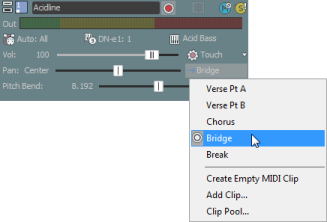
Set the track's paint clip
 icon indicates which clip will be used for
  .
.
Filter the contents of the track's Paint Clip Selector
Add clips to the Clip Pool
 button to display
the Open dialog, where you can browse to clips you want to add to the
track.
button to display
the Open dialog, where you can browse to clips you want to add to the
track.Export a MIDI clip
 button
to export the selected clip to a new folder or with a new file name.
button
to export the selected clip to a new folder or with a new file name.Remove clips from the Clip Pool
 to remove all unused clips from the track.
 to remove
it from the track.
to remove
it from the track. Cut, copy, and paste clips across tracks

 , and
, and  buttons on the Clip
Pool tab to cut, copy, and paste clips across tracks.
buttons on the Clip
Pool tab to cut, copy, and paste clips across tracks.Preview clips
 to play it.
  to stop playback.
Toggle looped or one-shot painting for a MIDI clip

 icon in the timeline.
 icon.
icon.Edit a MIDI clip's key
Edit a MIDI clip's time signature
Last modified on July 01, 2026
Was this page helpful?
What did you particularly like about this page?
What did you dislike about this page?
Thank you for your feedback.