Recording MIDI
You can use an external MIDI controller (or the keyboard/drum list between the track header and timeline) to record MIDI into your Acid project.
You can record in real time during project playback, use step recording, or use MIDI merge recording to build MIDI tracks.
Track-level MIDI Input Filtering available on the Input Filters tab in the Track Properties window allow you to control exactly which MIDI messages you want to record (or exclude) or even split a MIDI keyboard into zones to record into two different tracks at once.——
TIP If you use the keyboard/drum list between the track header and timeline to input MIDI notes, note that the buttons are velocity sensitive: clicking toward the right side of a button plays the note with a higher velocity setting than clicking toward the left side. The keyboard/drum list is visible in inline MIDI editing mode.
Attempting to record MIDI controller data over an existing event will overwrite existing note data. If you want to record controllers over an existing event that contains note data, use MIDI merge recording (see Use MIDI merge recording to build a part in this help topic).
Set up a MIDI controller for recording into a track 
If you have a MIDI controller that includes buttons and knobs that you map to external control functions, you can use the device as an external control device and as a MIDI input device for recording MIDI for example, you can use the buttons, knobs, and sliders on the device for external control, and still use the keyboard, pitch wheel, and modulation wheel for recording MIDI.
MIDI messages that are mapped to external control functions are filtered when you record MIDI. If a note message is assigned to a control surface function, both the note-on and note-off messages will be filtered. —
-
Select the MIDI track you want to record into, or press Ctrl+Alt+Q to add a new, blank MIDI track to your project.
-
Choose a MIDI input port:
-
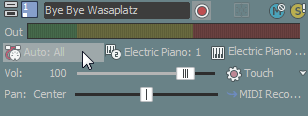
Click the MIDI Input button on the track header.
-
Choose a command from the menu:
Item
Description

Auto Input
Uses automatic input routing. When this command box is selected, the focus track will accept input from any MIDI input device.
TIP Use Auto Input when you want to record multiple controllers simultaneously. For example, with Auto Input selected, you could record a MIDI keyboard and bass pedal to a single track.

Input Off
Turns off MIDI input to the track.

Hardware Input Port List
Displays the devices that are selected in the Make these devices available for MIDI input list on the MIDI tab of the Preferences dialog.
Choose the specific device you want to use to send MIDI to the track.
NOTE You must choose a specific input port to use MIDI input filters.

Soft Synth Input Port List
Displays the available soft synths in your project.
Choose the soft synth you want to use to send MIDI to the track. Use this setting to record the output of MIDI plugins like step sequencers or arpeggiators. Read more under Using MIDI plugins.
-
-
Choose a MIDI input channel:
-
Click the MIDI Input button on the track header.
-
Choose MIDI Channel from the menu, and choose the MIDI channel you want to send data to the track, or choose All if you want the track to listen to all channels.
TIP If you want to select multiple input channels, hold Ctrl and select additional channels from the menu.
-
-
Click the MIDI Input button on the track header and choose Send MIDI Input Thru to MIDI Output from the menu if you want to echo notes from the MIDI controller to the track's MIDI device or soft synth for monitoring.
-
Click the MIDI Input button on the track header and choose MIDI Input Filters from the menu if you want to specify which MIDI messages you want to record (or exclude). For more information, see Set up MIDI message input filters, Set up a MIDI velocity input filter, or Set up a MIDI quantize input filter in Editing MIDI Track Properties.
Set up MIDI message, velocity, or quantize
filters
You can use the Input Filters tab on the MIDI Track Properties window to choose which notes or other MIDI messages you want to record or exclude from MIDI recordings.
Record MIDI in real time
With real-time recording, you can record MIDI in real time while your project plays back.
-
Connect a MIDI controller to your computer.
If you don't have a MIDI controller, you can use the keyboard in the track view (when in MIDI timeline editing mode) or the keyboard in the Soft Synth Properties window.
NOTE Not all VSTi plug-ins can record using the keyboard in the Soft Synth Properties window.
-
Select the Arm for Record buttons
 on the tracks where you want to record. Arming a track enables
it for recording.
on the tracks where you want to record. Arming a track enables
it for recording. -
Choose a MIDI input device and channel for each armed track. For more information, see Set up a MIDI controller for recording into a track in this help topic.
If you're recording using the keyboard in the track view or the Soft Synth Properties window, choose Auto Input.
Click the MIDI Input button on the track header and choose Send MIDI Input Thru to MIDI Output from the menu if you want to echo notes from the MIDI controller to the track's MIDI device or soft synth for monitoring.
-
Set up any desired MIDI message, velocity, or quantize filters for your armed tracks. For more information, see Set up MIDI message input filters, Set up a MIDI velocity input filter, or Set up a MIDI quantize input filter in Editing MIDI Track Properties.
-
Position the cursor where you want to start recording.
-
Click the Record button
on the transport
bar to start recording.MIDI messages from your controller are recorded as you play them.
-
Notes are added to an event in the timeline.
-
MIDI controller adjustments (such as pitch wheel and modulation wheel movements) are recorded as track envelopes. MIDI controllers are recorded in latch mode: envelope points are created when you change a control setting, and recording continues until you stop playback. When you stop adjusting the control, the control's current setting overwrites the existing envelope points.
NOTE Envelope points are not thinned when recording MIDI controllers from a hardware device.
-
To stop recording, click the Record button again or click the Stop button
 on the transport
bar.
on the transport
bar. A new clip is created for the recorded MIDI data on each armed track. You can use the Clip Pool tab in the Track Properties window to manage clips.
NOTE You can also record into time selections, punch into
MIDI events, or record multiple clips (when recording into a selection
with Loop Playback  selected) in
the same way you record audio.
selected) in
the same way you record audio.
Use step recording
Click the MIDI Step Record button  to open the MIDI Step Record dialog, where you can record by
specifying the interval between MIDI notes. Step recording allows you
to record notes with very precise timing.
to open the MIDI Step Record dialog, where you can record by
specifying the interval between MIDI notes. Step recording allows you
to record notes with very precise timing.
-
Connect a MIDI controller to your computer.
If you don't have a MIDI controller, you can use the keyboard in the track view (when in MIDI timeline editing mode) or the keyboard in the Soft Synth Properties window.
NOTE Not all VSTi plug-ins can record using the keyboard in the Soft Synth Properties window.
-
Select the Arm for Record buttons
on the tracks where you want to record. Arming a track enables
it for recording.If you don't arm a track for recording, a new MIDI track will be created when you click the MIDI Step Record button.
-
Choose a MIDI input device and channel for each armed track. For more information, see Set up a MIDI controller for recording into a track in this help topic.
If you're recording using the keyboard in the track view or the Soft Synth Properties window, choose Auto Input.
Click the MIDI Input button on the track header and choose Send MIDI Input Thru to MIDI Output from the menu if you want to echo notes from the MIDI controller to the track's MIDI device or soft synth for monitoring.
-
Set up any desired MIDI message, velocity, or quantize filters for your armed tracks. For more information, see Set up MIDI message input filters, Set up a MIDI velocity input filter, or Set up a MIDI quantize input filter in Editing MIDI Track Properties.
-
Position the cursor where you want to start recording.
-
Click the MIDI Step Record button
. -
Use the MIDI Step Record dialog to set options for recorded MIDI notes.
-
Click the Step size button and choose space between the beginnings of notes.
Select the Tuplet check box to set irregular step sizes. For example, to set an eighth-note triplet step size, choose eighth notes from the Step size menu, select the Tuplet check box, and choose 3 in time of 2.
-
Click the Duration button and choose length of the note's sustain. When you choose a duration longer than the step size, notes will overlap.
-
To set the note-on velocity for recorded notes, type a value in the Velocity box. If you want to record note-on velocity from your controller, select the As Played check box.
MIDI Step Record Dialog Keyboard Shortcuts
Command
Shortcut
Set Step size to whole note.
1
Set Step size to half note.
2
Set Step size to triplet.
3
Set Step size to quarter note.
4
Set Step size to 16th note.
5
Set Step size to 32nd note.
6
Set Step size to 64th note.
7
Set Step size to dotted note.
.
Set Duration to whole note.
Shift+1
Set Duration to half note.
Shift+2
Set Duration to triplet.
Shift+3
Set Duration to quarter note.
Shift+4
Set Duration to 16th note.
Shift+5
Set Duration to 32nd note.
Shift+6
Set Duration to 64th note.
Shift+7
Set Duration to dotted note.
Shift+.
Delete notes at cursor position.
Delete
Step forward by step size and delete notes.
Insert
Step forward by step size.
Right Arrow
Step backward by step size.
Left Arrow
Step backward by step size and delete notes.
Backspace
NOTE For these shortcuts to work, the main window must have focus, not the step recording dialog.
-
-
MIDI messages from your controller are recorded as you play them, and notes are added to an event in the timeline.
NOTE Notes:
-
MIDI controller adjustments (such as pitch wheel and modulation wheel movements) are not recorded in step record mode.
-
If you press a key before releasing the current key, both notes will be recorded at the same timeline position. Release both keys to advance to the next step.
-
To stop recording, close the MIDI Step Record dialog or click the Stop button
on the transport
bar.
Use MIDI merge recording to build a part
Click the MIDI Merge Record button  to build a MIDI part by recording repeatedly into
a loop region. MIDI merge data is recorded in real time, and you can add
more notes or MIDI controller data each time recording passes through
the loop region.
to build a MIDI part by recording repeatedly into
a loop region. MIDI merge data is recorded in real time, and you can add
more notes or MIDI controller data each time recording passes through
the loop region.
-
Connect a MIDI controller to your computer.
If you don't have a MIDI controller, you can use the keyboard in the track view (when in MIDI timeline editing mode) or the keyboard in the Soft Synth Properties window.
NOTE Not all VSTi plug-ins can record using the keyboard in the Soft Synth Properties window.
-
Select the Arm for Record buttons
on the tracks where you want to record. Arming a track enables
it for recording.If you don't arm a track for recording, a new MIDI track will be created when you click the MIDI Step Record button.
-
Choose a MIDI input device and channel for each armed track. For more information, see Set up a MIDI controller for recording into a track in this help topic.
If you're recording using the keyboard in the track view or the Soft Synth Properties window, choose Auto Input.
Click the MIDI Input button on the track header and choose Send MIDI Input Thru to MIDI Output from the menu if you want to echo notes from the MIDI controller to the track's MIDI device or soft synth for monitoring.
-
Set up any desired MIDI message, velocity, or quantize filters for your armed tracks. For more information, see Set up MIDI message input filters, Set up a MIDI velocity input filter, or Set up a MIDI quantize input filter in Editing MIDI Track Properties.
-
Click and drag in the marker bar or a blank area of the timeline to create a loop region.
-
Select the Loop Playback button
. -
Select the MIDI Merge Record button
. -
Position the cursor at the start of the loop region. If you want to record with pre-roll, you can position the cursor before the loop region.
-
Click the Record button
on the transport
bar to start recording.Each time recording passes through the loop region, you can add data to the event. MIDI messages from your controller are recorded as you play them.
-
Notes are added to an event in the timeline.
-
MIDI controller adjustments (such as pitch wheel and modulation wheel movements) are recorded as track envelopes. MIDI controllers are recorded in touch timeout mode: envelope points are created or edited when you change a control setting. When you stop adjusting the control, existing envelope points on the timeline are preserved.
MIDI controllers that are switches (such as a damper pedal) are always recorded in latched mode: envelope points are created when you change a control setting, and recording continues until you stop playback. When you stop adjusting the control, the control's current setting overwrites the existing envelope points.
When recording returns to the beginning of the loop region, existing MIDI controller envelopes are unaffected. For example, you could record note data the first time recording passes through the loop region, record pitch-bend controllers the second time, and modulation the third time.
NOTE Envelope points are not thinned when recording MIDI controllers from a hardware device.
-
To stop recording, click the Record button again or click the Stop button
on the transport
bar.
Last modified on July 09, 2026
Was this page helpful?
What did you particularly like about this page?
What did you dislike about this page?
Thank you for your feedback.