MIDI Track Envelopes and Keyframes
With MIDI track envelopes, you can adjust volume, panning, controller
parameters, program changes, or Sysex commands dynamically over the duration
of a track.
You can automate VSTi parameters using envelopes on the soft synth bus
track.
To record track automation using the controls in the track header, select
the Automation Settings
button  . When the button is not selected, the controls adjust static
(trim) levels.
. When the button is not selected, the controls adjust static
(trim) levels.
TIP You can use the Display
tab in the Preferences dialog to change the colors used to draw track
envelopes. Using custom envelope colors can help you avoid getting lost
in a maze of envelopes when you're using track envelopes for MIDI controllers.
-
Select a MIDI track.
-
From the Insert menu, choose
Envelopes, or
right-click in the track list and choose Insert/Remove Envelope from the shortcut menu.
-
From the submenu, choose
Mute. A check
mark is displayed next to the command, and an envelope is added to the
timeline.
Mute automation is either on or off with no fade between the on and
off states. If you want to use fades, apply volume automation.
-
If you want to change the
track's mute state throughout the track, edit
the envelope in the timeline.
-
If you want to change the
track's mute state by recording automation settings, select the Automation Settings
button in the track header.
-
Click the Mute
button  in the track header to change the track's mute automation state
at the cursor position.
in the track header to change the track's mute automation state
at the cursor position.
The button behaves differently depending on the track
automation recording mode:
-
When
the track automation mode is set to Off,
the button mutes the entire track.
-
When
the track has a mute envelope and the track automation mode is set to
Read, the button
changes state to reflect the envelope setting during playback but cannot
be adjusted.
-
When
the track has a mute envelope and the track automation mode is set to
Touch or Latch, the button edits
the envelope setting at the cursor position.
NOTE When you apply mute automation to a track,
it's possible to have a track that is muted and soloed simultaneously
if you use the Mute  and Solo
  buttons in the track header. The mute state overrides the solo state:
-
If a
track's Solo button
is selected, the track is included in the solo group, but it will be muted
whenever the mute automation is set to mute the track.
-
If the
track's Mute button
is selected, the track is muted regardless of the mute automation settings.
-
Select
the track where you want to add or remove the envelope.
-
Do one of the following:
-
From the Insert menu, choose Envelopes, and then choose Volume
or Pan from
the submenu.
-
Right-click the track header, choose
Insert/Remove Envelope from the shortcut menu, and then choose Volume
or Pan from
the submenu.
-
Press Shift+V for a volume envelope or Shift+P for
a pan envelope.
If you're working with a 5.1
surround project, surround panning keyframes are used instead of a
single envelope.
-
If you want to change
the track's volume or pan setting throughout the track, edit
the envelope in the timeline.
-
If you want to change volume
or pan settings by recording automation, select the Automation Settings button
in the track header to toggle automation
mode. The Volume fader or Pan slider
handle is displayed as a  in automation mode.
-
Drag the Volume fader or Pan
slider to edit automation settings at the cursor position (you can also
adjust automation by editing the envelope
in the timeline).
The control behaves differently depending on the track's automation
recording mode:
-
When the track automation mode is
set to Off, the
automation envelope is bypassed, and the control does nothing.
-
When the track has a volume or pan
envelope and the track automation mode is set to Read,
the control will follow the envelope during playback but cannot be adjusted.
-
When the track automation mode is
set to Touch or Latch, the control edits the envelope setting at the cursor position.
If the track does not have an envelope, an envelope will be added when
you adjust the control.
If multiple tracks are selected,
all selected tracks are adjusted.
Not all VST instruments use standard MIDI
control mappings for volume and pan envelopes. You can use the Output Settings tab in the MIDI
Track Properties window to override the default envelope: right-click
the controller you want to use and choose Use as Track Volume or Use as Track Pan from the shortcut menu.
-
Select
the track where you want to add or remove the envelope.
-
Perform one of the following
actions:
-
Click the Insert/Hide Envelope button  next to the controller's slider in the track header.
Right-click the track header, choose
Insert/Remove Envelope
from the shortcut menu, and then choose a controller type.
Up to four controllers can be represented by sliders in the track header.
To change the controller that a slider modifies, click the label and choose
a different controller from the menu.
If the controller you want to adjust is not displayed in the menu,
choose Configure Controllers from the menu. You can use the Output Settings tab
in the Track Properties
window to configure which controllers are available on the track.
-
If you want to change
the controller setting throughout the track, edit
the envelope in the timeline.
-
If you want to change controller
settings by recording automation, click the Automation Settings button
in the track header. The slider
handles are displayed as in automation mode.
TIP If you want to record MIDI controller envelopes into
a track using a hardware controller, you can use MIDI
merge recording to record the envelopes.
-
Drag a slider to edit automation
settings at the cursor position.
The track header controls behave differently depending on the track's
automation
recording mode:
-
When the track automation mode is
set to Off, the
controls adjust the level of the entire track. In this mode, the automation
envelope is bypassed, and the control does nothing.
-
When the track has a controller
envelope and the track automation mode is set to Read,
the control will follow the envelope during playback but cannot be adjusted.
-
When the track automation mode is
set to Touch or Latch, the control edits the envelope setting at the cursor position.
If the track does not have an envelope, an envelope will be added when
you adjust the control.
If multiple tracks are
selected, all selected tracks are adjusted.
Perform either of the following actions to reset an envelope's
points to their default values:
-
Click the down arrow  next to the Insert/Hide Envelope button next to the controller's slider in the track header
and choose Reset All Envelope Points.
next to the Insert/Hide Envelope button next to the controller's slider in the track header
and choose Reset All Envelope Points.
-
Right-click the envelope and choose
Reset All from
the shortcut menu.
You can set the default value for each continuous controller
on the Output Settings tab in the Track
Properties window.
Click the down arrow next to the Insert/Hide Envelope button next to the controller's slider in the track header
and choose Delete Envelope.
If you want to show or hide an envelope without deleting
its settings, click the Insert/Hide Envelope button .
You can also remove continuous controller envelopes on the
Output Settings tab in the Track
Properties window.
You can use the Output Settings tab in the MIDI Track
Properties window to configure which controllers can be automated;
add, remove, or hide envelopes; set default values; and set each envelope's
default fade curve.
-
Right-click the track header,
choose Insert/Remove Envelopes, and then choose Configure Controllers from the menu. The Output Settings tab in the Track
Properties window is displayed.
-
Select the check box for each
controller you want to automate with an envelope.
If the controller you want to automate isn't displayed, select the
Show all controllers
check box at the bottom of the dialog.
NOTE Not all VST instruments use standard MIDI
control mappings for volume and pan envelopes. You can use the Output Settings tab to override the default envelope: right-click
the controller you want to use and choose Use as Track Volume or Use as Track Pan from the shortcut menu.
-
Click the down arrow in the Envelope
box and choose a command from the menu:
|
Item
|
Description
|
|
Insert Envelope
|
If the controller does not have an automation
envelope, No is displayed.
Click the down arrow and choose Insert Envelope to add an automation envelope to the timeline.
|
|
Show/Hide Envelope
|
If the controller has an automation envelope,
Visible or Hidden
is displayed.
Click the down arrow and choose Hide Envelope or Show Envelope
to toggle its display.
TIP Click the Hide all Envelopes button at the bottom of the window to hide all controller
envelopes on the track.
|
|
Reset All Envelope Points
|
If the controller has an automation envelope,
you can click the down arrow and choose Reset All Envelope Points to restore all points to the default value.
TIP Click the Reset all Envelopes button at the bottom of the window to set all points
on all controller envelopes on the track to the default value.
|
|
Delete Envelope
|
If the controller has an automation envelope,
you can click the down arrow and choose Delete Envelope to remove the envelope and all envelope points from the timeline.
TIP Click the Remove all Envelopes button at the bottom of the window to delete all controller
envelopes on the track.
|
-
Double-click the Def
box and type a new value to change the default setting for a controller.
This value is used when you reset envelope points.
-
Click the down arrow in the Curve Type box to set the default fade
curve for each controller's automation envelope. The new curve type will
be applied to all segments on the envelope. You can right-click a segment
and choose a new fade curve to override the default curve type.
-
Click
the Save button if you want to save the current settings as a mapping file, or click Load to browse to a
mapping file that will replace the current settings.
If you use MIDI clips that contain MIDI controller data,
the controller data will not be displayed in the timeline by default.
Right-click the event on the timeline and choose Create Envelopes from Clip from the shortcut menu to represent MIDI controllers
as envelopes on the timeline.
NOTE The Create Envelopes from Clip command is not available in inline
MIDI editing mode.
TIP When Lock Envelopes to Events is selected from the Options menu, envelope
points will move with an event as you move it along the timeline. When
Lock Envelopes to Events
is not selected, you can move events and envelopes independently.
The Program button  in the track header displays the voice or patch that will be
used to play MIDI data on the track. You can set the voice used to play
the entire track, or you can add keyframes to add program changes.
in the track header displays the voice or patch that will be
used to play MIDI data on the track. You can set the voice used to play
the entire track, or you can add keyframes to add program changes.
Changing the track voice
-
Click the Program button  .
.
-
Choose a program from the
menu, or choose Select Program Change to display the Output Settings tab in the Track
Properties window, where you can select a program.
If the track does not contain program change keyframes, the selected
program is used to play the entire track.
If the track contains keyframes, the selected program is assigned to
the keyframe that occurs before the current cursor position.
Adding a program change keyframe
-
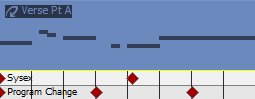
Click the Program button and choose Insert Program Change Keyframe. The program change keyframe row is displayed
at the bottom of the track.
-
Using the Draw  or Envelope
  tool, double-click in the track's keyframe row to add a keyframe.
-
To edit a keyframe, double-click
it to display the Output Settings tab in the Track
Properties window, and then select the program you want to assign
to the keyframe.
-
Right-click the track header,
choose Insert/Remove Envelope, and then choose Insert Sysex from the submenu.
-
Using the Draw
or Envelope tool, double-click in the track's keyframe row to add a keyframe.
-
To edit a keyframe, double-click
it to display the System Exclusive Editor dialog.
TIP To hide the Sysex keyframe row without removing
keyframes, right-click the track header, choose Insert/Remove Envelope, and then choose Hide Sysex from the submenu. You can view the keyframe row again by
right-clicking the track header, choosing Insert/Remove Envelope, and then choosing Show Sysex.
