Inline MIDI Editing

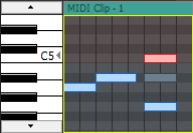
Click the Enable Inline MIDI Editing button to edit MIDI events directly on the timeline. In this mode, you can edit existing MIDI data or create new clips by drawing and erasing notes in a piano roll or drum grid view.

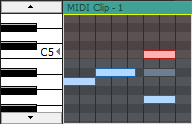
A piano roll allows you to edit MIDI

notes for most patches.

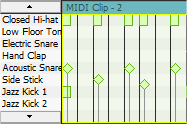
A drum grid allows you to edit MIDI notes

for soft synths that have drum maps defined.

MIDI notes are unavailable for frozen MIDI tracks.

When you edit a MIDI event, all events that use the same clip will be updated. If you want to edit a single event, right-click the event and choose Copy to New Clip from the shortcut menu.

When a MIDI clip's key is set on the Clip Pool tab of the MIDI Track Properties window, the project key and key change markers are applied to MIDI clips, and the MIDI event data will display notes as WYSIWYH (what you see is what you hear).

When a MIDI clip's key is set to None, the project key and key change markers are not applied to MIDI clips.

You can also edit MIDI clips using the Piano Roll or List Editor tabs in the Clip Properties window.

TIP Tips:

  • Hold Ctrl+Shift while double-clicking a MIDI event to enter inline MIDI editing mode.

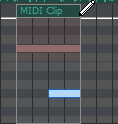
  • While in inline MIDI editing mode, drag over a blank area of the timeline with the Draw tool to create a new clip and draw an empty event.

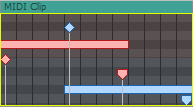
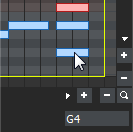
  • While in inline MIDI editing mode, you can hover over a note or velocity stem to view its value in the bottom-right corner of the timeline:
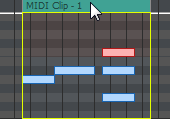
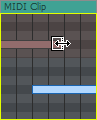
  • If you want to move a MIDI event while in inline MIDI editing mode, drag the top of the event with the Draw or Selection tool:

Choose a drum map or kit for a trackClosed

MIDI tracks can display a piano roll or a drum grid.

Choosing a drum map or kit

  1. Click the Program button on the track header.

  2. Choose Drum Maps from the menu, and then choose Select Drum Map from the submenu. The Output Settings page of the Track Properties window is displayed.

  3. Choose the drum map or kit you want to use.

Displaying the piano roll

If your track is routed to a MIDI device or VSTi soft synth, you can switch from a drum grid view to the piano roll. Click the Program button , choose Drum Maps, and then choose None.

Navigate the piano roll or drum gridClosed

In inline MIDI editing mode, adjusting the height of the track will allow you to see more or less of the piano roll or drum grid. After you set the height of the track, you can use the following methods to navigate.

Scroll vertically

Perform any of the following actions to scroll vertically within a track:

  • Use the scroll buttons at the left edge of the track to scroll up or down:

    Piano roll

    Drum grid

  • With the Draw or Selection tool, hover over the timeline and hold Ctrl while rolling the mouse wheel forward or back.

  • Hold Ctrl while dragging the keyboard/drum list up or down.

  • Hover over the keyboard/drum list and roll the mouse wheel forward or back.

Zoom note height

Perform either of the following actions to zoom note height:

  • With the Draw or Selection tool, hover over the timeline and hold Ctrl+Alt while rolling the mouse wheel forward or back.

  • Hover over the keyboard or drum grid and hold Shift while rolling the mouse wheel forward or back.

Zoom note width

Note width is based on the horizontal zoom level of the timeline. Use the zoom controls in the lower-right corner of the timeline (or hover over the timeline and roll the mouse wheel forward or back) to zoom in or out.

Audition notes with the keyboard/drum gridClosed

You can use the keyboard/drum grid between the track header and timeline to audition the track's MIDI output or record MIDI. When you click the keys, the note is played using the appropriate program at the cursor position.

These buttons are velocity sensitive: clicking toward the right side of a button plays the note with a higher velocity setting than clicking toward the left side.

Select notesClosed

Selecting individual notes

Click individual notes with the Draw or Selection tool to select them. Hold Ctrl while clicking to add or remove notes from the selection.

Selecting groups of notes

Drag with the Selection tool to draw selection boxes around the notes you want to include. The Selection tool can draw three types of selection boxes:

Free Selection

The default behavior of the tool:

Click to select individual notes (hold Shift or Ctrl to select multiple notes).

Drag to draw a rectangular region that begins where you start drawing and ends where you release the mouse button. All notes inside the region will be selected. This method is good for selecting a group of notes that are close together.

Vertical

Can be used to easily select all notes that occur within a time range. The vertical selection box automatically selects all of the notes between your first mouse click and where you draw the selection box; even notes that are not visible at the current magnification are selected.

Horizontal

Can be used to easily select all notes on a single or multiple adjacent rows. The horizontal selection box automatically selects all notes on a row that is touched by the selection box; even notes that are not visible at the current magnification are selected.

To change the type of selection box you are using, right-click the mouse while holding down the left mouse button. Clicking the right mouse button will toggle through the three types of selection boxes.

Add or delete notes Closed

  1. Click the Enable Inline MIDI Editing button .

  2. Use the scroll buttons at the left edge of the track to navigate the piano roll/drum grid:

    TIP Drag the bottom border of the track header to increase the height of the track.

  3. Select an editing tool.

    Tool

    Description

    Draw

    Allows you to insert, edit, select, and move notes.

    NOTE In drum-grid mode, the Draw and Paint tools both draw fixed-length note events.

    Paint

    Allows you to insert notes of a specific length.

    The Paint tool is different from the Draw tool in that it can cross note row boundaries. Use the Paint tool to add a random element to your Acid projects.

    NOTE In drum-grid mode, the Draw and Paint tools both draw fixed-length note events.

    Using the Paint tool

    1. Click the down arrow next to the Paint tool button and choose a note length from the menu.

    2. Click the Paint tool button to select the tool. The Paint tool is selected, and notes will be painted using the selected note length.

    TIP Right-click with the Paint tool to erase notes.

    Erase

    Allows you to remove existing notes.

  4. Inside an event, drag in the row for the pitch you want to create to create a new note, or click an existing note with the Erase tool to remove it.

    If you draw or paint notes beyond the event edge, the event is automatically extended.

    Hold Shift while dragging to override horizontal snapping.

TIP In inline MIDI editing mode, drag in the top portion of the track to create a new event using the active clip:

TIP

Cut, copy, and paste notesClosed

  1. Select the notes you want to cut or copy.

    Click notes with the Draw or Selection tool to select them. Hold Ctrl while clicking to add or remove notes from the selection. You can also drag with the Selection tool to draw selection boxes around the notes you want to select.

  2. Click the Cut button to remove the notes from the event and move them to the clipboard, or click the Copy button to duplicate the events on the clipboard.

  3. Click to position the cursor where you want to paste the notes in the timeline and click the Paste button . Notes will always be pasted into the same row from which they were cut or copied.

TIP Tips:

  • Hold Ctrl while dragging MIDI to create copies of the selected MIDI notes at the location where you drop them.

  • From the Edit menu, choose Paste Repeat if you want to paste multiple copies of the clipboard at the cursor position.

Edit note position Closed

  1. Click the Enable Inline MIDI Editing button .

  2. Use the scroll buttons at the left edge of the track to navigate the piano roll/drum grid:

  3. Select the notes you want to edit:

    • Click a note with the Draw tool to select it. You can hold Ctrl while clicking to select multiple notes.

    or——

    • Use the Selection tool to select multiple events by clicking and dragging to create a selection box around the notes you want to edit.

  4. Drag notes left or right to change their position on the timeline, or drag up or down to assign a note to a different pitch.

TIP Tips:

  • Hold Shift while dragging to override horizontal snapping.

  • Hold Alt while dragging to constrain to horizontal or vertical movement.

Edit note duration Closed

  1. Click the Enable Inline MIDI Editing button .

  2. Select the Draw tool .

  3. Use the scroll buttons at the left edge of the track to navigate the piano roll/drum grid:

  4. Drag either edge of a note. The edge of the note moves, changing its duration:

    Hold Shift while dragging to override horizontal snapping.

Edit note velocityClosed

Note velocity is represented in the timeline by velocity stems. To show or hide velocity stems in inline MIDI editing mode, choose Show Inline MIDI Editing from the View menu, and then choose Show Note-On Velocities orShow Note-Off Velocities from the submenu.

  1. Click the Enable Inline MIDI Editing button .

  2. Select the Draw tool .

  3. If velocity stems aren't already displayed, choose Show Inline MIDI Editing from the View menu, and then choose Show Note-On Velocities or Show Note-Off Velocities from the submenu.

    TIP Press F while in inline MIDI editing mode to toggle the display of velocity stems.

  4. Drag the top of the stem ( for note-on velocity or for note-off velocity) up to increase the note's velocity, or drag down to decrease velocity. If multiple notes are selected, the velocities of all selected notes are adjusted at the same time.

TIP Tips:

  • Double-click the top of a velocity stem to set the note's velocity to the default value (64).

  • Right-click a note and choose Velocity from the shortcut menu. You can then choose a command from the submenu to set the note-on velocity.

  • If multiple notes are selected, you can edit the velocities of all selected notes simultaneously.