Using Clips with Tracks

Think of clips as the palette you can dip your paintbrush in when you paint on the timeline.

A single audio track can contain any combination of loops, one-shots, or Beatmapped clips. MIDI tracks can contain only MIDI clips. For more information about Acid media types, please see Acid types.

On a track with a single clip, events are always created using the track's media.

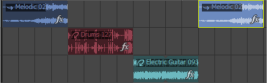
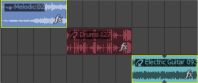
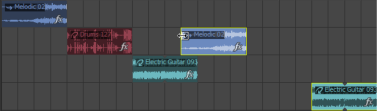
On a track with multiple clips, each event can point to a different media file. In this example, each event represents one of the track's three clips.

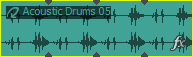
The banner at the top of each event displays the name of the event's source clip.

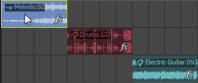
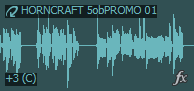
TIP From the View menu, choose Event Information to toggle the display of event-specific information including the media type, clip name and event pitch shift in the timeline:

TIP
Add a clip to a trackClosed

Drag a file from the Windows Explorer, Explorer Window to an existing track in the timeline to add a clip to the track and add an event where you drop the clip. The new clip is set as the active clip for creating events with the Draw or Paint tool.

You can also record into a track to create a new clip.

NOTE You can drag single-stream MIDI files to a track to add clips. When you drag multistream MIDI files to the timeline, tracks and events are created. For more information, please see Adding MIDI Files to a Project.

TIP Tips:

  • You can also drag events across tracks. When you drag an event to a new track, the event is added to the new track where you drop it, and a clip is added to the track's clip pool.

  • You can use the Chopper window to create new clips from a track's existing media.

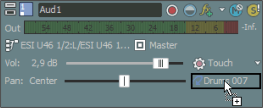
  • If you want to add a clip to a track without creating an event, drag a file from the Windows Explorer, Explorer Window and drop it on the Paint Clip Selector button:

  • Hold Shift while clicking the Paint Clip Selector button to display the Open dialog, where you can add a new clip.

Set the active clip and create eventsClosed

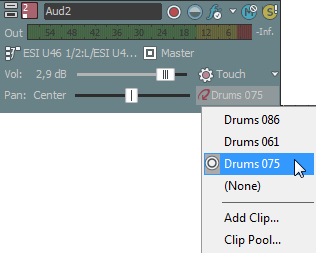
  1. Click the Paint Clip Selector button in the track header. A menu is displayed to list the track's current clips.

  2. Choose a clip from the menu. The selected clip will be used for creating events with the Draw or Paint tool .

Copy clips and events across tracksClosed

In previous versions of Acid, you could only copy and paste events within the same track. You can use clips to copy events between tracks.

TIP Tips:

  • You can also use the Cut, Copy , and Paste buttons in the Clip Pool tab on the audio Track Properties or MIDI Track Properties window to cut, copy, and paste clips across tracks.
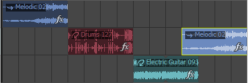
  • Hold Ctrl while dragging an event to a different track to copy the event and clip to the destination track.

  1. Select the events you want to copy.

    Hold Ctrl or Shift to select multiple events. You can select multiple events that use different clips.

  2. Click to position the cursor where you want to paste the events.

  3. Click the track header of the track where you want to paste the contents of the clipboard.

  4. From the Edit menu, choose Paste.

    Events are added at the cursor position, and clips are added to the track for the pasted events as needed.

If you copy an event from track 1. . .

. . . and paste it into track the same track, a new event is created on the same track. No clips are created.


If you copy an event from track 1. . .

. . . and paste it into track 2, the event from track 1 is added to track 2, and a new clip is created for the new event.


If you copy events from tracks 1 and 3. . .

. . . and paste them into track 2, the event from track 1 is added to track 2, and a new clip is created for the new event. A new track is created for the event from track 3.

Copy clips across tracks without copying eventsClosed

You can use the Cut , Copy , and Paste buttons on the audio Track Properties or MIDI Track Properties window to cut, copy, and paste clips across tracks:

  1. Click the Paint Clip Selector button in the track header and choose Clip Pool from the menu.

  2. In the Clip Pool, select the clip you want to cut or copy, and then click Cut or Copy.

  3. Click the Paint Clip Selector button in the track header where you want to paste clips, and then choose Clip Pool from the menu.

  4. Click the Paste button in the Clip Pool.

Create new MIDI clipsClosed

Right-click a MIDI clip and choose Copy to New Clip from the shortcut menu to copy the selected clip to a new, separate clip. Copying an event to a new clip allows you to edit a single MIDI event without affecting other events that use the same clip.

Right-click a MIDI track and choose Create Empty Clip from the shortcut menu to create a new, empty clip and set it as the track's active clip.

TIP You can also use the Chopper window to create new clips from a track's existing media.

Create new audio clips (chop to new clip) Closed
Right-click an audio event and choose Chop to New Clip from the shortcut menu to copy the selected event to a new, separate clip.

Chopping an event to a new clip allows you to edit a single event without affecting other events that use the same clip.

TIP Tips:

  • You can also use the Chopper window to create new clips from a track's existing media.

  • You can use Chop to New Clip to a create new one-shots and loops from recorded clips.

  • Chopping to new clips can also help you reduce file sizes when saving your project as an .acd-zip file. If you have a project with many recorded clips, chop each recorded event to a new clip, and then choose Remove all Unused Clips from the Tools menu. When you save your .acd-zip file, only clips that actually appear on the timeline are saved.

  1. Right-click an event on the timeline and choose Chop to New Clip from the shortcut menu.

    The event length determines the type of clip that will be created:

    1. If the event is an integral number of beats, a loop will be created.

    2. If the event is shorter than the Open files as loops if between setting on the Audio tab of the Preferences dialog, a one-shot will be created.

    3. If the event is longer than the Open files as loops if between setting on the Audio tab of the Preferences dialog, a Beatmapped clip will be created.

    NOTE The Chop to New command is not available for events that contain a loop point:

    NOTE

  2. Use the Chop to New dialog to specify the format and location where you want to save the new file. The original file name is used, and Chopped [number] is appended to the file name.

  3. When you click Save, the new file is saved, and the selected event switches to use the new clip.

Change an event's clipClosed

  1. Select the events you want to change.

  2. Right-click a selected event and choose Event Clip from the shortcut menu. The track's current clips are displayed in a submenu.

  3. Choose the clip you want to use from the submenu. All selected events are updated to use the new clip.

  4. TIP Press C or Shift+C to change all selected events' clips by cycling forward or backward through the track's clips.

Change a clip's color Closed

By default, the events on a track are drawn using the track color. However, you can change the color used to display individual clips. Perform any of the following actions to change the color used to draw a clip's events:

  • Right-click the track header, choose Paint Clip from the shortcut menu, choose Color from the submenu, and then choose the color you want to use for events created with the track's active clip.

  • Right-click an event, choose Event Clip from the shortcut menu, choose Color from the submenu, and then choose a color from the submenu.

  • Right-click a clip on the Clip Pool tab for an audio or MIDI track, choose Color from the submenu, and then choose a color from the submenu.

Rename a clip Closed

You can change the name used to display clips in the Clip Pool and on the timeline. Perform either of the following actions to change a clip's name:

  • Right-click an event, choose Event Clip from the shortcut menu, choose Rename from the submenu, and then type a new name.

  • Right-click a clip on the Clip Pool tab for an audio or MIDI track, choose Rename from the submenu, and then type a new name.

The new name is displayed in the Clip Pool and in the event when Event Information is selected on the View menu.

Remove clips from a trackClosed

To remove unused clips from individual tracks, click the Remove Unused Clips button in the Clip Pool window.

TIP To remove the unused media from your project, choose Remove All Unused Clips from the Tools menu.

Manage clipsClosed

You can use the Clip Pool tab in the Audio Track Properties or MIDI Track Properties window to organize each track's media.

Pitch shift audio clipsClosed

You can use the Clip Properties window to pitch shift all events on the track associated with a specific audio clip.

Select events that use a specified clip Closed

Perform any of the following actions to select events created from a clip:

  • Right-click an event in the timeline and choose Select Events Using This Event's Clip from the shortcut menu to select all events on the track that use the same clip as the selected event.

  • Right-click the timeline, choose Select Events Using Clip, and then choose a clip from the submenu to select all events on the track that use the specified clip.

  • Right-click a clip in the Clip Pool window and choose Select Timeline Events from the shortcut menu.