Pitch-Shifting Events

After selecting events, you can apply a pitch shift. The event-specific pitch shift is calculated after the project key and the track’s pitch shift.

TIP From the View menu, choose Event Information to toggle the display of event-specific information including the clip name and event pitch shift in the timeline:

TIP
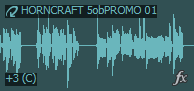
Apply a pitch shift using the shortcut menu Closed

Right-click an event, choose Pitch Shift from the shortcut menu, and choose a setting from the submenu:

Command

Function

Up Semitone

Shifts the selected event up one semitone.

Down Semitone

Shifts the selected event down one semitone.

Reset

Removes any pitch shifting that currently exists in the event.

NOTE When the Preserve pitch when stretching check box is cleared in a Beatmapped track's Properties, you cannot change the pitch of a Beatmapped event.

Apply a pitch shift using keyboard shortcuts Closed

You can use keyboard shortcuts to quickly apply pitch shifting to selected events.

Command

Shortcut

Pitch up 1 semitone

Numeric Keypad +

=

Pitch down 1 semitone

Numeric Keypad -

-

Pitch up 4 semitones

Shift+=

Shift+Numeric Keypad +

Pitch down 4 semitones

Shift+-

Shift+Numeric Keypad -

Pitch up 1 octave

Ctrl+Numeric Keypad +

Pitch down 1 octave

Ctrl+Numeric Keypad -

Reset pitch

Ctrl+Shift+-/=

Ctrl+Shift+Numeric Keypad +/-