Freezing MIDI Tracks
Projects that use soft synths can tax your computer's processing and disk resources. Freezing MIDI tracks allows you to convert each MIDI track to a .wav file, effectively taking your soft synths offline.
|
MIDI Track |
Frozen MIDI Track |
|
MIDI Track Data |
Audio Wave Data |
|
|
|
|
MIDI Messages |
|
|
|
|
|
Soft Synth |
|
|
|
|
|
Audio Buffer |
|
|
|
|
|
Soft Synth Bus |
Soft Synth Bus |
|
|
|
|
Sub/Master Bus |
Sub/Master Bus |
|
|
|
|
Hardware Output |
Hardware Output |

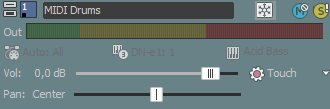
Freeze your tracks when you're finished editing them. After freezing, you can adjust track volume and panning only.
NOTE Notes:
-
Only tracks that are routed to soft synths can be frozen. Track freeze is unavailable for tracks that are routed to MIDI devices or ReWire devices, muted, or armed for recording.
-
Any VSTi parameter envelopes you have applied to a soft synth bus track are also saved into the frozen .wav file.
-
The soft synth bus in the Mixing Console window is not frozen. You can continue to work with effects, volume, and panning on the soft synth bus.
TIP If you freeze your MIDI tracks and save your project as an Acid project with embedded media (.acd-zip), the frozen .wav files will be saved with your project. You can use this method to archive a MIDI project or share your project with a collaborator who doesn't have all your soft synths.
Freeze selected tracks
 on a selected track (or right-click a selected track
and choose
on a selected track (or right-click a selected track
and choose 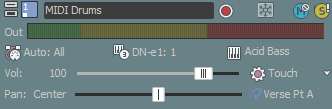
Edit frozen tracks
Unfreeze tracks
Last modified on June 30, 2026
Was this page helpful?
What did you particularly like about this page?
What did you dislike about this page?
Thank you for your feedback.