Bus Tracks
From the View menu, choose Show Bus Tracks to toggle the display of bus tracks at the bottom of the track view. A bus track exists for each bus, input bus, assignable effects chain, and soft synth in your project.
You can use bus tracks to automate volume, panning, and effect parameters
using envelopes. If a bus track
has envelopes applied, its icon will include a fader  in the bus track and in the Mixing Console
window.
For example, if you wanted to adjust the volume of all tracks in your project, you could apply a volume envelope to the Master bus track instead of adjusting each track individually.
Add envelopes to a
bus track

Add effects to a bus track
 in the bus track header to add or
edit bus effects. If there are no effects on the bus, clicking this button
displays the Plug-In Chooser. If a bus already has effects assigned, clicking
this button displays the
 .
Mute a track
 to prevent a bus track from being played in the mix.
Click the
 to toggle trim mode.
 , and you can use the control to edit volume
Solo a track
 to solo all selected audio bus tracks. Click
the
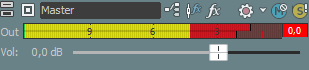
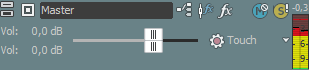
Monitor bus track output levels

Automate VSTi parameters
Resize bus tracks
 to minimize a
track vertically.
 to zoom in vertically
so a bus track fills the lower portion of the timeline.
Last modified on July 01, 2026
Was this page helpful?
What did you particularly like about this page?
What did you dislike about this page?
Thank you for your feedback.