The Audio Plug-In Window
From the View menu, choose Audio Plug-In to toggle the display of the Audio Plug-In window. This window displays effects chains for the events, tracks, busses, assignable FX chains, and soft synths in your project. Use the Audio Plug-In window to enable/bypass effects, add/remove DirectX and VST effects, edit effect parameters, and configure effects automation.
Be
aware that using non-in-place
plug-ins (such as Time Stretch, Pitch-Shift without preserving duration,
and some Vibrato settings) will cause audio to play out of synchronization
with the waveform display in the timeline and with other tracks. If an
effects chain includes non-in-place plug-ins, the effects chain icon will
be displayed in yellow ( ).
).
When using Acid software as a ReWire
device, any effects chain that includes non-in-place plug-ins will
be automatically bypassed to prevent synchronization problems with the
ReWire mixer application. The effects chain icon will be displayed in
red ( ). Apply the plug-ins within the ReWire mixer application.
Enable or bypass effects

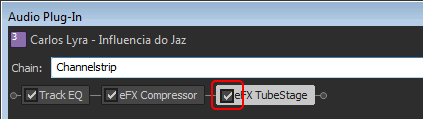
 button in the track list or
Mixing Console window and choosing a command from the shortcut menu.
button in the track list or
Mixing Console window and choosing a command from the shortcut menu.Edit effect parameters
 .
.Add or remove effects
 icon in the Plug-In Chooser.
 icon in the Plug-In Chooser.
 .
.Load an effects chain or plug-in preset
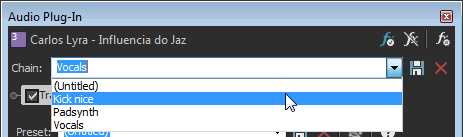
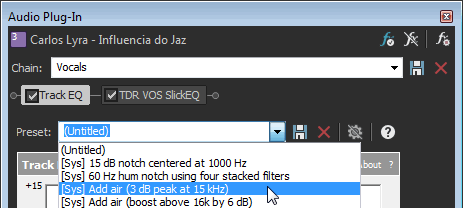
 .
.  .
. Create or delete an effects chain or plug-in
preset
 . The order of the effects in the chain and the settings for
each plug-in are saved.
. The order of the effects in the chain and the settings for
each plug-in are saved.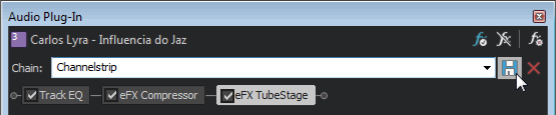
 . The Save VST Preset Bank dialog is displayed.
 .
.Automate effect parameters
 is displayed in the Audio Plug-In window:
Last modified on July 09, 2026
Was this page helpful?
What did you particularly like about this page?
What did you dislike about this page?
Thank you for your feedback.